
top free online notepads with cloud sync sound simple, but the moment you switch between a phone, work laptop, and personal tablet, “simple” turns into missing drafts, duplicate versions, and notes stuck on the wrong device.
The good news is you can get clean, fast note capture with syncing, even on free plans, if you pick tools that match how you actually work, quick scratchpad, structured docs, voice memos, or team collaboration.
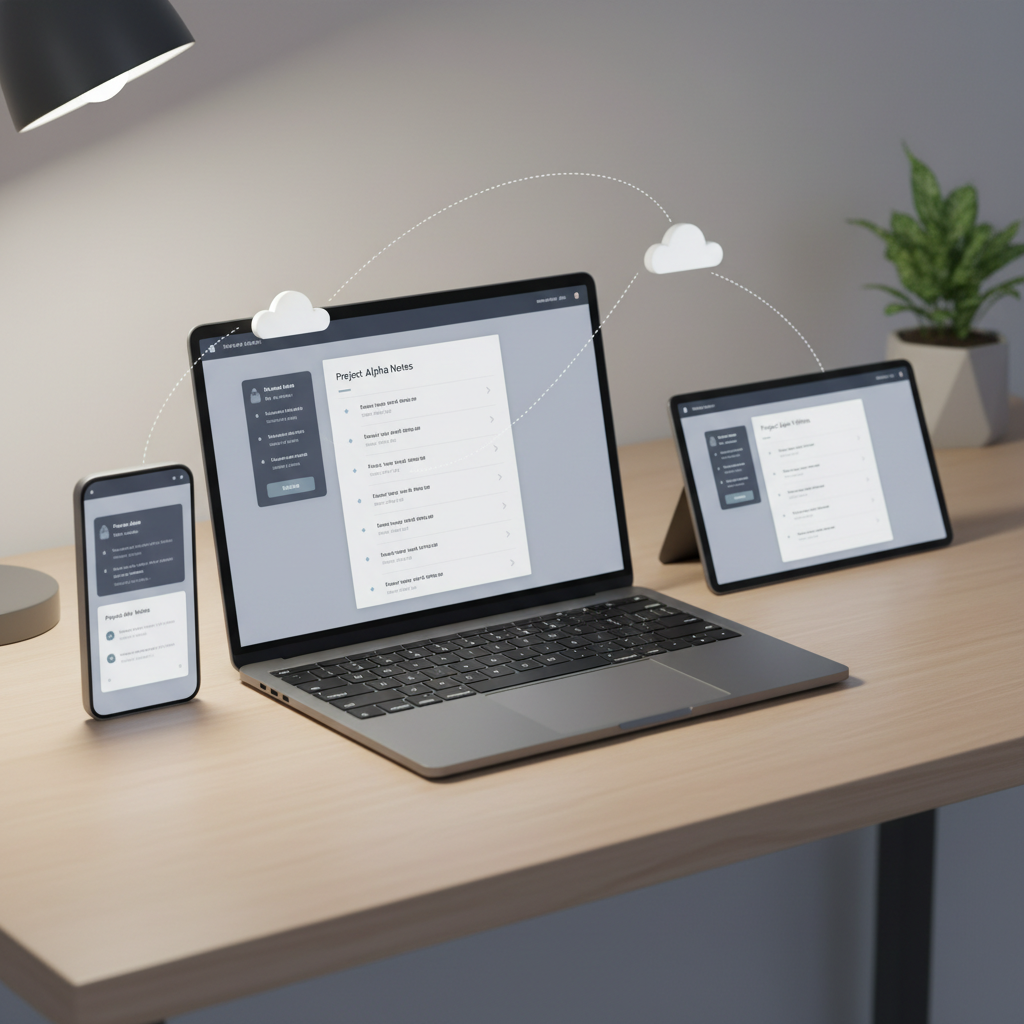
This guide focuses on practical choices for U.S. users in 2026, what each option does well, where free tiers usually limit you, and how to avoid the common trap of “picking the most popular app” and still ending up with messy note sprawl.
What “cloud sync” really means for online notepads
Most people use “cloud sync” as shorthand for “I won’t lose my notes.” In practice, it breaks into a few behaviors, and the differences matter when you’re deciding between top free online notepads with cloud sync.
- Real-time syncing: edits appear on other devices almost instantly, useful when you bounce between mobile and desktop during meetings.
- Offline-first mode: you can write without internet, the app queues changes, then reconciles them later. This is where conflicts can happen.
- Version history: the ability to roll back matters when you accidentally overwrite a note, or a sync conflict merges text badly.
- Account portability: sign-in with Google/Apple/Microsoft, plus exports, determines how “stuck” you feel later.
According to NIST (National Institute of Standards and Technology) guidance on digital identity, using strong authentication methods and protecting account access is central to reducing account takeover risk, in note apps that often means enabling multi-factor authentication when available.
Quick comparison table: best free options to shortlist
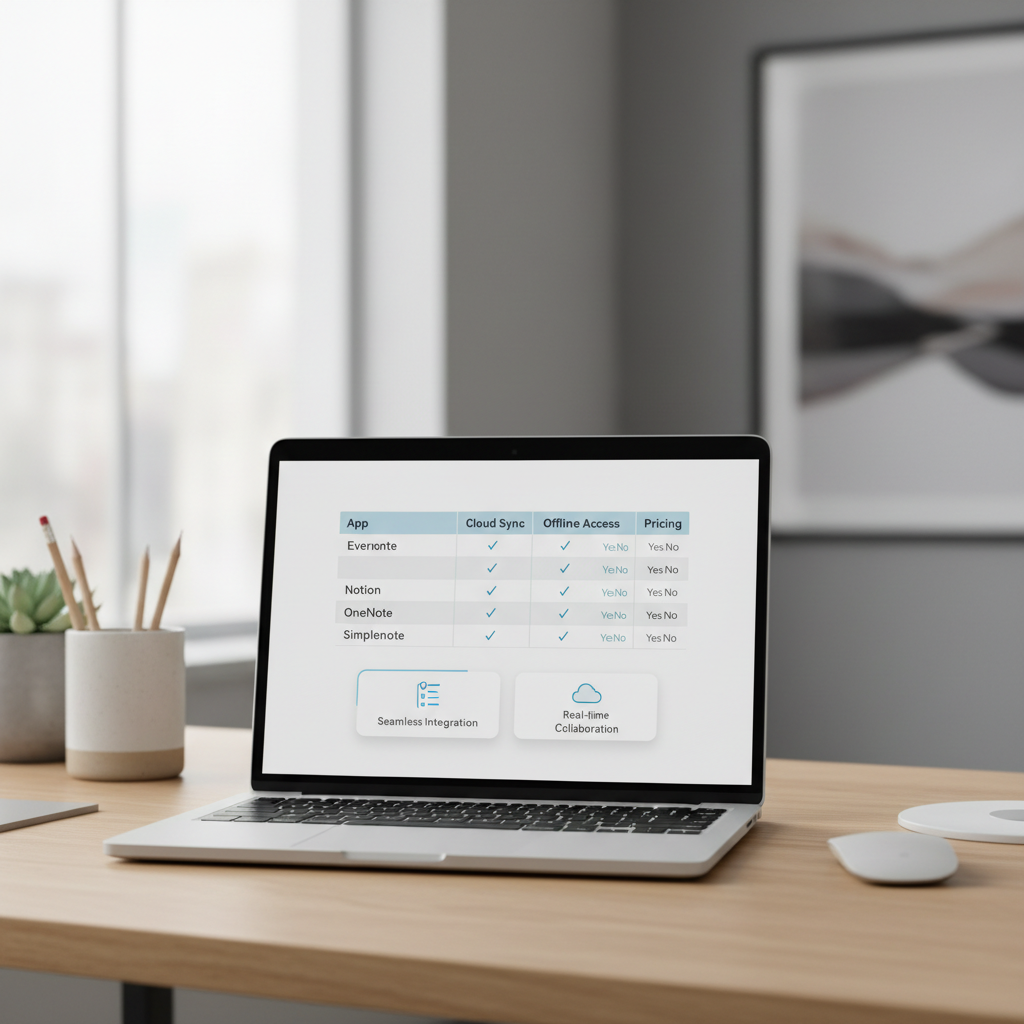
No free tier is unlimited in every direction, storage, devices, history, or collaboration usually gets capped. This table is a fast shortlist, then we’ll get more specific by use case.
| Notepad/App | Best for | Cloud sync style | Typical free-tier limits (vary) |
|---|---|---|---|
| Google Keep | Fast capture, reminders | Google account sync | Fewer advanced formatting features |
| Microsoft OneNote | Heavy note organizing | OneDrive sync | Can feel “big” for quick notes |
| Apple Notes (iCloud) | Apple ecosystem users | iCloud sync | Best experience stays in Apple devices |
| Notion | Docs + databases | Cloud workspace sync | Offline can be limited, collaboration varies |
| Evernote | Clipping + long-term archive | Account sync | Device limits often apply |
| Obsidian Sync (Obsidian + your cloud) | Local-first power users | Depends on sync method | “Free” may require your own cloud setup |
Top free online notepads with cloud sync (2026 picks)
Rather than ranking these like a beauty contest, here’s how they tend to behave in real life, what they’re great at, and what usually annoys people after two weeks.
Google Keep: the quickest “sticky note” system that actually syncs
If your notes are mostly short, checklists, grocery items, meeting bullets, quick ideas, Keep is hard to beat. It opens fast, search is solid, labels work, and reminders tie into Google services.
- Choose it if: you want zero friction capture on Android, iPhone, and web.
- Watch for: longer documents and structured writing feel cramped, you’ll miss richer formatting.
Microsoft OneNote: the free choice for “I need notebooks, sections, and pages”
OneNote shines when your brain wants hierarchy and you like mixing typed notes with screenshots, drawings, and meeting artifacts. For many students and corporate users, it’s the “default” because Microsoft accounts and OneDrive are already in the workflow.
- Choose it if: you manage projects in notebooks and need deep organization.
- Watch for: it can feel heavy for quick scratch notes, and notebook sprawl becomes real.
Apple Notes (iCloud): the cleanest option inside Apple devices
For U.S. users on iPhone and Mac, Apple Notes often wins on speed and “it just shows up everywhere.” It’s especially comfortable for scanning documents, basic checklists, and personal notes.
- Choose it if: you live in Apple devices and want a straightforward system.
- Watch for: cross-platform access can be less convenient if you use Windows or mixed devices.
Notion: when your notepad also needs to be a mini workspace
Notion is more than a notepad, but plenty of people use it as one because it turns notes into pages, wikis, and lightweight databases. If you like templates and structured organization, it can feel like “everything in one place.”
- Choose it if: you want notes plus project tracking, knowledge base pages, or team docs.
- Watch for: offline access and speed depend on device and network, and it’s easy to overbuild.
Evernote: still strong for clipping and long-term reference, with caveats
Evernote remains a familiar name for web clipping, PDF-style reference, and “throw it in and search later.” In many cases, free plans work, but you should expect some limits that push heavy users toward paid tiers.
- Choose it if: you save articles, receipts, and reference material you’ll search later.
- Watch for: device caps or monthly usage limits often become the friction point.
Obsidian (with your own sync): local-first notes with cloud convenience
Obsidian is Markdown-based and local-first, meaning your notes live on your device as files. You can add cloud sync via a paid Obsidian Sync plan or by syncing your vault through a cloud storage provider you already pay for. This isn’t “free cloud sync” in every setup, but it’s worth mentioning for people who want control and portability.
- Choose it if: you care about owning files, linking notes, and long-term portability.
- Watch for: DIY syncing can introduce conflicts if you don’t understand how your cloud tool handles file updates.
Self-check: which notepad type fits you best?
Before you commit, spend two minutes on this. People churn from note apps because they pick a tool that fights their habits.
- I need instant capture with minimal formatting → Keep or Apple Notes tends to fit.
- I need structured notebooks for classes or work → OneNote is usually comfortable.
- I want notes + a workspace with pages and databases → Notion makes sense.
- I clip lots of web content and want strong search → Evernote is often in the conversation.
- I want my notes as local files with optional syncing → Obsidian-style setup.
Key point: if you frequently write long-form drafts, treat “editor comfort” as a requirement, not a nice-to-have, it’s the difference between using the app daily and abandoning it.
How to set up reliable cloud sync (without creating a mess)
Most sync complaints come from setup choices, not the app itself. This is the boring part that saves you later.
Step-by-step setup that prevents common sync issues
- Use one primary account per ecosystem, avoid mixing work and personal sign-ins unless you’re sure what data belongs where.
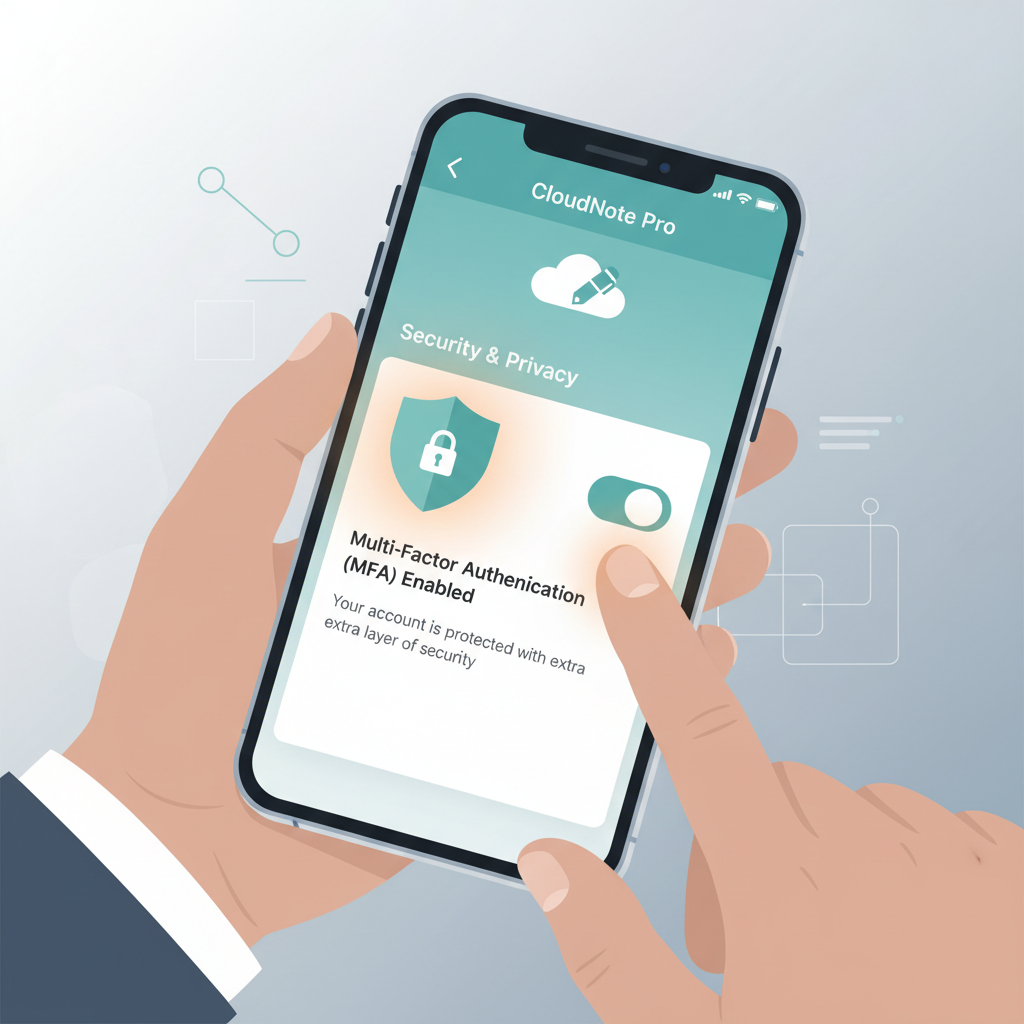
- Turn on MFA when available, note apps contain sensitive info more often than people admit.
- Pick a default inbox note or “Quick Notes” area, then schedule a weekly 10-minute triage to move items into folders/labels/pages.
- Decide your attachment strategy, if you scan lots of PDFs or images, free tiers can hit storage ceilings quickly.
- Test offline behavior by writing a short note in airplane mode, then reconnect and confirm it syncs cleanly.
A practical folder/tag system that stays usable
If you’re not careful, “organization” becomes a second job. A light system tends to survive:
- 1 inbox for capture
- 3–6 top labels/folders (Work, Personal, Ideas, Finance, Health, Home)
- One archive rule: if you haven’t opened it in 90 days, archive or merge
This works across most top free online notepads with cloud sync, even when each app uses different words for labels, notebooks, or pages.
Mistakes to avoid when choosing a free cloud-synced notepad
- Assuming “free” means “future-proof”: free tiers change, and features move around. Make sure export exists.
- Ignoring conflicts: if you often edit on two devices at once, prioritize tools with strong version history.
- Overbuilding a system: too many databases, tags, and templates can slow you down more than the wrong app.
- Saving sensitive data without thinking: if you store IDs, passwords, or medical details, consider a password manager or encrypted storage instead, or ask a security professional if you’re handling regulated info.
According to FTC (Federal Trade Commission) consumer guidance on protecting personal information, enabling stronger account security and limiting exposure of sensitive data online are common-sense steps that reduce the impact of breaches.
When it’s worth upgrading or getting professional help
Free is great until it blocks your workflow. Upgrading often makes sense when you hit any of these:
- You need guaranteed offline access during travel or on unstable Wi‑Fi
- You rely on long version history for compliance or audit trails
- Your team needs admin controls for access, offboarding, and retention
- You handle regulated or client-sensitive content, in that case, talking with IT or a compliance professional is usually smarter than guessing
If you’re choosing a tool for a company, also check where data is hosted, how encryption is handled, and what happens when an employee leaves, these details matter more than a trendy interface.
Conclusion: pick the notepad that matches your note behavior
If you want the least friction, Keep or Apple Notes usually feels right, if you want structure, OneNote tends to stick, if you want a workspace, Notion can be worth the learning curve. For power users who care about portability, local-first tools can be a better long game, even if “free cloud sync” requires a bit of setup.
Your next move: pick two candidates, run a 30-minute test by capturing real notes on phone and desktop, then check search, offline behavior, and export. That small test beats weeks of migrating later.
FAQ
What are the top free online notepads with cloud sync for students in 2026?
Many students do well with OneNote for notebook structure and Google Keep for quick capture. If you’re building study systems with pages and templates, Notion can work, just make sure it doesn’t slow you down.
Which free notes app syncs best between iPhone and Windows?
In mixed-device setups, OneNote and web-first tools often feel smoother. Apple Notes is excellent inside Apple devices, but it can be less convenient when Windows is part of your daily workflow.
Do free cloud-synced notepads work offline?
Some do, some partially do. Offline-first behavior varies by app and platform, so it’s worth testing with airplane mode and confirming the note appears correctly after reconnecting.
How do I avoid duplicate notes when syncing?
Try not to edit the same note on two devices at the same time, and avoid switching between multiple accounts. If the app offers version history, keep it enabled so you can recover from merges.
Are cloud-synced notepads secure enough for personal information?
For general notes, they’re often fine if you use strong passwords and MFA. For highly sensitive information, like passwords or scans of IDs, you may want a dedicated password manager or encrypted storage, and if this is for work compliance, ask your IT or security team.
What’s the easiest way to move notes if I outgrow a free plan?
Start by exporting in common formats when possible, then migrate small batches. Before you commit to any system, check whether the app supports export to PDF, text, Markdown, or a standard archive.
Is Notion a good replacement for a simple online notepad?
It can be, but it’s not always the fastest. If your main need is quick capture, a lighter app may feel better, while Notion shines when notes connect to projects and structured pages.
If you’re trying to standardize notes across a small team, or you keep bouncing between two or three apps and losing track, it may help to define one “capture” tool and one “archive” tool, then build a simple weekly cleanup routine so cloud sync stays useful instead of chaotic.