
how to fix microphone echo on pc usually comes down to one thing: your mic is hearing your speakers (or a “listen” feature is routing your own voice back), and Windows is happily amplifying the loop.
If you’re hearing yourself on Zoom, Discord, Teams, in-game chat, or even in a simple Voice Recorder test, don’t start by buying a new headset. Most mic echo issues on a Windows PC come from a few repeat offenders: wrong device routing, overly aggressive enhancements, open speakers, or a flaky driver.
This guide helps you identify which kind of echo you have, then fix it with practical steps that match real setups, laptop mic plus speakers, USB headset, Bluetooth earbuds, or an external mic on an audio interface.
What “microphone echo” usually means on Windows
People describe “echo” in a few different ways, and the fix depends on which one you’re actually dealing with.
- You hear your own voice delayed: often “Listen to this device” enabled, app monitoring, or audio interface monitoring.
- Others hear themselves (they complain you echo): your speakers leak into your mic, or your app outputs call audio to speakers.
- Everyone sounds “roomy”: mic gain too high, laptop mic picking up reflections, or wrong mic (webcam mic) selected.
- Weird doubling/robot sound: Bluetooth hands-free profile, sample-rate mismatch, or aggressive enhancements.
According to Microsoft Support, many input problems trace back to selecting the correct input device and configuring microphone levels and audio enhancements appropriately.
Fast self-check: identify the source in 3 minutes
Before you change settings, do two quick tests. They save time and prevent random “fixes” that create new problems.
Test A: “Is it acoustic feedback from speakers?”
- Join a call, then mute your speakers (or set volume to 0), keep the mic on.
- If echo disappears for others, your mic is picking up speaker output.
- Plug in headphones, repeat. If fixed, you’ve confirmed the cause.
Test B: “Is Windows routing my mic to my headphones?”
- Open Control Panel → Sound → Recording → Microphone → Properties.
- Check the Listen tab. If “Listen to this device” is enabled, you’ll often hear yourself.
If you want a quick baseline, open Voice Recorder (built into Windows), record 10 seconds, play it back. Echo on playback usually means room acoustics or gain; echo only during calls often means routing or app settings.
Most common causes (and what they look like)
Here’s the short list that covers most “how to fix microphone echo on pc” searches, with the symptoms you’ll typically notice.
| Likely cause | What you notice | Best first fix |
|---|---|---|
| Speakers bleeding into mic | Others hear themselves, worse when volume is high | Use headphones, lower speaker volume, move mic away |
| “Listen to this device” enabled | You hear your own voice locally with delay | Disable Listen in mic properties |
| Wrong input device selected | Using webcam/laptop mic by accident | Select the correct mic in Windows + app |
| Mic level too high / boost | Roomy sound, picks up keyboard and speakers | Reduce mic level/boost, reposition mic |
| Enhancements / AGC causing artifacts | Echo-y, pumping, or hollow sound | Disable enhancements, use app-side noise control |
| Bluetooth hands-free mode | Bad quality + echo/robotic tone in calls | Switch to wired/USB or correct Bluetooth profile |
Fixes in Windows: settings that actually matter
Start here because these changes improve every app, not just one call platform.
1) Pick the right input and output devices (Windows and the app)
This sounds basic, but it’s a top cause of echo: Windows uses one mic, your app uses another, and you troubleshoot the wrong thing.
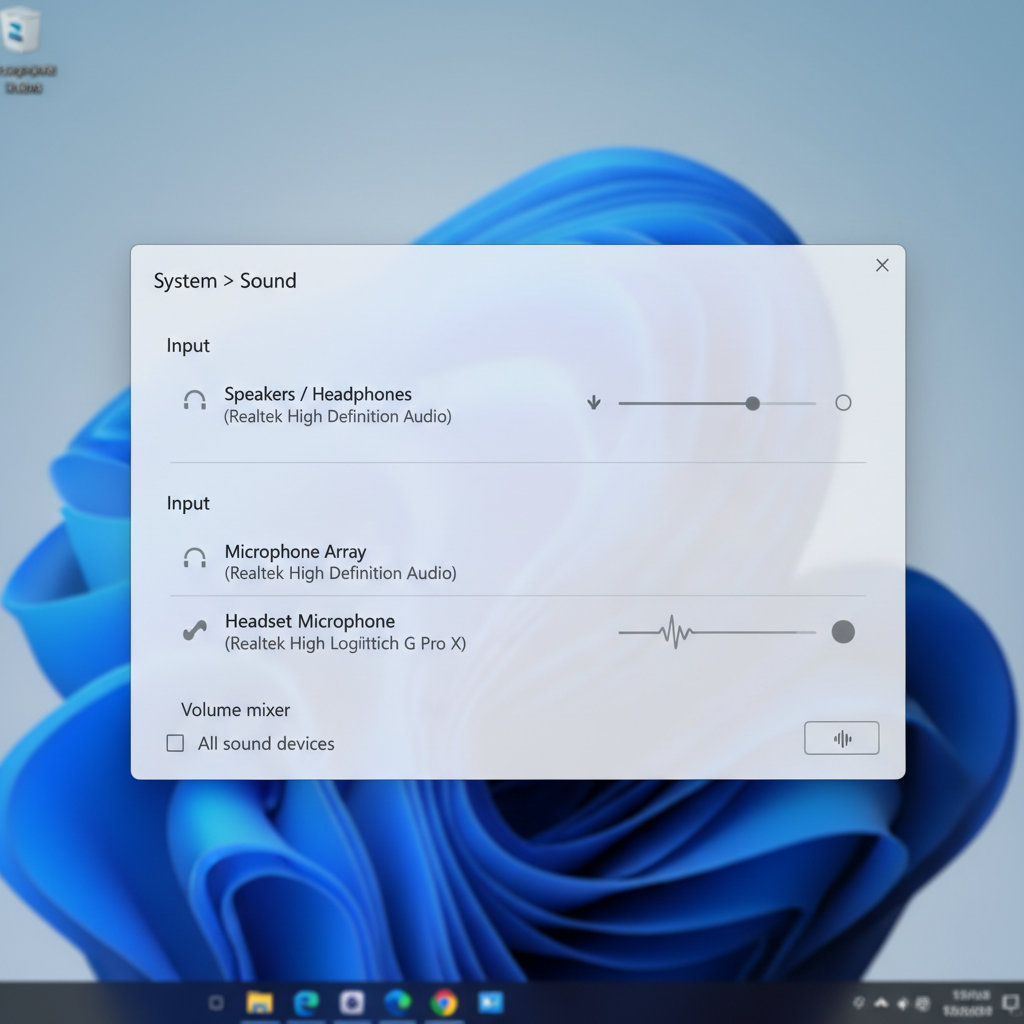
- Go to Settings → System → Sound.
- Under Input, select your intended microphone, then click it and run Test your microphone.
- Under Output, select your headphones or headset during calls.
Then check the app (Zoom/Teams/Discord) audio settings and match both input and output to the same headset path you expect.
2) Disable “Listen to this device”
If your echo is mainly you hearing yourself, this setting is a usual culprit.
- Control Panel → Sound → Recording
- Select your mic → Properties → Listen
- Uncheck Listen to this device → Apply
Some apps also have “mic monitoring” or “sidetone.” If you like hearing yourself a little, keep it low and prefer hardware sidetone on a headset over software monitoring, since software adds delay.
3) Reduce mic level and turn off Mic Boost (when it’s excessive)
On many laptops, default gain is too aggressive. You get that roomy echo because the mic hears everything, including speaker reflections.
- Control Panel → Sound → Recording → Microphone → Properties → Levels
- Lower Microphone level in small steps (try 80 → 70 → 60)
- If Microphone Boost exists, reduce it or set it to 0 dB
After adjusting, do a quick call test at your normal speaking volume, don’t whisper into the mic just to “pass” a test.
4) Disable audio enhancements (or switch approach)
Enhancements can help in some rooms, but they can also create artifacts that people describe as echo. Windows 11 varies by driver vendor.
- Settings → System → Sound → Input → (your mic) → Audio enhancements
- Try setting enhancements to Off
- If you still need cleanup, prefer your call app’s noise suppression and echo cancellation
According to Microsoft Support, turning off enhancements is a standard troubleshooting step when audio behavior becomes distorted or unexpected.
Key takeaways (Windows-side)
- Headphones beat speakers for echo prevention in most home setups.
- Listen should be off unless you intentionally monitor.
- Too much gain often looks like “echo,” but it’s really your room.
App-specific fixes: Zoom, Teams, Discord, and games
Even with perfect Windows settings, the app can reintroduce echo if output routes to speakers or if “auto gain” overcorrects.
Zoom
- Audio settings: set Speaker to your headset, not “Same as system” if you switch devices often.
- Enable Suppress background noise (Auto is fine for many cases).
- If using external speakers, lower volume and move mic farther away, Zoom AEC can only do so much.
Microsoft Teams
- Settings → Devices: confirm Speaker and Microphone are the same headset family.
- Turn off extra third-party audio tools that hook into Teams if troubleshooting.
Discord
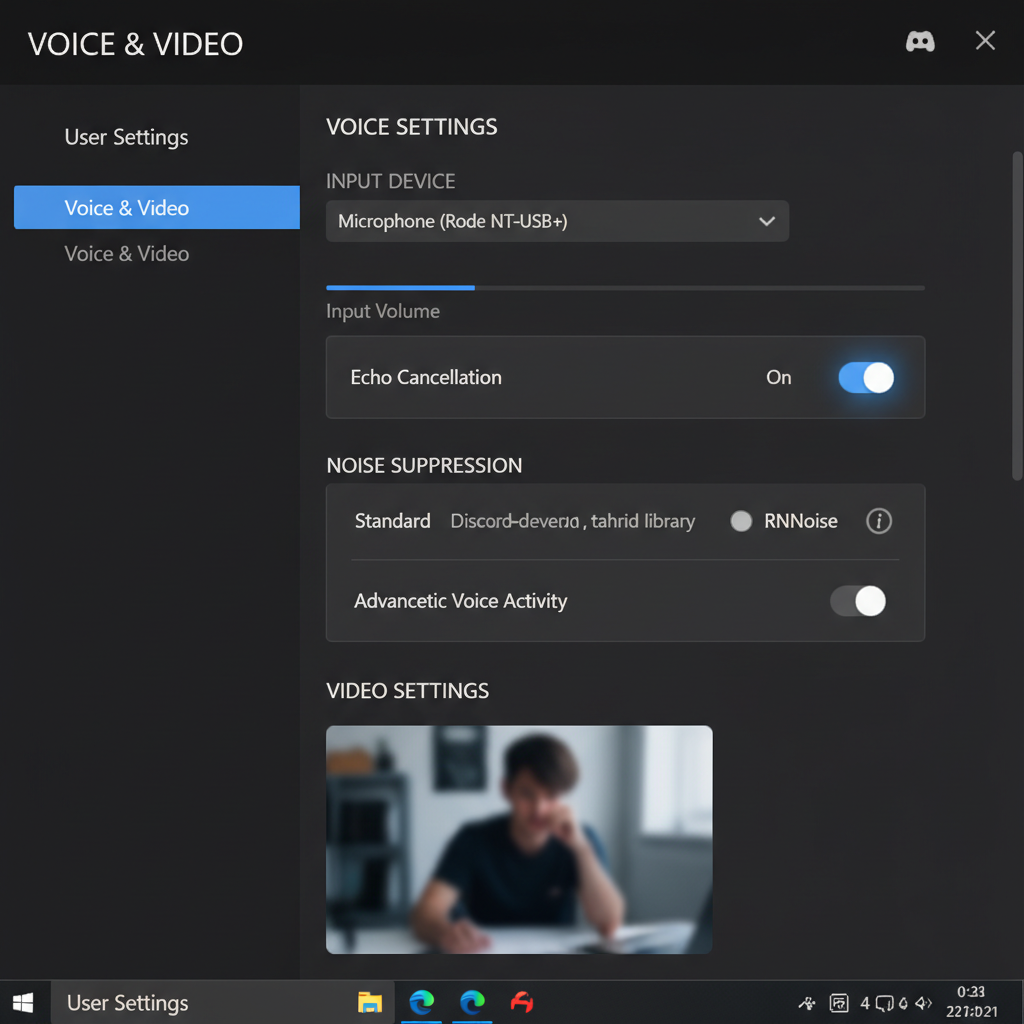
- Voice & Video: enable Echo Cancellation and test both Noise Suppression modes if available.
- Disable Automatic Gain Control if your mic already has good level, AGC sometimes creates pumping and “room” sound.
In-game chat
- Check if the game uses a different output device than Windows.
- Lower mic sensitivity and push-to-talk can be more reliable than “open mic” in noisy rooms.
Hardware and room fixes that beat endless settings tweaks
If you’ve tried the software steps and people still complain, the bottleneck is often physical: where the mic sits, what it “hears,” and how your audio leaves the PC.
Use a headset or earbuds for calls
This is the cleanest way to fix microphone echo on a Windows PC, because it removes speaker bleed entirely. If you must use speakers, keep volume modest and increase distance between speakers and mic.
Reposition the mic
- Keep the mic closer to your mouth, then lower gain.
- Avoid pointing the mic directly at speakers.
- Move away from hard walls or corners that bounce sound back.
Check cable and port basics (especially for analog headsets)
- Try a different USB port for USB mics or headsets.
- For 3.5mm headsets, confirm you’re using the correct combo jack or a proper TRRS splitter.
- Loose connectors can cause odd feedback or crosstalk that feels like echo.
Bluetooth: watch out for “Hands-Free” mode
Bluetooth headsets can switch into a call profile that lowers quality and can add processing artifacts. If your echo problem appears only on Bluetooth, test a wired headset or a USB dongle headset to confirm.
Common mistakes that waste time
- Turning every enhancement on hoping it cancels echo, stacking processing often makes audio worse.
- Cranking Mic Boost to sound “louder,” then wondering why everything sounds like a cave.
- Fixing the wrong device because Windows uses one mic while the app uses another.
- Ignoring the other person’s setup, sometimes the “echo” you hear comes from their speakers, not yours.
If you’re troubleshooting with someone, do a quick swap test: you use headphones while they keep their setup, then flip. It’s not fancy, but it isolates responsibility fast.
When it’s time to update drivers or get professional help
If echo started after an update or you see inconsistent device behavior, drivers and vendor audio software may be involved.
- Update Windows, then check for optional driver updates in Windows Update.
- Install or update the PC vendor’s audio driver package (Realtek, Dell/HP/Lenovo utilities) if your system relies on it.
- If you use an audio interface, confirm sample rate and buffer settings in its control panel, mismatches can create monitoring delay that feels like echo.
If this is for a workplace setup, or accessibility and hearing considerations matter, it can be worth involving IT or an audio specialist, especially when multiple conferencing tools are in play and policy-managed drivers limit what you can change.
Practical “do this now” checklist
- Switch call audio output to headphones, retest.
- In Windows, confirm the correct mic is selected.
- Disable Listen to this device.
- Lower mic Levels, reduce Mic Boost if present.
- Turn Audio enhancements off, then rely on app echo cancellation.
- In the app, set Speaker and Microphone explicitly, not “default,” if devices change often.
Wrap-up: clean audio is mostly routing and placement
If you came here searching how to fix microphone echo on pc, the most reliable path is simple: stop speaker bleed with headphones, make sure Windows and your app use the same devices, then tame mic gain so the mic focuses on your voice instead of your room.
Try the checklist in order, and change one thing at a time so you know what actually solved it. If your setup still misbehaves after driver updates and device checks, that’s usually the moment to test a different headset or involve IT, because hardware quirks and managed audio stacks can limit what settings tweaks can accomplish.
FAQ
Why do I hear myself on my PC microphone with a delay?
That pattern often points to monitoring, either Windows “Listen to this device,” an app’s mic monitoring setting, or audio interface direct monitoring set too high. Turn off Windows Listen first, then check your app and any headset utility.
People hear an echo only when I use speakers. What should I do?
Your mic is picking up your speaker output, and software echo cancellation has limits. Use headphones for calls, or lower speaker volume and increase distance between speakers and mic, it’s the most practical fix.
Does turning on Windows audio enhancements help with echo?
Sometimes it helps, sometimes it creates a hollow or “processed” sound that gets called echo. If troubleshooting, many cases improve by switching enhancements off and letting your conferencing app handle echo cancellation.
How do I stop microphone echo on Discord specifically?
In Discord Voice & Video, confirm the correct input device, then enable Echo Cancellation and test Noise Suppression. If your voice sounds like it swells in and out, try disabling Automatic Gain Control and set input sensitivity manually.
Can a bad headset cause echo?
It can, especially if it leaks audio loudly or has crosstalk on an analog connector. If echo disappears when you switch to a different USB headset, that’s a strong hint the original headset or its connection is the cause.
Why is my Bluetooth headset echoing on Windows?
Bluetooth can switch into a hands-free call profile that changes processing and quality. If the issue appears only on Bluetooth, test wired/USB to confirm, then look for Windows sound device options that select the higher-quality profile when possible.
Is microphone echo always my fault?
No. If you hear the other person echoing, their speakers and mic placement might be the problem. A quick test is both sides switching to headphones; whoever fixes the echo by switching likely had the speaker bleed issue.
What if echo happens only in one app?
That usually means the app has its own audio device selection or processing settings that override Windows. Re-check the app’s speaker and mic choices, then reset its audio settings before changing global Windows settings again.
If you’re trying to fix a stubborn echo across multiple apps, it often helps to standardize your setup, one USB headset, one input, one output, and a known-good set of Windows mic levels, then layer app settings only after that baseline sounds clean.