
how to fix pc not detecting second monitor usually comes down to one of three things: the cable/port path is failing, Windows is set to the wrong display mode, or the graphics driver is confused. The good news is you can isolate which bucket you’re in within 10–15 minutes if you test in the right order.
If you’ve already tried unplugging and replugging, you’re not alone, but that move only helps when the connection is loose. A lot of “second monitor not detected” cases are actually Windows detecting it but not showing it, or the monitor using an input your PC isn’t feeding.
This guide walks through quick checks first, then deeper fixes for Windows 10/11 and common GPU setups. I’ll also call out the spots where you should slow down, like driver updates and docks, because it’s easy to waste time chasing the wrong issue.
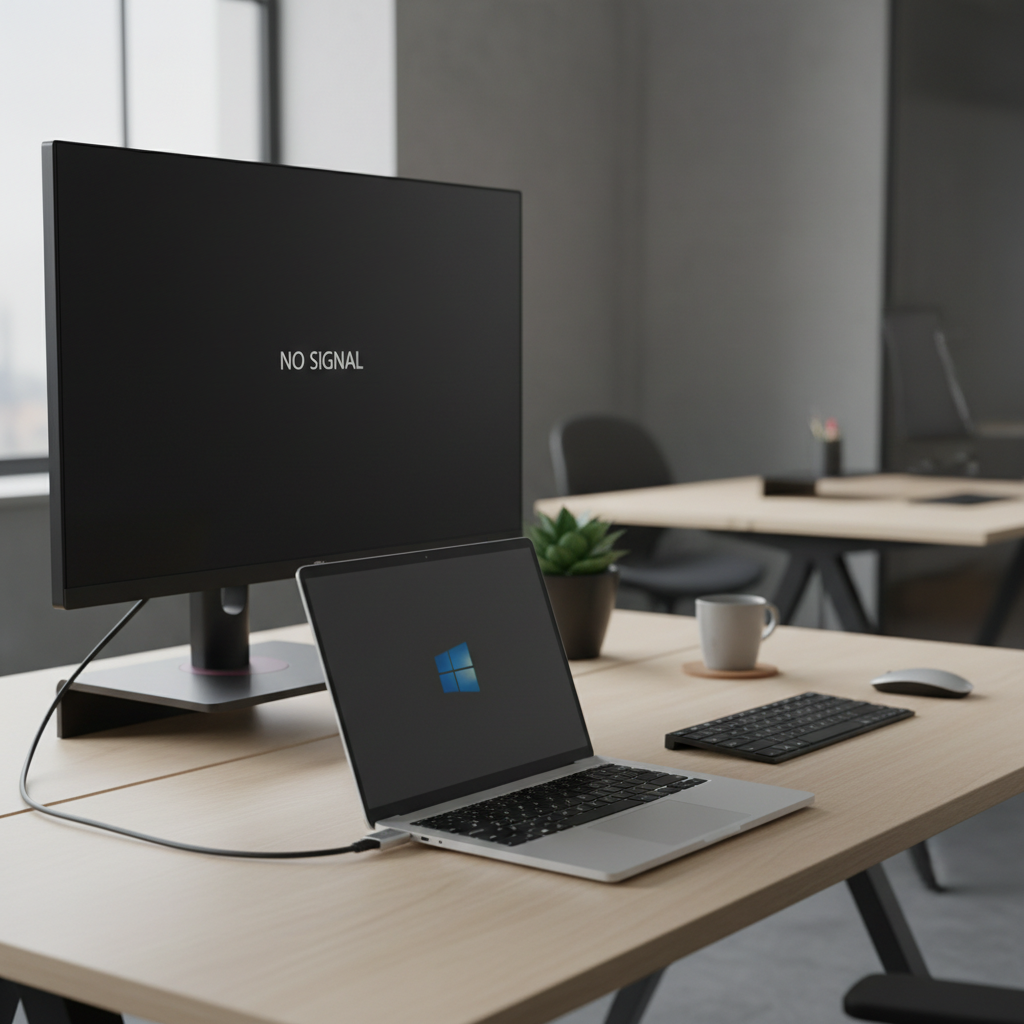
Start with the fastest hardware checks (they fix more than you’d think)
Before you change settings, make sure the signal chain is real. “No signal” and “not detected” can look identical from your chair, but they point to different failures.
- Confirm the monitor input: set the monitor to the correct input source (HDMI 1 vs HDMI 2, DP vs USB-C). Auto-select often fails when multiple devices are connected.
- Swap the cable: HDMI and DisplayPort cables can partially fail and still “look fine.” If a spare cable works, you’ve found the issue.
- Try a different port on the PC: a bad port is common on desktops (dust, wear) and on laptops via loose USB-C.
- Remove adapters/docks temporarily: connect the monitor directly to the PC if possible. Many docks add complexity (power, bandwidth, driver layers).
- Power cycle the monitor: unplug power for 20–30 seconds, then plug back in. Some monitors cache the last handshake and get stuck.
Quick interpretation: if the monitor shows its own menu and input options clearly, the monitor panel is probably fine; you’re chasing the connection, mode, or driver.
Use Windows display controls the “right” way (most misses happen here)
Windows can detect a display but keep it hidden via projection mode, resolution, or placement. This is the part where people think nothing is happening.
1) Force Windows to look for the display
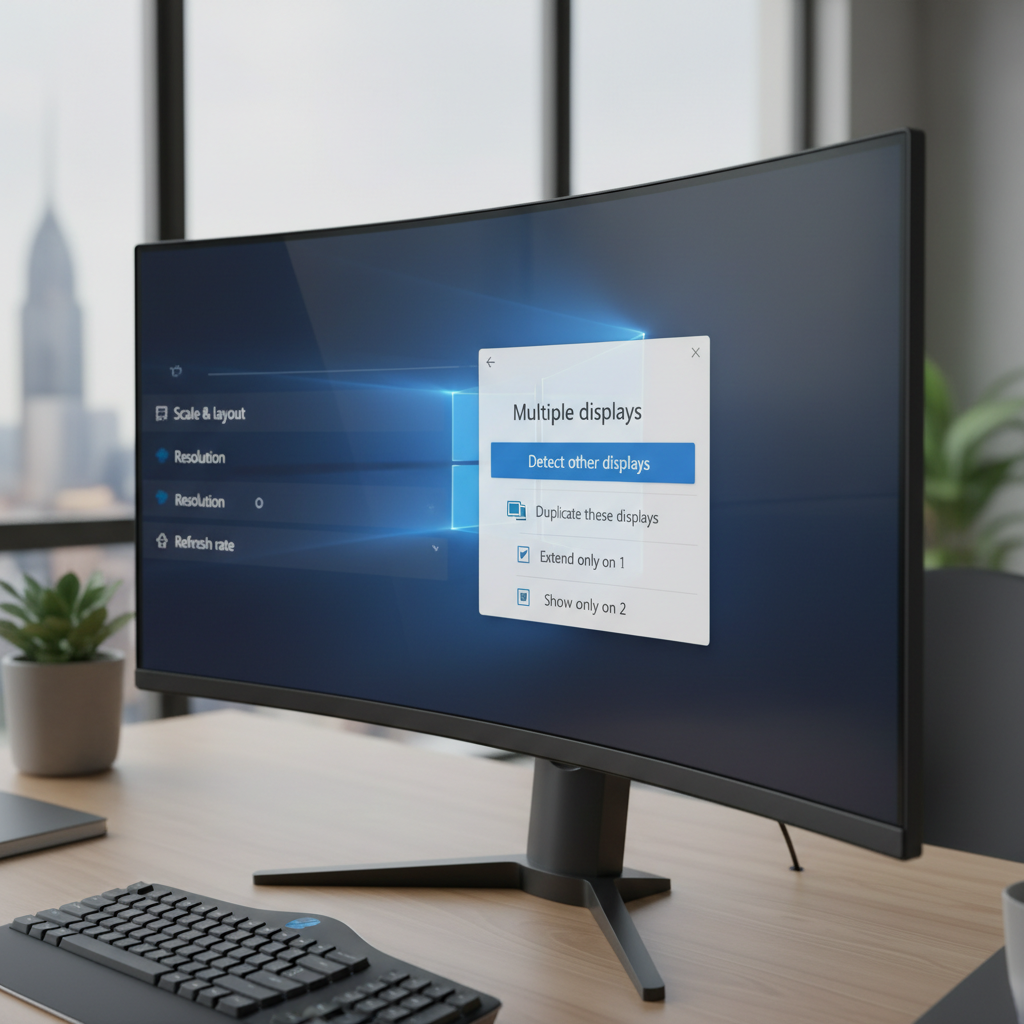
- Go to Settings → System → Display
- Scroll to Multiple displays and click Detect
- If it appears, choose Extend (not Duplicate, not Second screen only unless you mean it)
2) Check projection mode (easy to flip by accident)
- Press Win + P
- Try Extend
3) Fix “it’s there but off-screen” placement
If the second monitor is detected but you can’t move windows onto it, the virtual layout may be wrong.
- In Display settings, drag the monitor rectangles so they match your physical setup
- Click Identify to see which is 1 and 2
- Set the correct one as Make this my main display if needed
Diagnose the situation in 2 minutes (use this quick checklist)
Instead of trying random fixes, pin down which category you’re in. That determines what will actually work.
| What you see | Most likely cause | Best next step |
|---|---|---|
| Monitor says “No Signal” | Wrong input, bad cable/port, adapter/dock issue | Switch input, swap cable, bypass dock |
| Windows shows 2 displays, but screen is blank | Refresh rate/resolution unsupported, HDR/VRR conflict sometimes | Lower refresh rate, set native resolution |
| Nothing appears in Display settings | Driver issue, GPU output disabled, dock needs drivers | Update/reinstall GPU driver, check Device Manager |
| Second monitor works in BIOS or login screen, then fails | Windows driver/profile problem | Clean driver install, reset display settings |
| Works sometimes, drops out randomly | Bandwidth/power (USB-C), flaky cable, overheating dock | Shorter cable, power delivery, firmware updates |
Fix graphics drivers and adapters (where “detected” often breaks)
When people search how to fix pc not detecting second monitor, drivers are the most common “real” fix after cables. You don’t need to be a power user, but you do need to be deliberate so you don’t create a new problem.
According to Microsoft Support, keeping Windows updated and using compatible display drivers can resolve many detection and external display issues.
Update Windows and GPU drivers
- Windows Update: Settings → Windows Update → Check for updates
- NVIDIA/AMD/Intel: use the official apps (GeForce Experience, AMD Software: Adrenalin Edition, Intel Driver & Support Assistant) or the vendor’s driver page
When “update” doesn’t work, do a clean reinstall (carefully)
- In Device Manager → Display adapters → right-click your GPU → Uninstall device
- Reboot, then install the latest driver from the GPU vendor
- If you use a USB-C dock, install the dock’s driver/firmware from the manufacturer, many rely on that layer
Key point: if you’re on a work laptop with IT policies, driver installs might be locked down, in that case you’ll need admin support rather than fighting it for hours.
USB-C, docks, and bandwidth: the modern “hidden” reason
USB-C makes dual monitors convenient, but it also introduces bandwidth rules. A single USB-C port may not support the resolution/refresh rate you’re asking for, especially through a dock.
- Check your port type: not every USB-C supports DisplayPort Alt Mode, and not every laptop supports two displays from one port.
- Lower refresh rate: try 60Hz temporarily, then move up if stable.
- Prefer DisplayPort when available: DP often behaves more predictably than HDMI through certain docks.
- Power delivery matters: underpowered docks can cause intermittent detection, connect the dock’s power supply and the laptop charger when recommended.
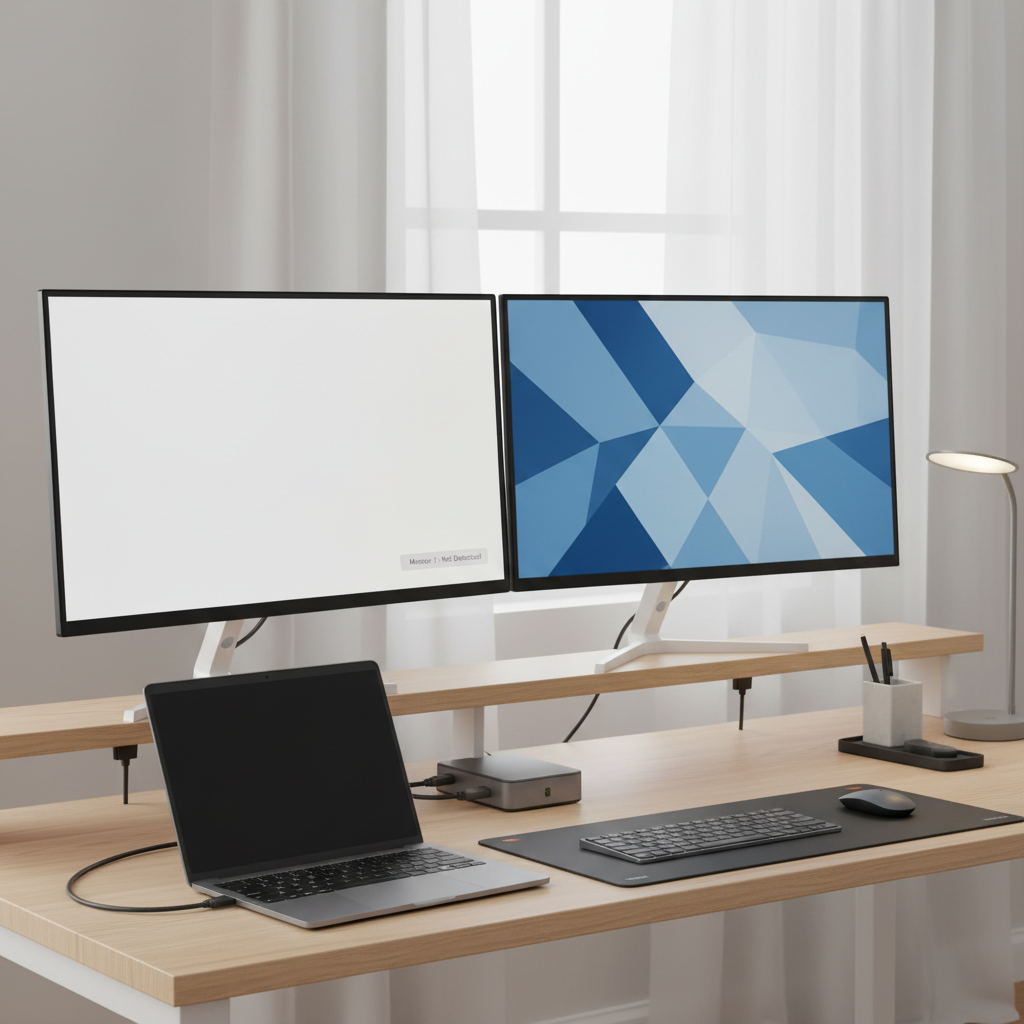
Advanced fixes that are worth trying (only after the basics)
If the monitor still won’t show up, these steps help in the stubborn edge cases, especially after hardware changes or driver crashes.
- Reset the graphics driver: press Win + Ctrl + Shift + B. Screen may flicker, that’s normal.
- Check Device Manager for hidden issues: look for display/monitor devices with warning icons, then update or uninstall/re-scan.
- Match resolution to the monitor’s native spec: Settings → Display → choose the external monitor → set Display resolution to its native value.
- Reduce refresh rate: Advanced display settings → set to 60Hz to test stability.
- Disable/enable the adapter: Device Manager → Display adapters → Disable device → Enable device.
If you recently enabled HDR, variable refresh rate, or a non-native scaling setup, consider reverting to defaults to test. Those features are great when stable, but they can expose compatibility quirks across older panels and adapters.
Common mistakes that waste time (and how to avoid them)
These are the traps that make the problem feel random when it isn’t.
- Assuming the monitor is dead because it’s black: check the on-screen menu and the input source before anything else.
- Updating the wrong driver: “generic display adapter” fixes can be temporary. Use NVIDIA/AMD/Intel sources for the GPU when possible.
- Stacking adapters (USB-C to HDMI to another converter): each hop adds failure points, simplify the chain.
- Ignoring cable spec: high refresh + high resolution may need higher-grade HDMI/DP cables. If 60Hz works but 144Hz fails, that’s a clue.
Key takeaway: if a direct connection works but the dock path fails, treat the dock/adapter as the primary suspect, not Windows.
When it’s time to get professional help
If the second display never works on that PC with any cable/monitor combination, you may be looking at a failing GPU output, a damaged USB-C port, or a motherboard issue. That’s where DIY can turn into guesswork.
- If your laptop port feels loose, overheats, or disconnects with small movement, consider a repair shop diagnosis.
- If you’re seeing artifacting, crashes, or repeated driver failures, a technician can help rule out hardware faults.
- For corporate devices, IT support is often the fastest path, since policy-managed drivers and dock firmware are common.
Conclusion: the shortest path back to a working dual-monitor setup
Most fixes are boring in a good way: confirm the monitor input, swap cable/port, then force Windows to Detect and set Extend. If that still doesn’t do it, the next highest-value move is a GPU driver refresh, and for USB-C docks, updating the dock layer and reducing refresh rate often turns “not detected” into stable.
Action ideas: do one direct-connect test (no dock, no adapter chain), then if Windows still can’t see it, focus on the driver path instead of repeating cable swaps.
FAQ
Why does my PC not detect a second monitor even though it’s plugged in?
Usually the monitor is on the wrong input, the cable/port handshake fails, or Windows is set to a mode that hides the display. A direct connection test helps separate hardware from settings quickly.
How do I force Windows 11 to detect my second monitor?
Go to Settings → System → Display, scroll to Multiple displays, then click Detect. If it appears, pick Extend and confirm the layout matches your desk.
My second monitor shows “No Signal,” is that a Windows problem?
Often it’s not. “No Signal” typically points to input selection, cable/port issues, or an adapter/dock problem. Try switching the monitor input and swapping the cable before changing Windows settings.
Does updating graphics drivers help when a monitor isn’t detected?
Yes, in many cases. Display detection relies heavily on the GPU driver. If simple updates don’t help, a clean reinstall can resolve corrupted profiles, but be cautious on managed work PCs.
Why does my monitor work sometimes and then disappear?
Intermittent dropouts often relate to bandwidth (high resolution/refresh over USB-C), flaky cables, or docks that run hot or lack enough power. Testing at 60Hz and using a shorter, better-rated cable can reveal the pattern.
Can a USB-C port support two monitors?
Sometimes, but it depends on the laptop, the port capabilities, and whether the dock uses DisplayPort Alt Mode or another solution. If one monitor works and the second never does, it may be a limitation rather than a fault.
What’s the fastest keyboard shortcut to fix external display issues?
Win + P helps you switch projection modes, and Win + Ctrl + Shift + B resets the graphics driver. They won’t fix bad cables, but they can fix “Windows got stuck” situations.
If you’re trying to get back to a reliable dual-screen workflow and don’t want to keep guessing, it can help to standardize your setup, one known-good cable, one proven dock model, and a driver update routine you trust, because consistency fixes a lot of the “it worked yesterday” frustration.