
How to Fix High CPU Usage on Windows PC
How to fix high cpu usage on windows usually starts with one simple question: what exactly is eating your processor right now. When CPU usage stays high, your PC feels slow, fans get loud, apps stutter, and even basic tasks like opening a browser can turn into a wait.
The good news is that most “mystery” CPU spikes come from a handful of repeat offenders: a runaway app, too many startup items, an update or antivirus scan in the background, or a driver issue. This guide walks you through quick checks first, then deeper fixes if the problem keeps coming back.
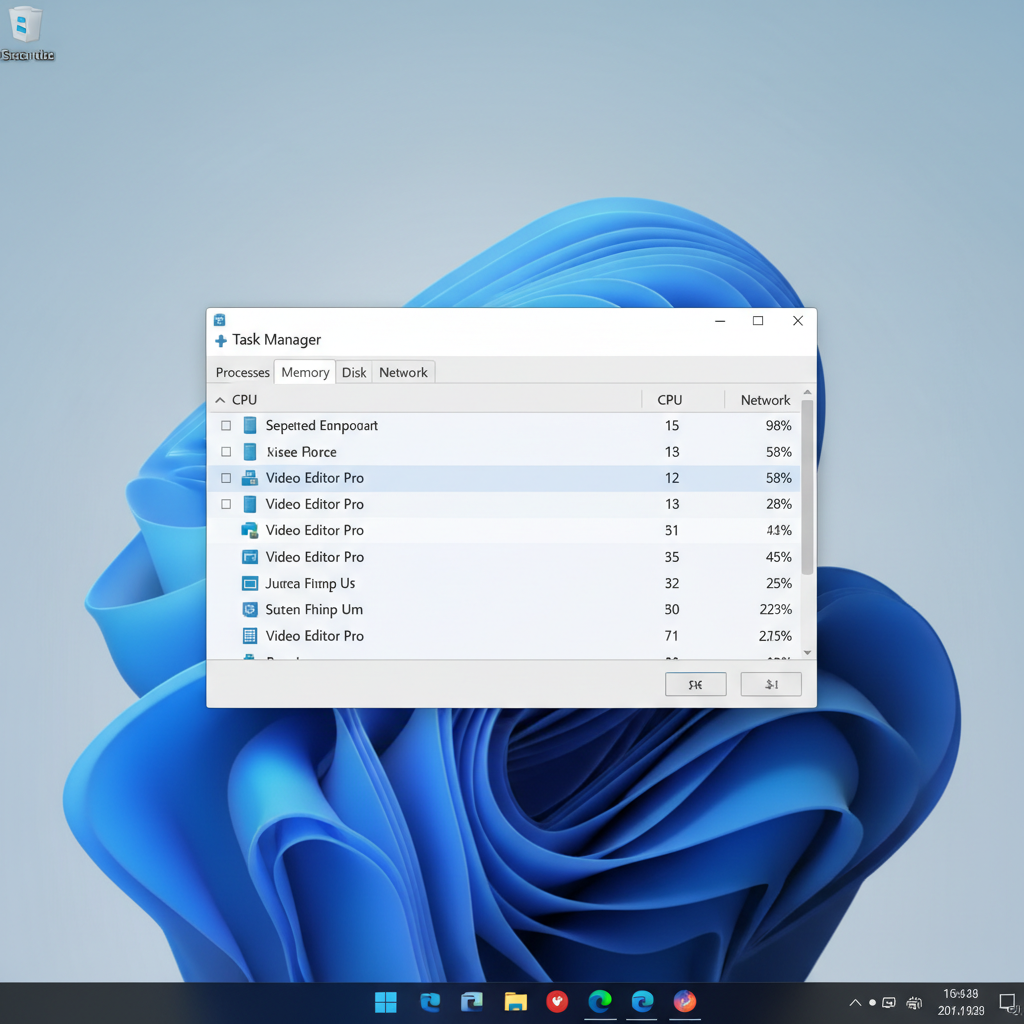
One quick note before you start changing settings: short CPU spikes are normal, especially when you launch apps, install updates, or decompress files. What you’re looking for is sustained high CPU (for example, staying above 70–90% for several minutes while you’re doing ordinary work).
Confirm it’s really the CPU (and identify the culprit)
When people search how to fix high cpu usage on windows, they often assume “Windows is broken.” In practice, it’s usually one process that’s misbehaving, and you can spot it in a minute.
Use Task Manager the right way
- Press Ctrl + Shift + Esc to open Task Manager.
- On Processes, click the CPU column to sort highest to lowest.
- Look for one item constantly at the top, not just briefly spiking.
- Right-click the process and choose Search online if you don’t recognize it.
Quick decision table: what the top process usually means
| Top CPU process | What it often indicates | Safe first action |
|---|---|---|
| Google Chrome / Edge | Too many tabs, heavy extensions, runaway page | Close tabs, disable extensions, update browser |
| Antimalware Service Executable | Microsoft Defender scan running | Let it finish, schedule scans, check exclusions |
| Windows Update / Installer | Updates installing in background | Wait, reboot after updates, keep plugged in |
| System / Service Host | Driver, Windows service, or device issue | Check Resource Monitor, update drivers |
| Unknown app name | Potential unwanted program | Scan for malware, uninstall if suspicious |
Key takeaway: don’t guess. Find the top CPU process first, then pick the fix that matches what you see.
Fast fixes that usually bring CPU down within minutes
If you’re troubleshooting how to fix high cpu usage on windows under time pressure, start here. These steps are low-risk and often immediately effective.
- Restart the PC (a real restart, not sleep). This clears stuck services and memory leaks.
- Close the top CPU app and reopen it. If it keeps spiking, try an alternative app temporarily.
- End task only for apps you recognize. Avoid ending critical Windows processes unless you know what they do.
- Pause syncing tools like OneDrive/Dropbox if they’re indexing a huge folder.
- Unplug unused USB devices (rare, but a flaky device can trigger driver loops).
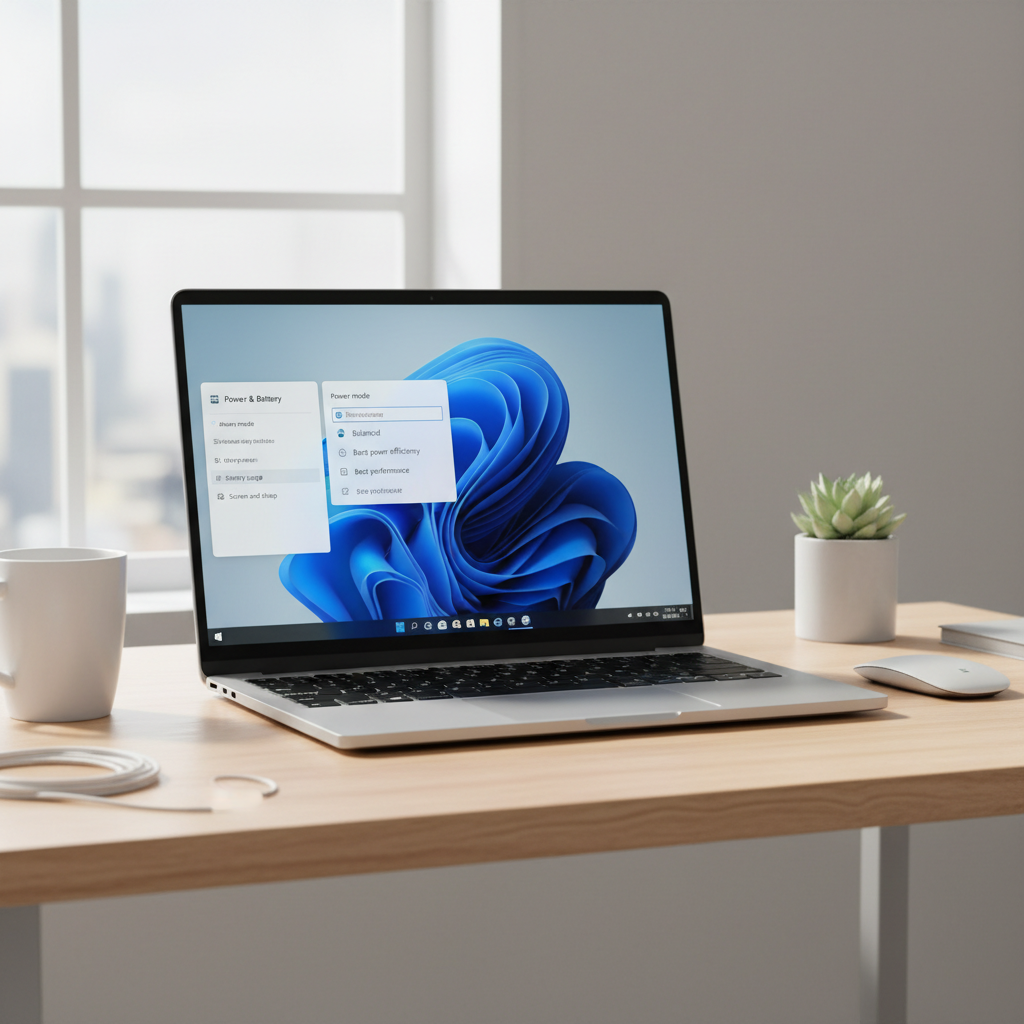
If your fan is screaming even at idle, also switch to a calmer power profile: go to Settings > System > Power & battery and try Balanced. This won’t “fix” a runaway process, but it can reduce the worst thermal behavior while you troubleshoot.
Stop background drain: startup apps, browser extensions, and overlays
A very common pattern is “my CPU is high right after boot.” That’s usually because too many apps auto-start, plus a browser restoring a heavy session.
Trim startup items
- Open Task Manager > Startup apps.
- Disable items you don’t need immediately at login (chat clients, game launchers, updaters).
- Keep drivers and security tools enabled unless you have a specific reason.
Browser-specific checks
- Disable or remove extensions you barely use (ad blockers are fine, but poorly-made add-ons can spike CPU).
- Turn off “continue running background apps” in browser settings if you don’t need it.
- Check the browser task manager (Chrome: Shift+Esc) to find the tab/extension burning CPU.
Game/meeting overlays and recorders
Xbox Game Bar, Discord overlay, screen recorders, and “performance boosters” can create constant load. If CPU jumps when you open a game or a Zoom/Teams call, temporarily disable overlays and see if usage stabilizes.
Handle Windows Update, Defender, and indexing without breaking things
Sometimes the correct fix is simply letting the job finish. But if these services repeatedly peg your CPU, you can usually tame them without disabling security.
Windows Update
- Go to Settings > Windows Update and confirm updates aren’t stuck.
- Reboot after updates. A “pending restart” can keep background work running longer than you expect.
- If it’s been stuck for hours, run the built-in troubleshooter (Settings > System > Troubleshoot).
Microsoft Defender
According to Microsoft (Windows Security documentation), real-time protection and scheduled scans are designed to run in the background, and CPU usage can rise during scanning. If you see Defender hitting CPU daily at the same time, set scans to run when you’re away and make sure Windows is up to date.
- Leave real-time protection on in most cases.
- If a specific folder triggers heavy scanning (like huge developer builds), consider exclusions carefully; if you’re unsure, ask IT or a security professional.
Search indexing
Indexing can spike after big file changes. If you just moved photos or installed large apps, give it time. If it never settles, limit indexed locations in Settings > Privacy & security > Searching Windows.
Fix persistent high CPU: drivers, malware, and system file issues
If you’ve tried the “easy” moves and CPU still runs hot at idle, you’re likely dealing with a driver loop, unwanted software, or corrupted system files. This is the point where your troubleshooting needs a bit more care.
Update Windows and key drivers
- Install pending Windows updates (including optional driver updates if they’re from your device vendor).
- Update GPU drivers from NVIDIA/AMD/Intel if you do graphics-heavy work.
- If CPU spikes started right after a driver update, consider rolling back that device in Device Manager.
Run a malware scan (without installing random “cleaners”)
Unknown processes, browser pop-ups, or CPU usage that spikes the moment you connect to the internet can be suspicious. Use Windows Security first, and add a reputable second-opinion scanner if needed. Avoid “registry cleaners” that promise miracle speed-ups; they often add more problems than they solve.
Repair system files
According to Microsoft (Windows support guidance), built-in tools like System File Checker can repair missing or corrupted system files. Open Command Prompt as Administrator and run:
- sfc /scannow
- DISM /Online /Cleanup-Image /RestoreHealth (if SFC reports issues it can’t fix)
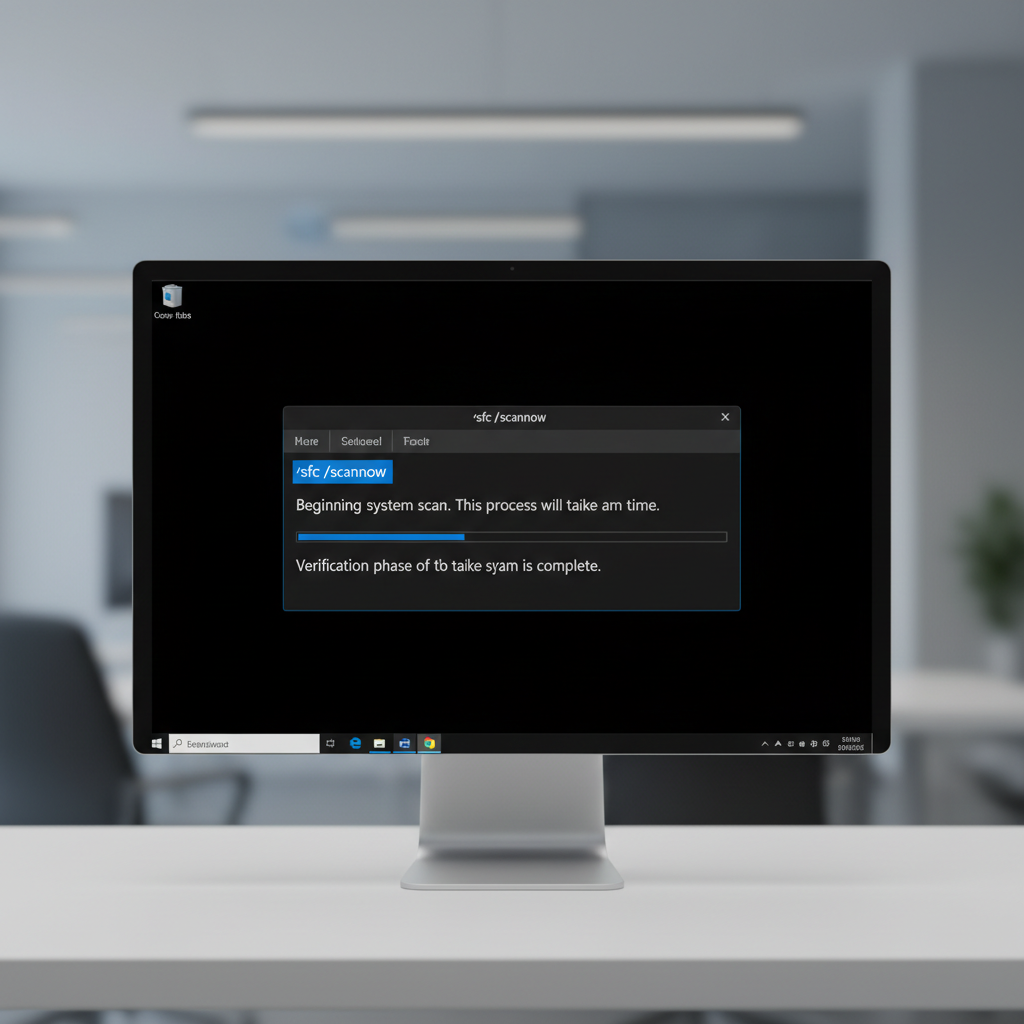
These commands can take a while. Don’t interrupt them unless the PC is truly frozen.
Self-check checklist: which situation are you in?
- High CPU only in one app: focus on updating/reinstalling that app, removing add-ons, or changing settings.
- High CPU right after startup: reduce startup apps, check updates, give indexing time.
- High CPU at idle: look for hidden background tools, driver issues, malware, system repairs.
- High CPU during video calls or gaming: overlays, GPU drivers, hardware acceleration settings matter.
- High CPU after a recent change: reverse the last big change (new driver, new antivirus, new peripheral).
Practical “fix plan” you can follow in 20–40 minutes
If you want a straightforward path for how to fix high cpu usage on windows, this sequence minimizes wasted effort:
- Task Manager: identify top CPU process, note its name.
- Restart PC, re-check CPU at idle.
- Disable obvious startup items, reboot once more.
- Update Windows, then update GPU/chipset drivers if relevant.
- Run Windows Security scan; uninstall suspicious apps you don’t remember installing.
- Run SFC/DISM if the problem still looks “system-level.”
When it’s time to get professional help (or consider hardware limits)
If CPU stays near 100% even on a clean boot, or the PC randomly shuts down, you may be hitting thermal issues, failing hardware, or a deeper OS problem. In those cases, it’s reasonable to consult a qualified technician, especially if the machine is under warranty.
- Overheating signs: very hot chassis, sudden throttling, unexpected shutdowns. Cleaning vents can help, but opening a laptop may affect warranties.
- Older CPUs: modern apps, browsers, and video conferencing can overwhelm older dual-core processors; upgrading RAM/SSD helps responsiveness, but it won’t magically create CPU headroom.
- Work devices: if this is a managed PC, involve IT before changing security settings or uninstalling agents.
Conclusion: get the CPU under control without guesswork
Most of the time, the real fix is boring in a good way: identify the top CPU process, cut unnecessary startup/background load, keep Windows and drivers current, and scan for unwanted software. If you do those in order, you usually stop chasing symptoms and start seeing stable CPU behavior again.
If you want an easy next step, open Task Manager right now, sort by CPU, and write down the top three processes you see during a slowdown, that short list tells you where to spend your attention.
FAQ
Why is my CPU usage so high when nothing is open?
“Nothing open” often still means background work is running: updates, Defender scans, cloud sync, indexing, or startup apps. Task Manager sorted by CPU will usually reveal the real source within a minute.
Is it safe to end tasks in Task Manager?
Ending a normal app is typically safe, but ending Windows system processes can cause instability or a forced restart. If you’re unsure, search the process name first and avoid anything labeled System, Windows, or Service Host unless you know what you’re doing.
Does high CPU usage damage my PC?
High CPU by itself is usually something the system is designed to handle, and modern CPUs throttle to protect themselves. The bigger concern is sustained heat from poor cooling or blocked vents, which can reduce performance and may contribute to long-term wear.
How do I fix high CPU usage caused by Chrome?
Close heavy tabs, disable extensions you don’t trust, and check Chrome’s built-in task manager to pinpoint the specific tab or add-on. Also make sure Chrome is updated, since some issues get patched over time.
Why does “Antimalware Service Executable” use so much CPU?
That’s commonly Microsoft Defender scanning files. If it happens during active work hours, schedule scans for off-hours and keep Windows updated. Disabling protection is rarely worth the risk unless a security professional advises it.
What’s a “normal” CPU usage range on Windows?
At idle, many PCs sit in low single digits to a few tens depending on background services, but it varies by hardware and what’s installed. Consistently high usage for long periods during light tasks is the bigger red flag.
Will adding more RAM fix high CPU usage?
More RAM can reduce swapping and make the PC feel smoother, but it won’t directly lower CPU usage if one process is truly CPU-bound. It helps most when your system is also showing high memory usage.
If you’re still stuck after these steps, or you’d prefer a more hands-off route, consider bringing your Task Manager screenshot and a short description of when the spikes happen to a local repair shop or your IT team, it usually speeds up diagnosis without random trial-and-error.