
how to optimize pc for photo editing comes down to one thing: removing bottlenecks that make Lightroom, Photoshop, and RAW workflows feel sticky, slow, or randomly unstable.
If you edit photos on a Windows PC, you’ve probably felt it, brush strokes that lag, previews that take forever, exports that turn your machine into a space heater, and a fan curve that sounds like panic. The frustrating part is you can throw money at hardware and still end up with the same problems if settings, storage, or drivers stay misconfigured.
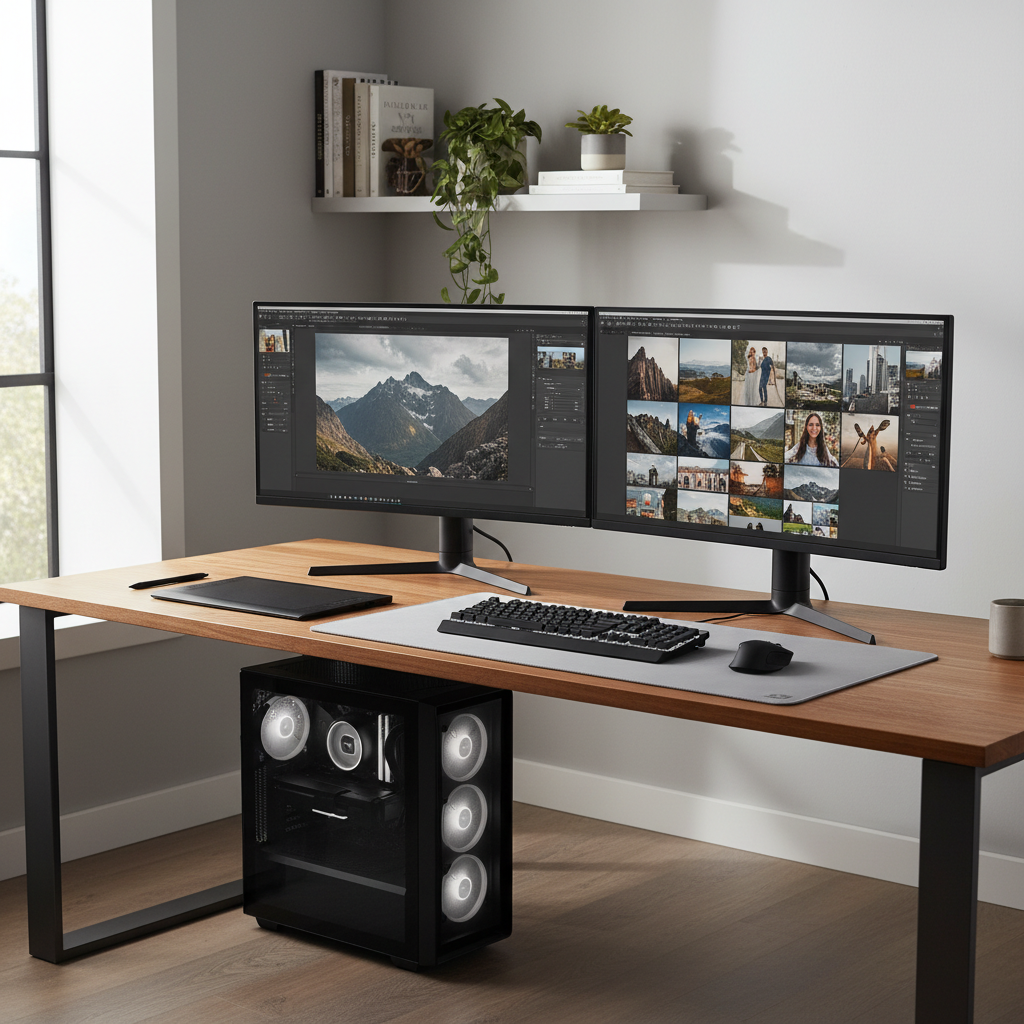
This guide focuses on what actually moves the needle in 2026: storage layout, RAM headroom, GPU acceleration, color-managed displays, and the specific app preferences that control previews, caches, and scratch disks. I’ll also call out the common “optimization” advice that wastes time or makes things worse.
Where photo editing PCs usually bottleneck (and why it feels random)
Most photo apps are fast in short bursts, then suddenly crawl when they hit a slow component. That’s why performance can feel inconsistent, one catalog flies, another bogs down.
- Storage latency: RAW previews, catalogs, caches, and scratch files are heavy on small random reads and writes. A crowded or slow drive creates stutter more than it creates “slow exports.”
- Not enough RAM headroom: If the system starts paging to disk, everything feels delayed, even simple slider moves.
- GPU acceleration mismatch: Some effects benefit a lot from the GPU, others barely do, and bad drivers can make the GPU “help” by crashing.
- Thermal throttling: Thin cases, dusty coolers, or aggressive quiet fan curves can force CPU/GPU clocks down under sustained export loads.
- Catalog/cache placement: Putting the Lightroom Classic catalog on an external HDD, or mixing cache locations across slow drives, is a classic self-inflicted wound.
Quick self-check: what kind of “slow” do you have?
Before you change settings, identify the symptom. Different slowdowns point to different fixes.
- Lag while brushing/masking: often GPU settings, display scaling, or insufficient RAM headroom.
- Slow import and preview building: usually CPU plus storage, sometimes antivirus scanning the catalog folder.
- Exports slow down after 2–3 minutes: commonly thermal throttling or the destination drive getting saturated.
- App freezes when switching folders: catalog/cache on a slow drive, or a damaged catalog.
- Crashes during AI features: GPU driver issues, VRAM pressure, or plugin conflicts.
If you want a simple way to confirm the bottleneck, open Task Manager during the slowdown and watch CPU %, Memory, Disk active time, and GPU. When one of those sits near the ceiling while the others look idle, you’ve found your likely choke point.
Hardware priorities for 2026 editing workflows (what to upgrade first)
People ask for “the best PC,” but in practice you want the least-wrong balance. For most hobbyists and working photographers, the order below is the most cost-effective way to improve feel.
Recommended baseline targets
| Component | Comfortable baseline | When to go higher |
|---|---|---|
| CPU | 6–8 modern cores, strong single-core | Heavy batch exports, panoramas, HDR stacks |
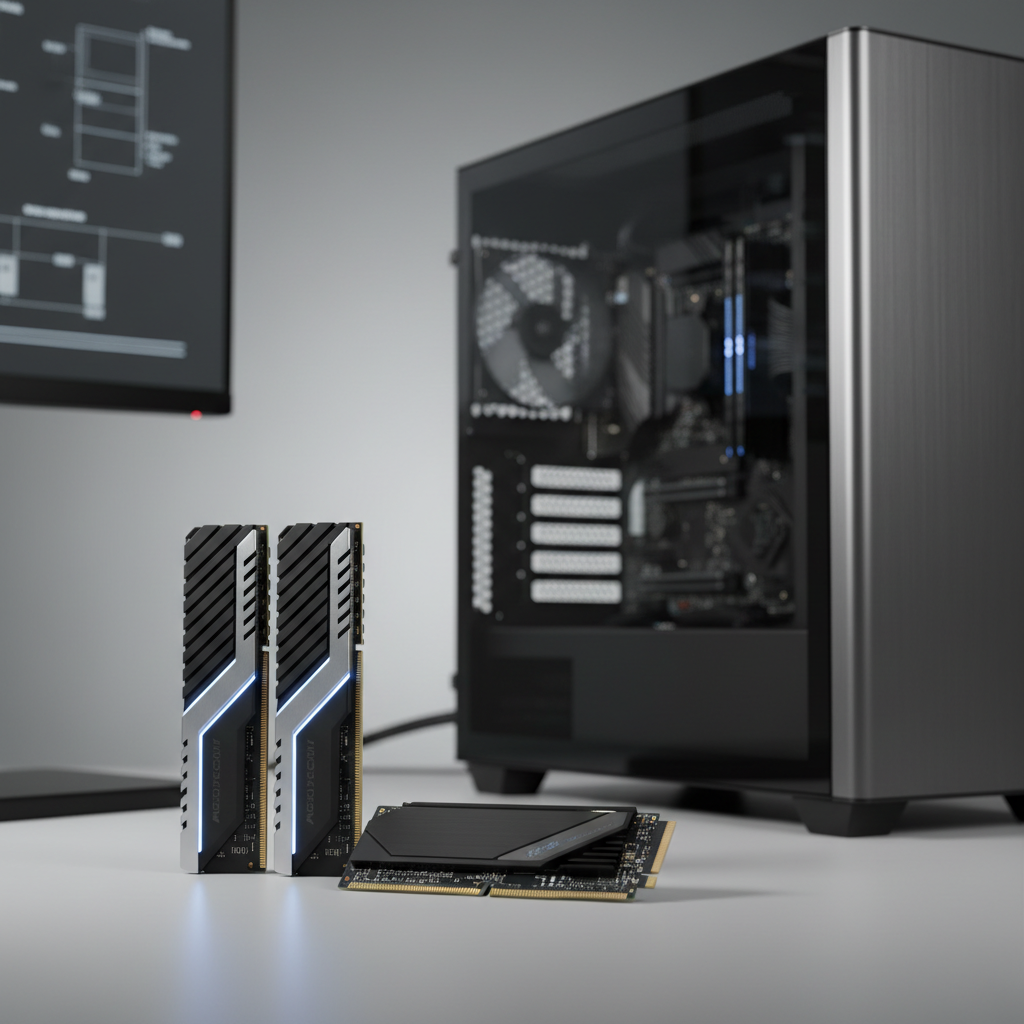
| RAM | 32 GB | 64 GB for big PS layers, huge catalogs, AI tools |
| GPU | 8–12 GB VRAM class GPU | AI features, high-res masks, multi-monitor 4K |
| Storage (OS/apps) | NVMe SSD | Faster NVMe helps caches and scratch more than OS |
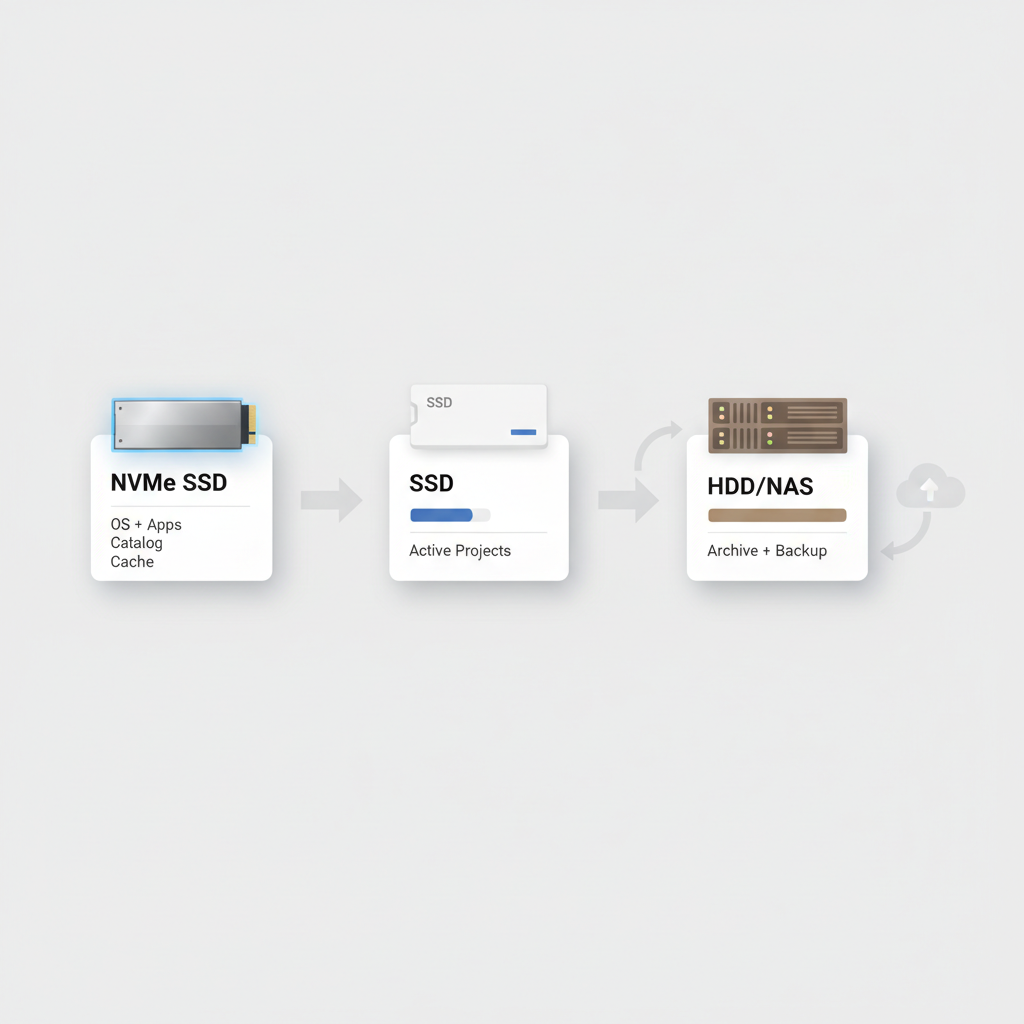
| Storage (photos) | SSD preferred, HDD ok for archive | Active projects on SSD, archive on HDD/NAS |
One honest note: if you’re still on 16 GB RAM and a near-full SSD, that’s usually where “how to optimize pc for photo editing” starts paying off fastest, even before a new GPU enters the conversation.
Windows optimization that actually helps (without “tweak tool” chaos)
You don’t need risky registry hacks. You need fewer background interruptions and more consistent performance under load.
- Update Windows and GPU drivers: newer photo app builds tend to assume recent drivers. According to Microsoft, keeping Windows updated is a primary defense against security and reliability issues, which also reduces the “mystery crash” category that feels like performance problems.
- Set a sensible power mode: on desktops, “Best performance” (or vendor high-performance plan) often reduces clock hunting. On laptops, plug in for exports, battery mode commonly limits sustained CPU/GPU power.
- Disable unnecessary startup apps: chat clients, game launchers, RGB controllers, and auto-updaters can spike disk and CPU at the wrong time.
- Exclude catalogs/caches from antivirus scanning: do this carefully and only for specific folders, not your whole drive. Catalog files change constantly, and real-time scanning can add noticeable lag.
- Keep at least 15–20% SSD free: many SSDs slow down when nearly full, especially during heavy write bursts like preview building.
Key takeaway
- Stability beats micro-optimizations: fewer background processes and clean drivers typically outperform any “PC booster” app.
App-level settings that matter: Lightroom Classic and Photoshop
This is where most “optimization” wins hide, because these apps rely on caches and scratch disks, not just raw CPU power.
Lightroom Classic: catalog, previews, and Camera Raw cache
- Put the catalog on your fastest NVMe: ideally the same fast internal SSD as the OS, unless that drive is cramped. The catalog is lots of small reads/writes.
- Increase Camera Raw cache: if you bounce between images a lot, a larger cache reduces reprocessing. Don’t set it to something tiny out of habit.
- Build the right previews: Standard previews matched to your display and Smart Previews for travel editing can make the Library and Develop modules feel smoother.
- GPU settings: enable GPU acceleration if stable, but if you see artifacts, flicker, or crashes, test “Auto” vs “Custom” GPU modes and consider rolling back to a known-stable driver.
Photoshop: scratch disk and memory
- Scratch disk on fast SSD: avoid putting scratch on the same nearly-full drive as your photo archive. A dedicated SSD is great, but not mandatory if your main NVMe has space.
- Memory usage: give Photoshop enough RAM to avoid scratch thrash, but leave room for the OS and Lightroom if you run both.
- History states and cache levels: higher values help large images and complex edits, but they also eat RAM. Tune based on file sizes you actually edit.
Storage and file layout: the boring stuff that makes everything faster
If you’re serious about how to optimize pc for photo editing, treat storage like a workflow design problem, not just “where do I have space.”
- Fast drive: OS + apps + active catalog + caches.
- Project drive: current shoots and active client jobs, ideally SSD.
- Archive/backup: large HDD, NAS, or external drives, optimized for capacity and redundancy, not speed.
According to Adobe, scratch disks and caches are designed to improve performance when configured correctly, which is a gentle way of saying your drive choices can either help the app or quietly fight it.
Display, color, and responsiveness: don’t let “smooth” break “accurate”
Many edits feel sluggish because the display chain is doing extra work, especially on high-DPI screens with scaling, multiple monitors, or mismatched refresh rates.
- Use a calibrated monitor when color matters: calibration won’t speed exports, but it prevents rework, which is the slowest performance issue of all.
- Match refresh rates: dual monitors with wildly different refresh rates can cause weird UI jitter on some systems.
- Check Windows scaling: extremely high scaling can make some apps feel less snappy, test 125% vs 150% if UI lag annoys you.
- Keep HDR settings intentional: HDR is great when you mean to use it, but accidental HDR settings can create confusing brightness shifts during editing.
Step-by-step: a practical optimization checklist (do this in order)
This is the sequence that tends to work because it starts with “low risk, high impact,” then moves toward deeper changes.
- Free space: ensure your main SSD has comfortable headroom, then restart.
- Update and reboot: Windows update, GPU driver update, then reboot again even if it feels excessive.
- Move the catalog: place Lightroom Classic catalog and previews on a fast internal SSD, keep that folder out of real-time antivirus scanning if your risk tolerance allows.
- Set caches: raise Camera Raw cache size, set Photoshop scratch to your fastest roomy SSD.
- Confirm GPU mode: enable acceleration, then stress-test masking and transforms; if instability shows up, try a different driver branch.
- Watch thermals: run an export and check clocks/temps; if clocks drop hard, clean dust, adjust fan curve, or improve airflow.
- Only then consider upgrades: add RAM, add a dedicated SSD, then consider CPU/GPU depending on your symptom.
Common mistakes that waste time (or make performance worse)
- Installing “PC optimizer” utilities: many add background services, exactly what you’re trying to avoid.
- Editing off a slow external drive: external HDDs and cheap flash drives can bottleneck everything, even if the PC itself is strong.
- Ignoring catalog health: corrupted previews or bloated catalogs can mimic hardware limits. Back up catalogs, and use app tools to optimize/repair when issues show up.
- Chasing GPU specs for CPU-bound tasks: if your bottleneck is preview building or export, a top-tier GPU may barely help.
- Over-allocating Photoshop RAM: leaving Windows starved can create system-wide stutter that feels like “Photoshop is slow.”
When it’s time to get professional help
If performance drops coincide with blue screens, file corruption, or frequent crashes across multiple apps, it may point to failing storage, unstable RAM, or a power/thermal issue. In those cases, a reputable PC repair shop or IT pro can run proper diagnostics without guesswork, and that can be cheaper than replacing parts blindly.
If this is a business workstation and downtime costs you money, consider managed backups and a documented storage workflow, the “optimization” win often comes from fewer surprises, not just faster sliders.
Conclusion: make the PC feel fast by fixing the workflow, not just the specs
Most people get better results by treating performance as a chain: fast storage for catalogs and caches, enough RAM to avoid paging, stable GPU acceleration, and a Windows setup that stays out of the way. If you’re revisiting how to optimize pc for photo editing in 2026, start with drive layout and app cache settings, then validate thermals, and only upgrade hardware when your symptoms point to a clear bottleneck.
Action to take today: move your catalog and scratch/cache to your fastest SSD, then run one real export while watching Disk, Memory, and GPU in Task Manager, you’ll know exactly what to fix next.
FAQ
How do I know if my PC needs more RAM for photo editing?
If memory usage regularly sits very high during normal edits and the system feels “stuttery” when switching apps, you may be paging to disk. Task Manager showing heavy disk activity while RAM is near full is a strong hint.
Does GPU acceleration always help in Lightroom and Photoshop?
Not always. Many tools benefit, especially masking and some transforms, but some workflows stay CPU- or storage-bound. Also, unstable drivers can create crashes that feel like performance issues, so stability testing matters.
What’s the best place to store my Lightroom catalog?
Usually an internal SSD, preferably NVMe, with plenty of free space. External drives can work, but they add failure points and can be slower for the constant small reads/writes catalogs require.
Should I edit photos directly from an external SSD?
Often yes, if it’s a quality external SSD on a fast port and your cable/connection is reliable. If you notice random disconnects or performance dips, copy active projects to an internal SSD and use the external drive for transfer and backup.
How much free space should I keep on my SSD for best performance?
A comfortable buffer helps, many setups behave better with at least 15–20% free space. If your drive is constantly near full, preview building and exports can feel more erratic.
Why are my exports slower than my friend’s PC with “worse” specs?
Exports are sensitive to thermals, destination drive speed, background tasks, and settings like noise reduction or AI features. Two PCs with similar parts can behave very differently if one throttles or writes to a slow drive.
Is it safe to exclude Lightroom or Photoshop folders from antivirus?
It can reduce slowdowns, but it’s a tradeoff. If you do it, exclude only the catalog/cache folders, keep downloads and email attachments protected, and consider asking an IT professional if this is a work machine.