
how to fix battery drain iphone usually comes down to one of three things: a misbehaving app, a setting that keeps working in the background, or a battery that has simply aged. The good news is you can narrow it down quickly without installing anything sketchy or doing a full reset on day one.
If your iPhone drops 20–30% in an hour while it sits in your pocket, or it looks “fine” until it suddenly jumps from 30% to 10%, that pattern matters. Battery drain isn’t one problem, it’s a few different problems that feel the same when you’re annoyed and just want your phone to last.
This guide focuses on what actually moves the needle for most people: reading Battery Usage the right way, adjusting a handful of high-impact settings, and knowing when you’re dealing with an aging battery versus software behavior. I’ll also point out common “tips” that waste time.
Start with a quick diagnosis (before changing anything)
Before you flip a bunch of switches, take two minutes to confirm what kind of drain you have. This avoids the classic loop where you disable useful features, the battery still drops, and you end up more frustrated.
- Fast drain while you actively use the phone: often screen brightness, 5G/weak signal, navigation, camera, gaming, or an app stuck in the background.
- Drain while idle: usually background activity, push mail, location services, Bluetooth accessories, or system indexing after an update.
- Sudden drops or random shutdowns: more consistent with battery health degradation or extreme temperature exposure.
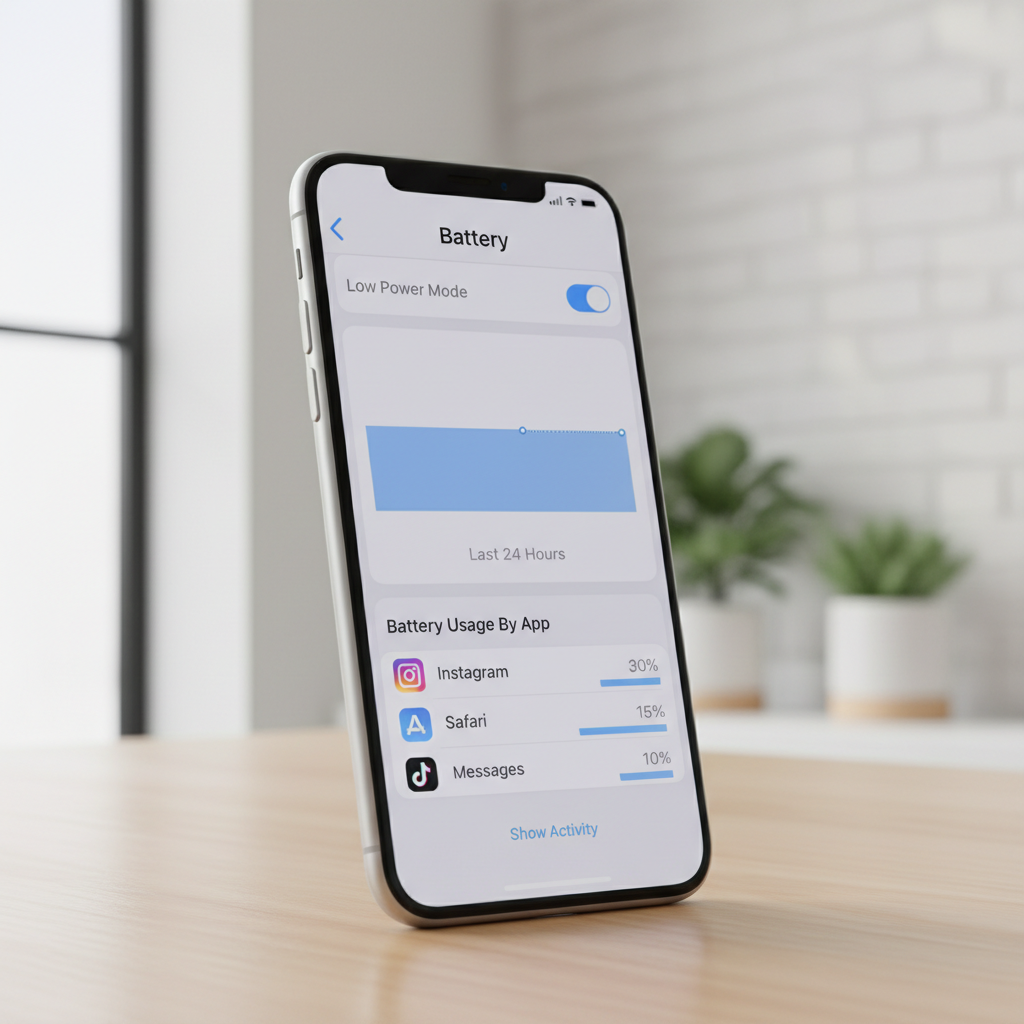
Go to Settings → Battery, and check:
- Last 24 Hours vs Last 10 Days to see whether this started recently or has been creeping up.
- Battery Usage by App, but also tap an app to switch between On Screen and Background.
- Activity graph patterns: steady downhill while idle points to background work, big spikes point to usage bursts.
Use Battery Usage to catch the “real culprit” app
People often look at the top app and assume it’s guilty. In practice, the key is background time. A messaging app with 2 minutes on screen but 2 hours background is a stronger clue than a video app you used for an hour.
Do this simple check:
- If an app shows high Background and you rarely need it updating, limit it.
- If an app spikes right after you open it and then stops, it may be normal heavy usage.
- If the same app sits near the top across Last 10 Days, it’s worth changing settings inside that app too.
Quick fixes that often help without breaking anything:
- Update the app in the App Store, buggy builds happen.
- Force quit once if it looks stuck, but don’t make force quitting your daily habit, iOS manages apps better than most people expect.
- Disable background refresh for that app: Settings → General → Background App Refresh.
High-impact iPhone settings to reduce battery drain (without “neutering” your phone)
If you’re looking for how to fix battery drain iphone issues in a way that still feels like a modern smartphone, focus on settings that reduce constant background work and radio searching.
Display and screen behavior
- Auto-Brightness: Settings → Accessibility → Display & Text Size → Auto-Brightness.
- Reduce white point (optional): helps if you keep brightness high indoors.
- Auto-Lock: shorter timeouts reduce wasted screen-on minutes.
Connectivity (often underestimated)
- Weak signal areas: the phone works harder searching for service. If you’re in a dead zone, Airplane Mode can save a lot during idle time.
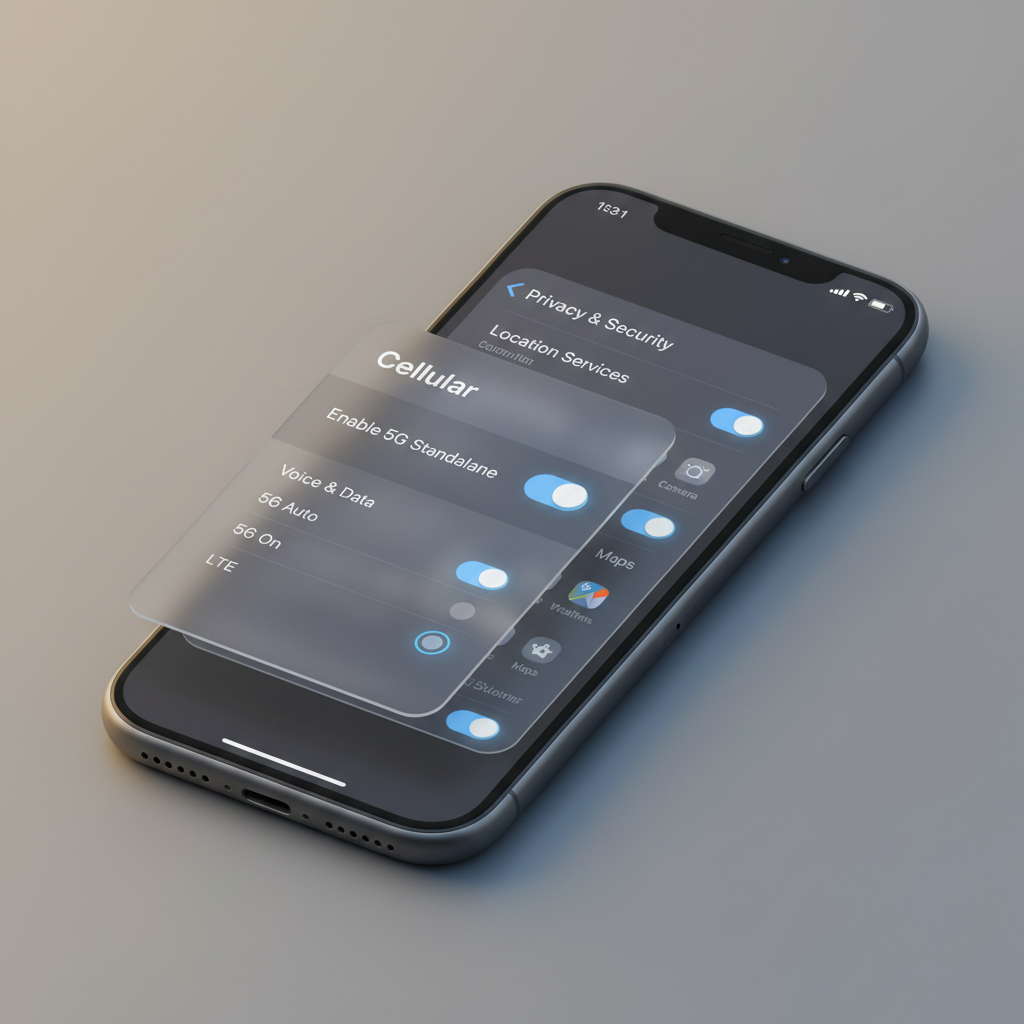
- 5G settings: in some areas, switching to LTE can stabilize drain. (Settings → Cellular → Cellular Data Options.)
- Wi‑Fi vs cellular: Wi‑Fi often uses less power than cellular for the same data, but poor Wi‑Fi can cause its own “searching” drain.
Location services (big wins with small changes)
- Settings → Privacy & Security → Location Services: set rarely used apps to Never or While Using.
- System Services: you can often turn off things you don’t use (for example, location-based suggestions). Don’t disable blindly, just reduce extras.
Notifications and mail
- Too many apps pushing alerts can keep the phone waking up. Trim notifications to essentials.
- Mail Fetch: if you don’t need instant updates, use Fetch at longer intervals rather than constant Push.
According to Apple Support, features like Low Power Mode and reviewing battery usage can help reduce energy consumption by limiting background activity and adjusting performance behavior.
A practical checklist: which bucket are you in?
Use this as a quick self-test, it helps you choose the right fix instead of trying everything.
- “My phone drains mostly overnight.” You likely have background activity, weak signal, or push/fetch behavior.
- “It drains when I’m not even using it at work.” Often poor reception indoors, Wi‑Fi calling issues, Bluetooth accessories, or location-heavy apps.
- “Battery drops in chunks (like 40% to 25%).” More consistent with an aging battery or calibration quirks after an update.
- “It started right after an iOS update.” Indexing and background tasks can temporarily increase usage, but it shouldn’t stay extreme for long.
What to do in the next 30 minutes (step-by-step)
If you want a clean, low-drama sequence that fixes most cases, follow this order. It’s designed to be reversible and avoids “nuke it from orbit” resets.
- Restart your iPhone once. Simple, but it clears stuck processes.
- Update iOS and update your top 5 apps by usage, then re-check Battery Usage later.
- Enable Low Power Mode temporarily: Settings → Battery. This is a good diagnostic tool too, if drain improves a lot, background work is a big contributor.
- Turn off Background App Refresh for the worst-offender apps (not necessarily for everything).
- Trim Location Services for apps you don’t need tracking you constantly.
- Check for a stuck accessory: Bluetooth settings, especially for earbuds, car systems, trackers.
If you’re troubleshooting during the day, give it a few hours after changes so you can see a meaningful pattern in Settings → Battery.
Quick reference table: symptom → likely cause → fix
Here’s the “editor’s desk” version of battery troubleshooting, not perfect for every edge case, but it covers most real-world scenarios.
| What you notice | Common cause | What to try first |
|---|---|---|
| Big drain while idle | Background refresh, push mail, location | Battery Usage → limit background apps; adjust Mail fetch; tighten Location |
| Drain in low-signal areas | Cellular radio searching | Use Wi‑Fi where stable; consider LTE; Airplane Mode when you truly don’t need service |
| Phone warms up in pocket | Runaway app, hotspot, background sync | Check top background app; disable personal hotspot; restart |
| Sudden percentage drops | Aging battery, calibration issues | Check Battery Health; consider service if capacity is low |
| Worse right after iOS update | Indexing, app updates, background tasks | Wait 24–48 hours; keep on Wi‑Fi/charging sometimes; update apps |
When it’s not “settings”: Battery Health, charging habits, and hardware flags
Sometimes the right answer to how to fix battery drain iphone problems is accepting that the battery is tired. iPhone batteries are consumable parts, and capacity drops with age and charge cycles.
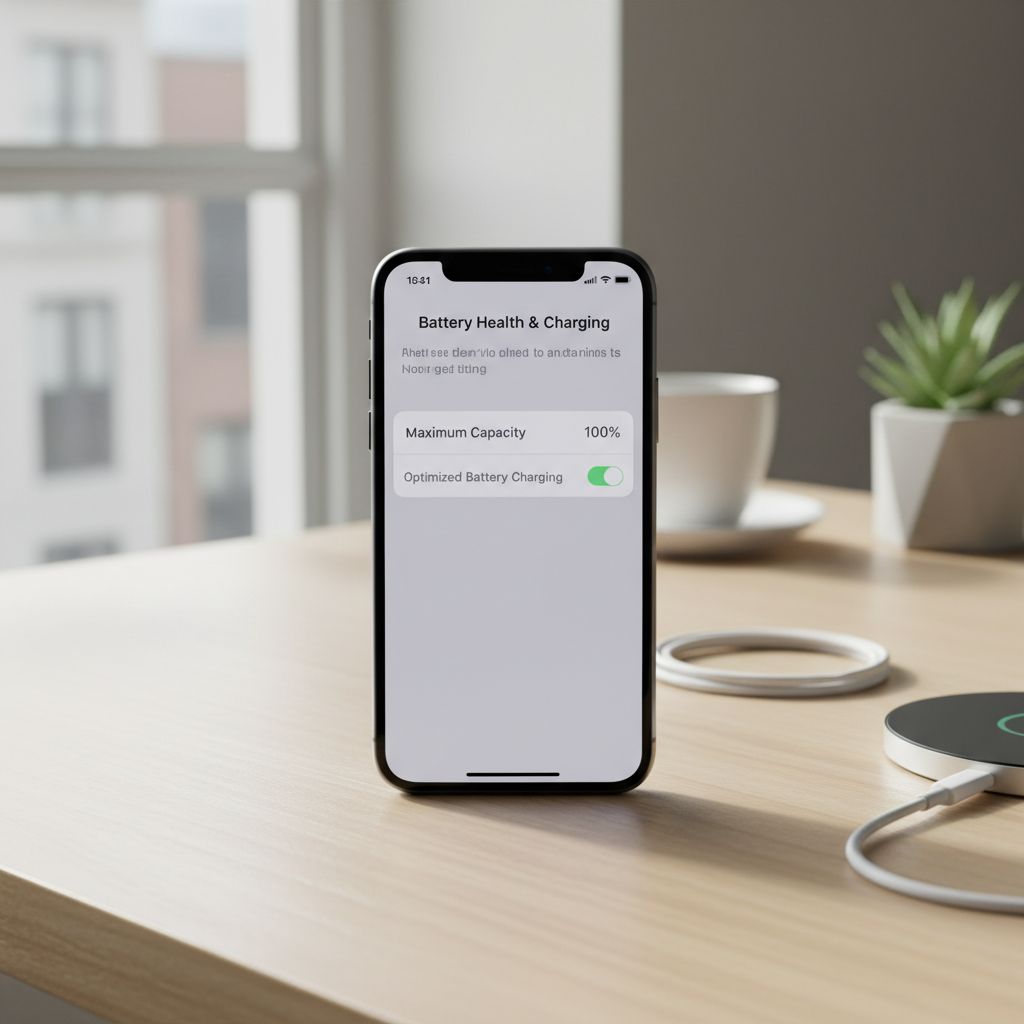
Check Settings → Battery → Battery Health & Charging:
- Maximum Capacity: lower numbers typically mean shorter runtime. There’s no magic cutoff for everyone, but if it’s notably reduced, you’ll feel it.
- Peak Performance Capability messages: pay attention if iOS reports unexpected shutdowns or performance management.
Charging habits that are usually sensible (not obsessive):
- Avoid leaving the phone baking in a hot car, heat is rough on batteries.
- Optimized Battery Charging can help reduce time spent at 100% overnight for many users.
- If third-party chargers cause heat or unstable charging, switch to reputable accessories.
According to Apple Support, lithium-ion batteries perform best in certain temperature ranges, and exposure to extreme heat can reduce battery capacity over time.
Common mistakes that waste time (or make things worse)
A few popular “battery hacks” sound helpful but often create new annoyances with little payoff.
- Force quitting apps constantly: this can increase work because the app reloads from scratch. Use it when an app is clearly stuck, not as routine maintenance.
- Turning off everything: if you disable iCloud, location, notifications, and background refresh all at once, you won’t learn what mattered, and you’ll hate using your phone.
- Random cleaner apps: iOS doesn’t need memory cleaners, and some “battery saver” apps are mostly marketing.
- Ignoring heat: if your phone often runs hot, treat that as a clue, not just an inconvenience.
Key takeaways and a simple action plan
If you’re trying to fix battery drain, don’t start with extreme measures. Check Battery Usage, focus on background time, then adjust the few settings that cause constant wake-ups.
- Today: Settings → Battery, identify background-heavy apps, update them, limit their background refresh.
- This week: tighten Location Services, clean up notifications, review cellular behavior in weak-signal spots.
- If problems persist: check Battery Health and consider a battery replacement conversation, especially if you see sudden drops or shutdowns.
If you want the fastest next step, open Settings → Battery right now and look for one app with unexpected Background activity, then fix that one thing before changing five others.
FAQ
- Why is my iPhone battery draining so fast all of a sudden?
Often it’s a recent app update, iOS background tasks after an update, or a new setting like location access for an app. Battery Usage usually shows a new top background offender within 24 hours. - Does Low Power Mode actually help battery drain?
It can, especially for idle drain, because it reduces background activity and some visual effects. It’s also a useful test: if it helps a lot, background work is likely your main issue. - How do I know if an app is draining battery in the background?
Go to Settings → Battery and tap the app to view Background vs On Screen time. High Background for an app you barely use is a strong signal. - Is it bad to keep my iPhone on the charger overnight?
In many cases it’s fine, especially with Optimized Battery Charging enabled. If your phone gets hot while charging, that’s when it’s worth changing chargers or your setup. - Should I turn off Background App Refresh for everything?
Not necessarily. Many people do better by turning it off for the worst offenders and leaving it on for apps where timely updates matter. - Why does my battery drain faster in poor reception areas?
The phone spends more power maintaining a connection and searching for signal. Using stable Wi‑Fi, LTE instead of 5G in some areas, or Airplane Mode when you don’t need service can help. - When should I consider replacing the battery?
If Battery Health shows notably reduced maximum capacity, or you see sudden drops and shutdowns, it’s reasonable to ask Apple or an authorized provider about battery service. If you’re unsure, get it assessed rather than guessing.
If you’re still stuck after you’ve checked Battery Usage and cleaned up the obvious background offenders, you may want a more guided approach: a quick audit of your Battery charts, your top apps, and a prioritized settings plan you can undo if it hurts your workflow.