
how to check hard drive health windows 11 is worth learning before your PC starts freezing, apps crash at random, or Windows updates mysteriously fail, because storage problems often show up as “weird behavior” long before a total drive failure.
If you catch the signs early, you usually have options: back up calmly, run a few checks, and decide whether this is a quick fix or a replace-now situation. Ignore it, and you may end up troubleshooting everything except the real culprit.
This guide walks you through fast, built-in checks in Windows 11, what the results actually mean, and a practical way to decide your next step, without turning it into a weekend project.
Know what “drive health” really means on Windows 11
“Health” is a bundle of signals, not one magic score. In most home setups, you’re looking at three buckets that influence reliability.
- SMART status: the drive’s self-monitoring counters (useful, but not perfect).
- File system integrity: whether Windows can read and index data without corruption.
- Real-world behavior: slow boots, stutters, clicky noises (HDD), and increasing errors in logs.
Also, SSDs and HDDs fail differently. HDDs often get louder and slower over time, SSDs can look “fine” until they suddenly aren’t. That’s why you’ll run more than one check.
Quick check: Windows 11 drive health in Settings (best for SSDs)
For many PCs, the fastest answer comes from Windows 11 itself. On systems that expose it, you can see basic SSD health information through Storage settings.
Where to look
- Open Settings → System → Storage.
- Look for Advanced storage settings or Disks & volumes, then select the drive.
What you may see varies by hardware and driver support, but you’re generally looking for warnings about reliability, temperature, or available spare capacity.
If Windows flags a warning, treat it as a “stop and back up” moment, even if the PC still boots fine. According to Microsoft, keeping regular backups is one of the most effective ways to reduce impact from device or storage failure.
Command line checks that give clearer answers (SMART + disk scan)
If you want more certainty than the Settings app provides, these built-in commands are the next step. They’re safe to run, but they can take time, so don’t do them right before a deadline.
1) Read SMART status quickly
Open Windows Terminal (Admin) and run:
- wmic diskdrive get model,status
If you see OK, it only means the drive has not declared itself failing. If you see Pred Fail (or anything not OK), back up immediately and plan to replace the drive soon.
2) Scan and repair file system issues with CHKDSK
In Terminal (Admin), run one of these:
- chkdsk C: /scan (online scan, minimal disruption)
- chkdsk C: /f (fixes errors, may require reboot)
Focus on the wording: “Windows found problems” matters more than a long list of technical lines. If errors keep returning after a fix, that often points to underlying drive trouble rather than “bad luck.”
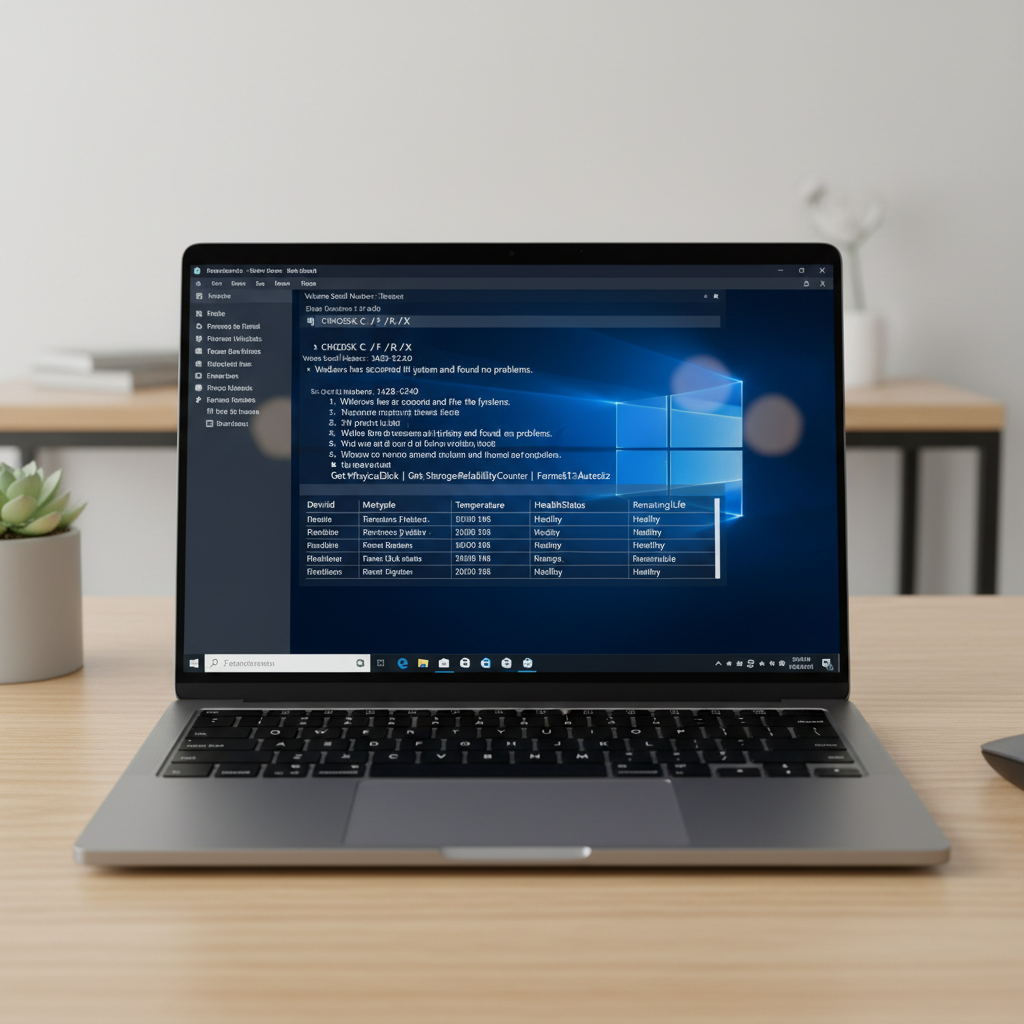
Use Event Viewer to confirm whether errors are trending
A lot of people run a single test once, see “OK,” and relax. But the pattern over time is often the real story. Event Viewer is where Windows quietly records storage complaints.
What to check
- Open Event Viewer → Windows Logs → System.
- Use Filter Current Log and look for sources like Disk, Ntfs, storahci, stornvme.
Repeated disk resets, bad blocks, or NTFS corruption messages are a stronger signal than a one-time hiccup after a power outage. If the same type of error shows up weekly, treat it as an escalation.
Self-check checklist: are you seeing “drive failing” symptoms?
Before you spend hours tweaking Windows, use this quick list to decide if you’re likely dealing with storage health versus something else (like RAM, drivers, or overheating).
- Boot time suddenly doubles and stays slow, even after updates settle.
- Apps hang on “Not Responding” during file saves or installs.
- File Explorer freezes when opening large folders.
- Blue screens that mention storage or file system errors (varies by code).
- Clicking or grinding sounds from an HDD (SSD should be silent).
- Corrupted files or archives that fail CRC checks more than once.
If two or more are true, prioritize backup first, diagnostics second. That ordering saves people, every time.
What to do with your results (practical decision table)
Here’s a simple way to interpret what you found and pick the next action, without overthinking it.
| What you see | What it often means | What to do next |
|---|---|---|
| SMART shows OK, no Event Viewer disk errors | Drive likely fine; issue may be software, drivers, or low free space | Free up space, update drivers/BIOS if relevant, re-check in 2–4 weeks |
| CHKDSK finds errors once, then clean on re-run | File system hiccup, sometimes from improper shutdown | Keep backups current, monitor logs, avoid hard power-offs |
| Recurring NTFS/Disk errors in Event Viewer | Drive or connection instability, sometimes cable/port related | Back up, reseat/replace cable (desktop), run vendor diagnostics, plan replacement |
| SMART shows Pred Fail / Windows warns about reliability | Drive reporting imminent failure risk | Back up immediately, clone if possible, replace drive soon |
| PC freezes during reads/writes, new bad-block style errors | Active degradation; failure risk rising | Stop heavy use, copy critical files first, consider professional data recovery if needed |
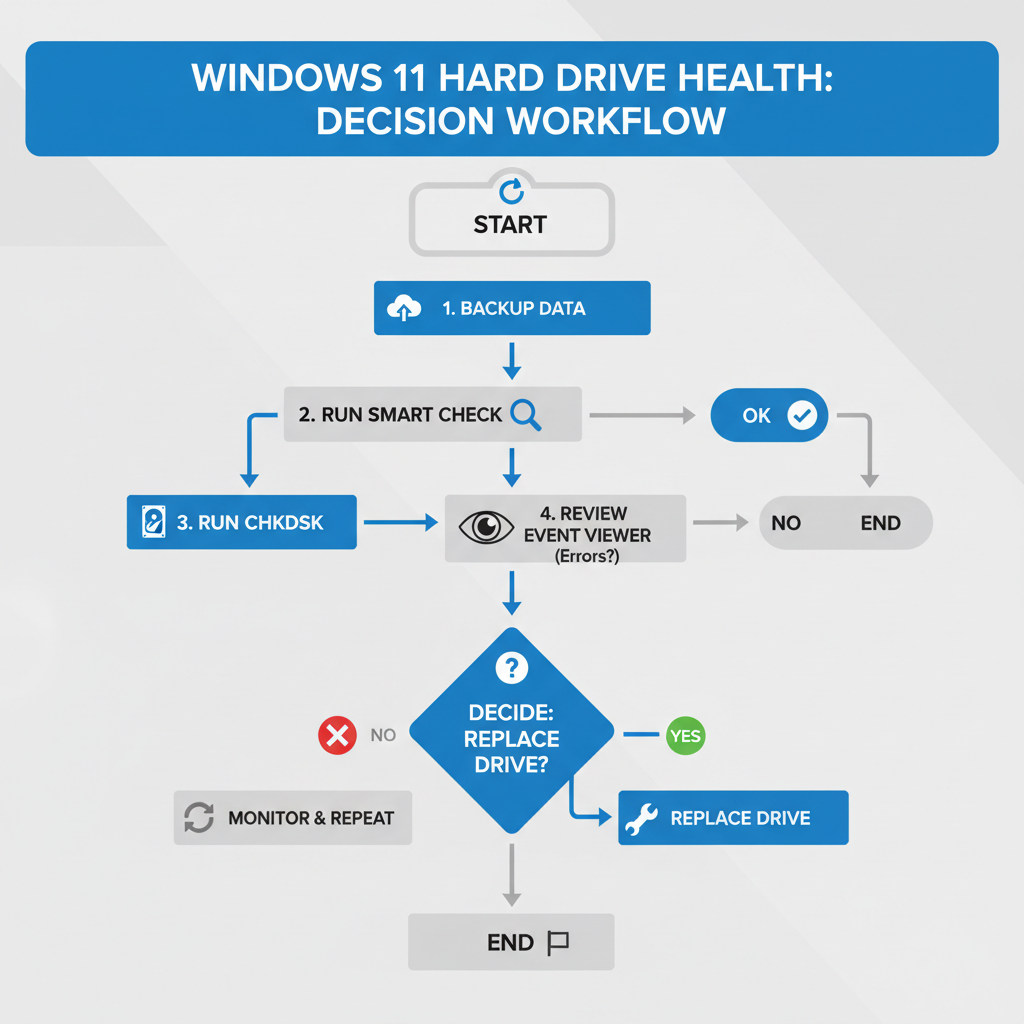
Hands-on steps: a safe “do this now” plan (backup-first)
When people ask how to check hard drive health windows 11, they often want a verdict. In practice, you want a short routine that protects data while you investigate.
Step 1: Back up what you cannot replace
- Copy your most important folders to an external drive or a reputable cloud storage option.
- If the PC is unstable, start with smaller, critical folders first.
Step 2: Reduce stress on the drive
- Pause big downloads, game installs, and video exports until checks finish.
- Keep at least 15–20% free space when possible, low space can worsen slowdowns and update failures.
Step 3: Run the built-in checks (in this order)
- SMART status command (quick signal)
- Event Viewer scan (trend signal)
- CHKDSK /scan (integrity signal)
If the system drive looks unhealthy and you’re comfortable with tools, cloning to a new SSD is often smoother than reinstalling everything. If you’re not comfortable, it’s also fine to stop at “backup complete” and ask for help.
Common mistakes that waste time (or make things worse)
A few habits show up repeatedly when a drive starts acting up, and they usually increase risk.
- Running repeated “repair” scans while skipping backup: fixes can fail, and failing drives can die mid-scan.
- Assuming OK SMART means safe: SMART is helpful, but it does not catch every failure mode.
- Ignoring temperature: especially on NVMe SSDs in cramped laptops, heat can trigger throttling and errors.
- Random registry cleaners: they rarely solve storage health and can introduce new problems.
According to NIST, secure and reliable computing practices emphasize maintaining backups and planning for component failure rather than relying on single-point checks. That mindset fits storage health perfectly.
When to stop DIY and consider professional help
If you suspect physical failure and the data matters, caution beats curiosity. Data recovery can be expensive, and repeated attempts can reduce recoverability in some situations.
- The drive makes unusual mechanical noises (HDD) or disconnects repeatedly.
- Windows cannot see the drive consistently, or it vanishes mid-copy.
- CHKDSK reports bad sectors and the count appears to increase over time.
- You have business-critical or irreplaceable files and no recent backup.
In those cases, consider a reputable repair shop or data recovery service and explain what checks you already ran. If you’re unsure, it’s reasonable to consult a professional before running more intensive tools.
Conclusion: a reliable way to check drive health without spiraling
how to check hard drive health windows 11 comes down to pairing quick signals (SMART and Settings warnings) with proof from Windows logs and a file system scan, then making a calm call: monitor, fix, or replace.
If you do one thing today, make it this: get a fresh backup and run SMART plus Event Viewer. If either looks concerning, plan a replacement sooner rather than negotiating with a drive that already hints at trouble.
Key takeaways
- Backup first, diagnostics second, especially when symptoms repeat.
- Use SMART + Event Viewer + CHKDSK for a more trustworthy picture than a single tool.
- Recurring errors or warnings usually justify planning a new drive, even if Windows still boots.
FAQ
How do I check hard drive health on Windows 11 without installing anything?
Use Windows Terminal for SMART status (WMIC), run CHKDSK, and review storage-related errors in Event Viewer. Together, those cover most practical checks without third-party tools.
Is “OK” SMART status enough to trust my drive?
It’s a good sign, but it’s not a guarantee. Many failures give warnings, but some do not, so it’s smarter to confirm with Event Viewer trends and whether CHKDSK stays clean over time.
What does CHKDSK /scan vs /f actually do?
/scan checks the disk online and reports problems with minimal disruption, while /f attempts to fix file system errors and may require a reboot. If you’re worried about stability, back up before using /f.
Why is my SSD slow even if health looks fine?
Common culprits include low free space, overheating (thermal throttling), background indexing, or driver/firmware issues. If logs show no disk errors, look at temperature, free space, and Windows Update activity.
How often should I check drive health in Windows 11?
For most people, monthly is enough, plus any time you notice new freezing, odd boot delays, or file corruption. If you already saw errors, re-check sooner to see whether the pattern repeats.
What should I do if Event Viewer shows Disk or NTFS errors?
Start with backup, then run CHKDSK and see if errors return. If the same messages keep appearing, it’s reasonable to plan a drive replacement or, on desktops, test a different cable/port.
Can Windows 11 tell me remaining SSD life?
Sometimes, depending on the SSD and drivers, Windows surfaces limited health details. If you need a clearer “percentage used” view, you may need the SSD manufacturer’s utility, but built-in checks can still flag obvious risk.
If you want a simpler path
If you’re trying to confirm a suspect drive and you’d rather not juggle Terminal commands and logs, a reputable PC technician can run vendor diagnostics, help you clone to a new SSD, and reduce the risk of losing data during trial-and-error troubleshooting.