
how to create folder on iphone home screen is one of those iPhone basics that feels obvious until your apps start spilling across pages and you can’t find anything fast.
The good news, Apple keeps this simple once you know the “move one app onto another” gesture, and you can build a clean setup that actually matches how you use your phone, work apps together, social together, travel stuff together.
Below, you’ll get the exact steps, a quick checklist to troubleshoot common issues, and a few practical folder ideas that tend to stick long-term, not just look tidy for a day.
What a Home Screen folder is (and what it isn’t)
A Home Screen folder is basically a container for apps, it reduces clutter by grouping multiple apps into one icon. You can put folders anywhere your apps can live, including the Dock.
- It helps with speed: fewer swipes, less hunting for icons.
- It helps with focus: you can keep distracting apps out of immediate sight.
- It does not delete apps: it only changes placement.
According to Apple Support, you can organize apps into folders on the Home Screen by dragging one app onto another, then rename the folder to match what’s inside.
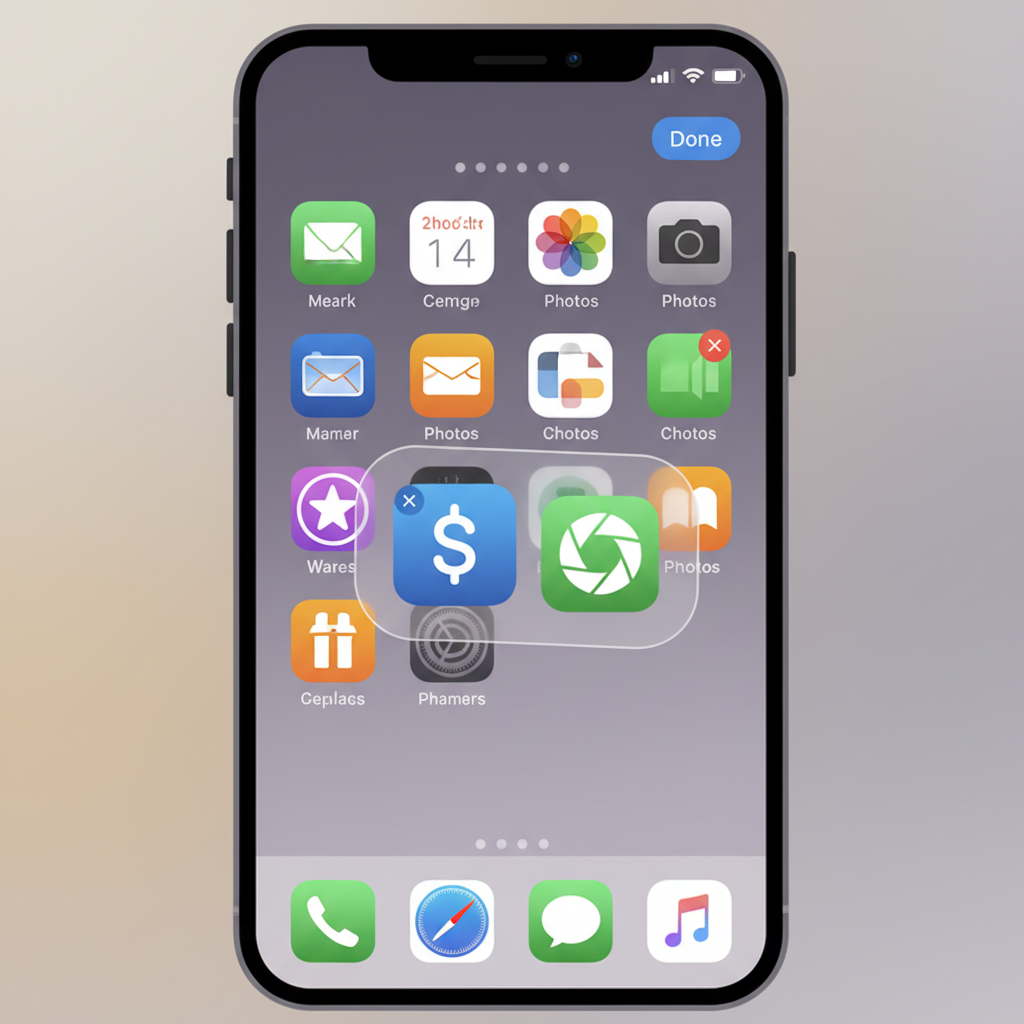
Create a folder on iPhone Home Screen (the quick method)
If you only remember one thing, remember this: you create a folder by placing one app on top of another while icons are movable.
Step-by-step
- Touch and hold an app icon until the quick actions menu appears.
- Tap Edit Home Screen (icons start “wiggling”).
- Drag the first app onto the second app, pause for a beat, and release.
- A folder opens, iPhone suggests a name, tap the name area to change it.
- Tap outside the folder to close it, then tap Done (or swipe up on Face ID models).
When people say how to create folder on iphone home screen is “not working,” it’s usually because they are long-pressing and choosing the wrong option, or they release too early before iOS recognizes the folder gesture.
How to name, reorder, and manage apps inside folders
Folders are only helpful if they stay usable. A couple small management habits make a big difference.
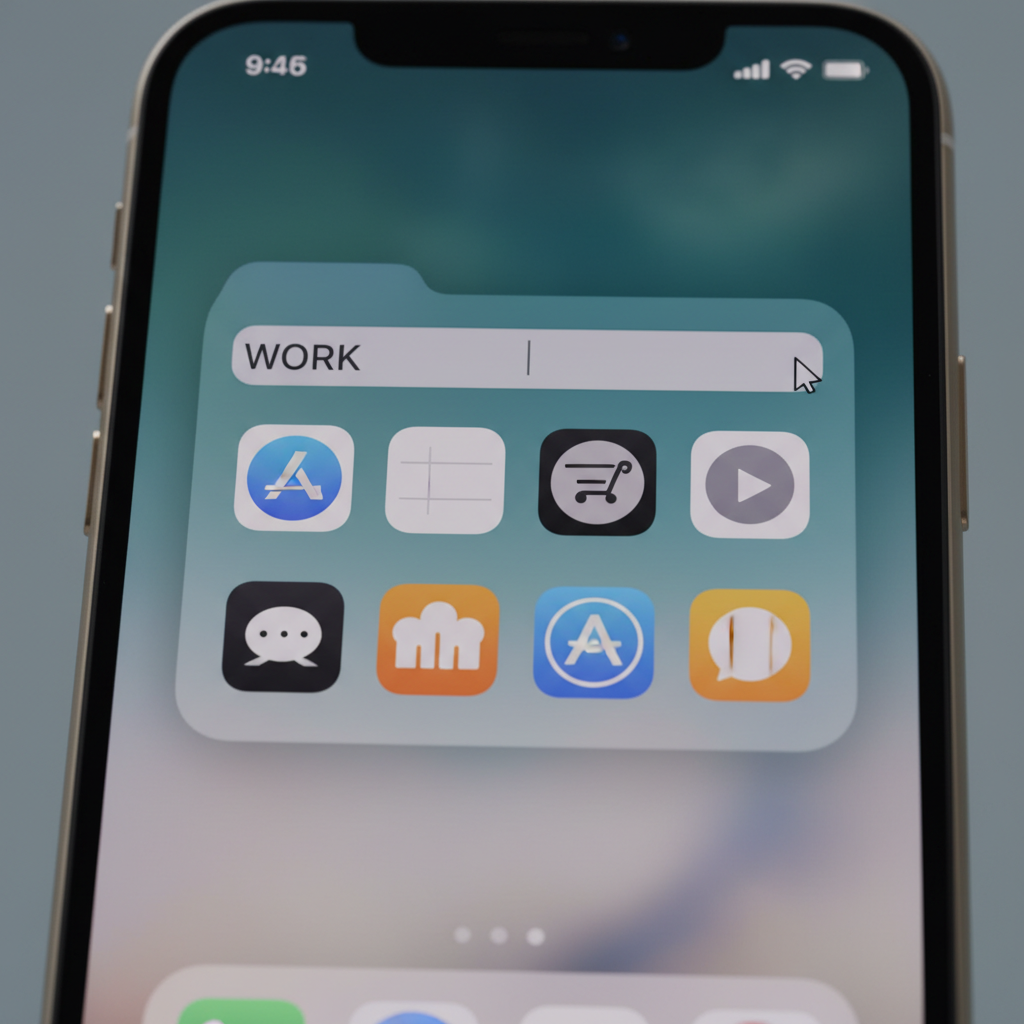
Rename a folder
- Open the folder, touch and hold the folder name, then type a clearer label.
- Keep it short, 1–2 words usually reads best.
Reorder apps within a folder
- Open the folder, touch and hold an app until it’s movable, then drag it to the spot you want.
- If the folder has multiple pages, drag to the right edge to create or move between pages.
Move an app out of a folder
- Open the folder, drag the app to the edge of the folder until you return to the Home Screen, then drop it.
Delete a folder (without deleting apps)
There’s no “delete folder” button. The folder disappears when it has only one app left. Move apps out until one remains, then move the last one out too.
Common issues: why you can’t create a folder (and quick fixes)
how to create folder on iphone home screen can feel inconsistent if a setting, mode, or screen layout blocks the gesture. These are the issues that show up most often.
- Icons aren’t in edit mode: make sure you tapped Edit Home Screen and the icons are movable.
- You’re dropping too fast: hover the dragged icon over the other for a moment before releasing.
- The second icon is a widget: widgets can’t be combined into folders, try with two apps.
- Restrictions or MDM profiles: on some work or school devices, management profiles can limit changes.
- Home Screen is “full” in a weird way: rare, but rearranging a few icons can “unstick” the layout.
If the phone is managed by an employer or school, it may be worth checking with your admin, since some organization tools can change Home Screen behavior.
A simple “should I use folders?” self-check
Folders aren’t mandatory. Some people prefer Spotlight search or App Library. This quick check helps you decide what fits.
- You regularly swipe past 3+ Home Screen pages to find apps.
- You open the same set of apps in a row, like camera → photos → messages.
- You want fewer distractions, but you don’t want to delete apps.
- You share your phone with a family member and want clearer groupings.
If none of that feels true, it’s okay to keep a lighter Home Screen and rely on App Library plus search. Organization should save time, not become a hobby.
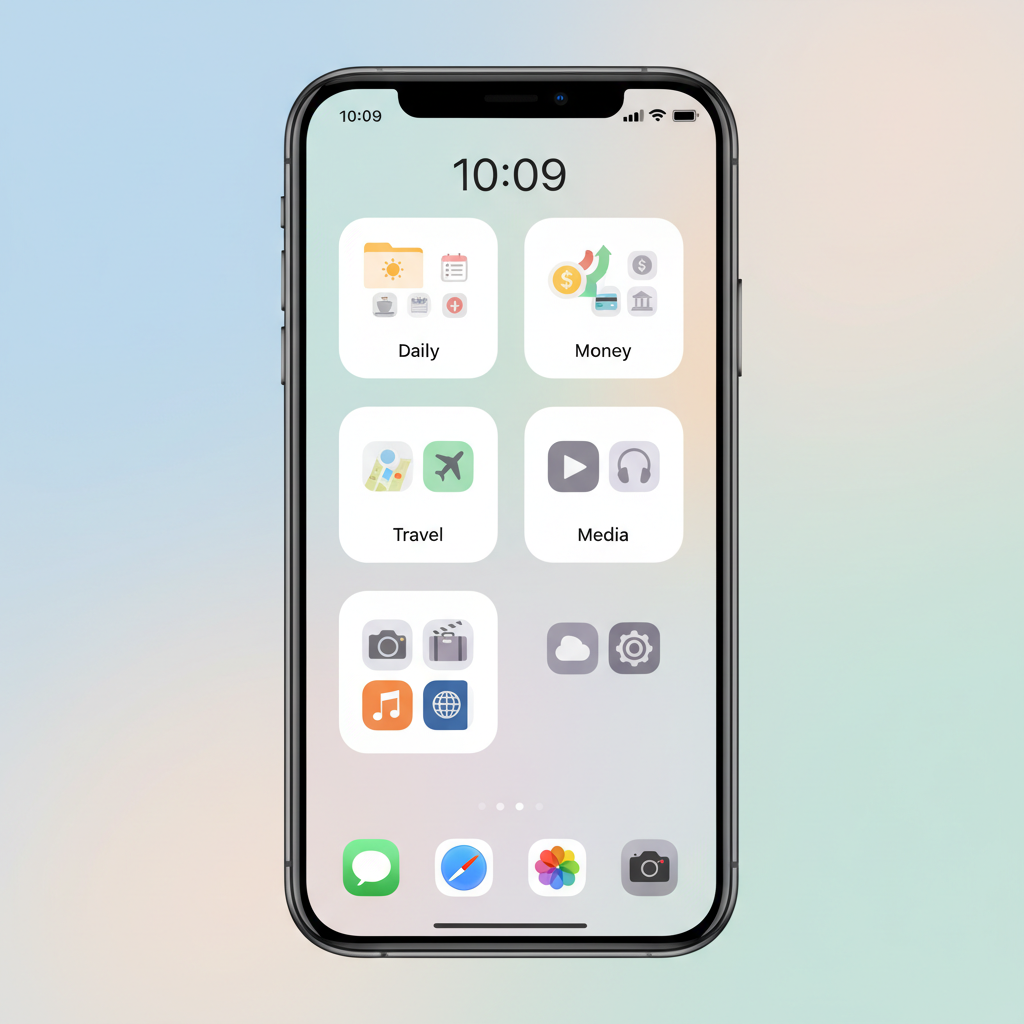
Practical folder setups that work for most people
There are endless “aesthetic” layouts online, but a good folder strategy tends to follow your real habits. Here are a few folder ideas that usually hold up.
- Daily: Phone, Messages, Mail, Calendar, Notes
- Money: banking, credit card, budgeting, payments
- Travel: maps, rideshare, airline, hotel, translation
- Media: music, streaming, podcasts, books
- Work/School: chat, docs, meeting apps, authenticator
A small tip that sounds picky but helps: keep your most-used app in the top-left position of the folder, many people tap that spot by muscle memory.
Quick reference table: folder actions at a glance
If you’re setting up multiple folders, this cheat sheet saves a lot of back-and-forth.
| Task | Fast way to do it | What to watch for |
|---|---|---|
| Create a folder | Edit Home Screen, drag app onto app | Pause before releasing |
| Rename a folder | Open folder, tap name, type new name | Keep names short |
| Add app to folder | Drag app into folder | Drop when folder opens |
| Remove app from folder | Drag app out to Home Screen | Move to edge until Home Screen appears |
| Remove folder | Move apps out until folder disappears | Folder remains with 1 app |
Key takeaways and a clean next step
Once you know the gesture, how to create folder on iphone home screen becomes quick: enter edit mode, drag app onto app, rename, then keep only a few folders that match how you actually use your phone.
- Start small: 2–4 folders beats 12 folders you never open.
- Keep the first Home Screen intentional: daily apps and essentials only.
- Use search guilt-free: Spotlight and App Library still count as “organized.”
If you want an easy action today, build one folder for your most scattered category, usually “Money” or “Travel,” and you’ll feel the clutter drop immediately.