
how to fix wifi no internet secured usually comes down to one thing: your device is connected to the router, but something breaks between the router and the internet, or your device’s IP/DNS settings go sideways.
It’s frustrating because the Wi‑Fi icon looks “fine,” apps still fail, and you can waste an hour rebooting the same box with no real plan. This guide keeps it practical: quick checks first, deeper fixes only if needed, and clear stop points when it’s time to call your ISP.
One quick note on wording: “No Internet, Secured” is most common on Windows 10/11, but the root causes apply to Macs, phones, and tablets too, just with different menus.
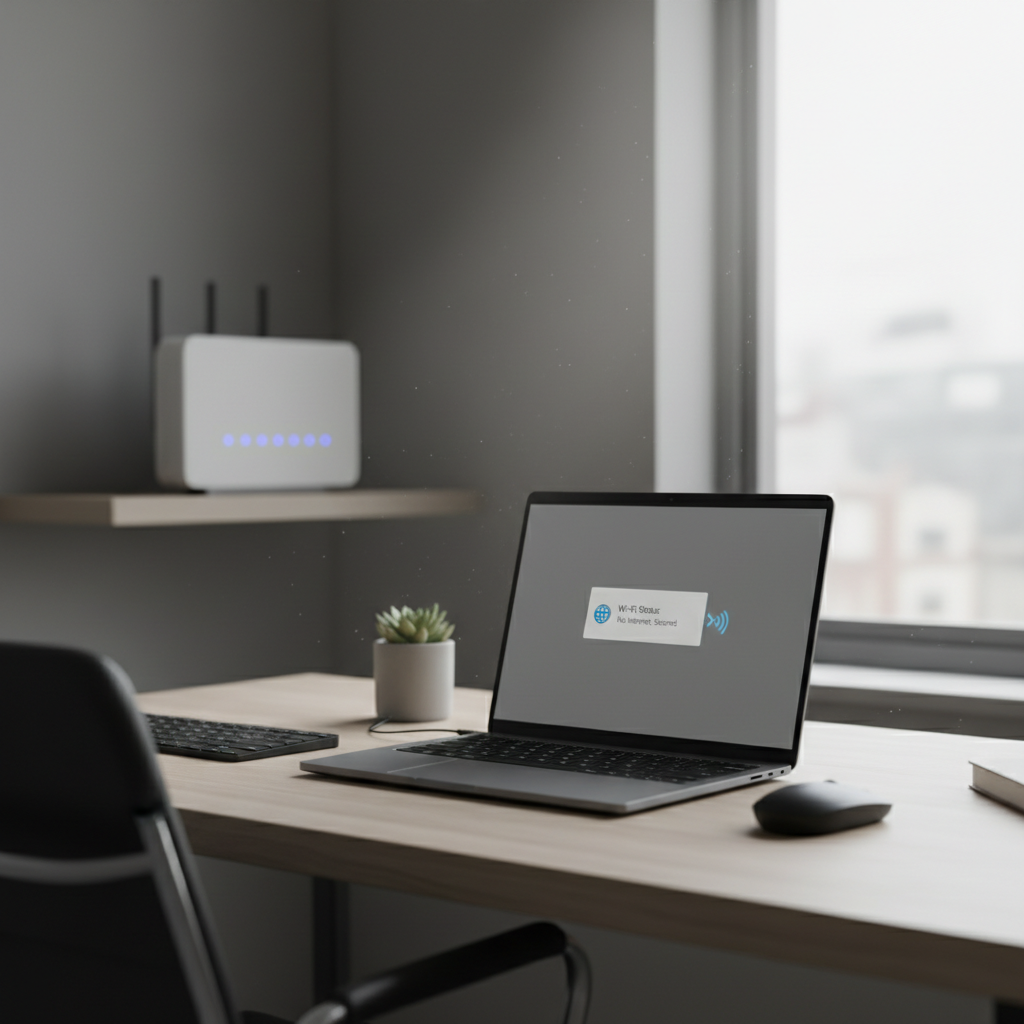
What “No Internet, Secured” actually means (and why it happens)
“Secured” means your device successfully authenticated to the Wi‑Fi network using the password and encryption. “No Internet” means your device can’t reach the wider internet through that connection.
In real homes and offices, the most common triggers are pretty unglamorous:
- ISP outage or modem trouble: your router broadcasts Wi‑Fi, but the modem has no working link upstream.
- Bad IP configuration: your device gets the wrong gateway, a duplicate IP, or a stale lease.
- DNS issues: internet might be “up,” but name lookups fail so everything looks offline.
- Captive portals: hotels, apartments, public networks require a web login page.
- VPN, proxy, security software conflicts: traffic gets intercepted or blocked.
- Router firmware or channel congestion: especially in apartments, Wi‑Fi can connect but perform poorly enough to look broken.
According to Microsoft Support, Windows network troubleshooting often centers on IP configuration, driver issues, and resetting network components when connectivity looks “connected” but no traffic flows.
Quick triage: figure out whether it’s your device, router, or ISP
Before you change settings, spend two minutes narrowing the problem. This prevents “fixes” that accidentally break a working setup.
Fast checks that save time
- Test another device on the same Wi‑Fi (phone, tablet). If everything fails, it’s likely router/modem/ISP.
- Try cellular data on your phone to confirm the website/app isn’t down.
- Check router/modem lights: a red/orange internet light often points upstream.
- Try a wired Ethernet connection to the router (if possible). If Ethernet also fails, Wi‑Fi isn’t the real issue.
- Look for a sign-in page: open a browser and go to http://neverssl.com (a simple HTTP page that often triggers captive portals).
Use this table to decide your next move
| What you see | Most likely cause | What to try next |
|---|---|---|
| Only one device shows the error | Device IP/DNS/driver/VPN issue | Forget network, reset adapter, DNS checks |
| All devices on Wi‑Fi are offline | Router/modem/ISP outage | Power cycle modem+router, check outage, ISP |
| Wi‑Fi works but some sites don’t load | DNS, VPN, filtering, MTU quirks | Change DNS, disable VPN, test different browser |
| It works after reboot then fails again | DHCP conflicts, firmware bug, interference | Update firmware, change channel, IP lease reset |
The fixes that work most often (in the right order)
If you’re searching how to fix wifi no internet secured, don’t start by reinstalling everything. Start with the boring steps that actually clear the majority of cases.
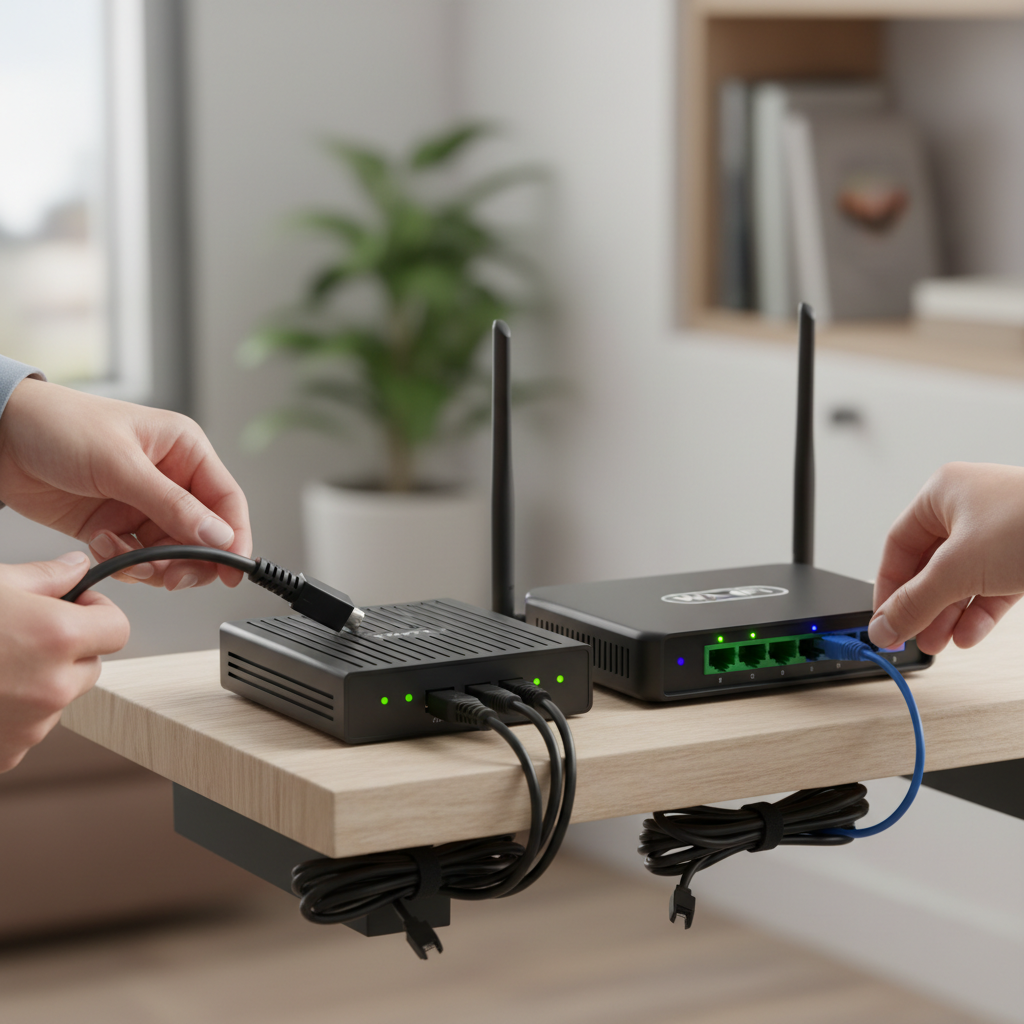
1) Power cycle the modem and router correctly
- Unplug modem and router from power.
- Wait 60 seconds (this matters more than people think).
- Plug in the modem first, wait until it fully comes online.
- Plug in the router, wait 2–3 minutes, then reconnect your device.
If your ISP uses a gateway (modem+router combo), just power cycle that single unit.
2) “Forget” the network and reconnect
This forces a fresh authentication and often fixes a bad saved profile.
- Windows: Settings → Network & Internet → Wi‑Fi → Manage known networks → select network → Forget.
- iPhone: Settings → Wi‑Fi → (i) → Forget This Network.
- Android: Settings → Network & Internet → Wi‑Fi → saved network → Forget.
3) Toggle airplane mode, then disable VPN/proxy temporarily
Airplane mode resets radios. VPN and proxies can create “connected but no traffic” behavior, especially after sleep or network changes.
- Turn on airplane mode for 10–15 seconds, then off.
- Disconnect VPN apps, and check proxy settings.
According to Apple Support, VPN configurations can affect connectivity after switching networks; if things break only on Wi‑Fi, testing without VPN is a clean diagnostic step.
Windows-specific steps (where this error shows up the most)
Windows is the platform where “No Internet, Secured” gets most of its fame, so here are the high-impact fixes.
Run built-in troubleshooting, but treat it as a clue
- Settings → System → Troubleshoot → Other troubleshooters → Internet Connections and Network Adapter
If it reports “DNS server not responding” or “Default gateway not available,” that points your next step.
Reset IP stack and renew IP lease (Command Prompt)
Open Command Prompt as Administrator, then run:
- ipconfig /release
- ipconfig /flushdns
- ipconfig /renew
- netsh winsock reset
- netsh int ip reset
Restart the PC afterward. This is a classic answer to how to fix wifi no internet secured because it clears corrupted networking state without you guessing which toggle is wrong.
Check adapter driver and power settings
- Device Manager → Network adapters → your Wi‑Fi adapter → Update driver.
- Properties → Power Management → uncheck “Allow the computer to turn off this device to save power” if disconnects happen after sleep.
If the issue started right after a driver update, “Roll Back Driver” can be worth testing.
DNS and IP settings: the quiet culprits
When the internet “exists” but websites won’t load, DNS is a prime suspect. You can test by visiting a site by IP, but most people just want a practical fix.
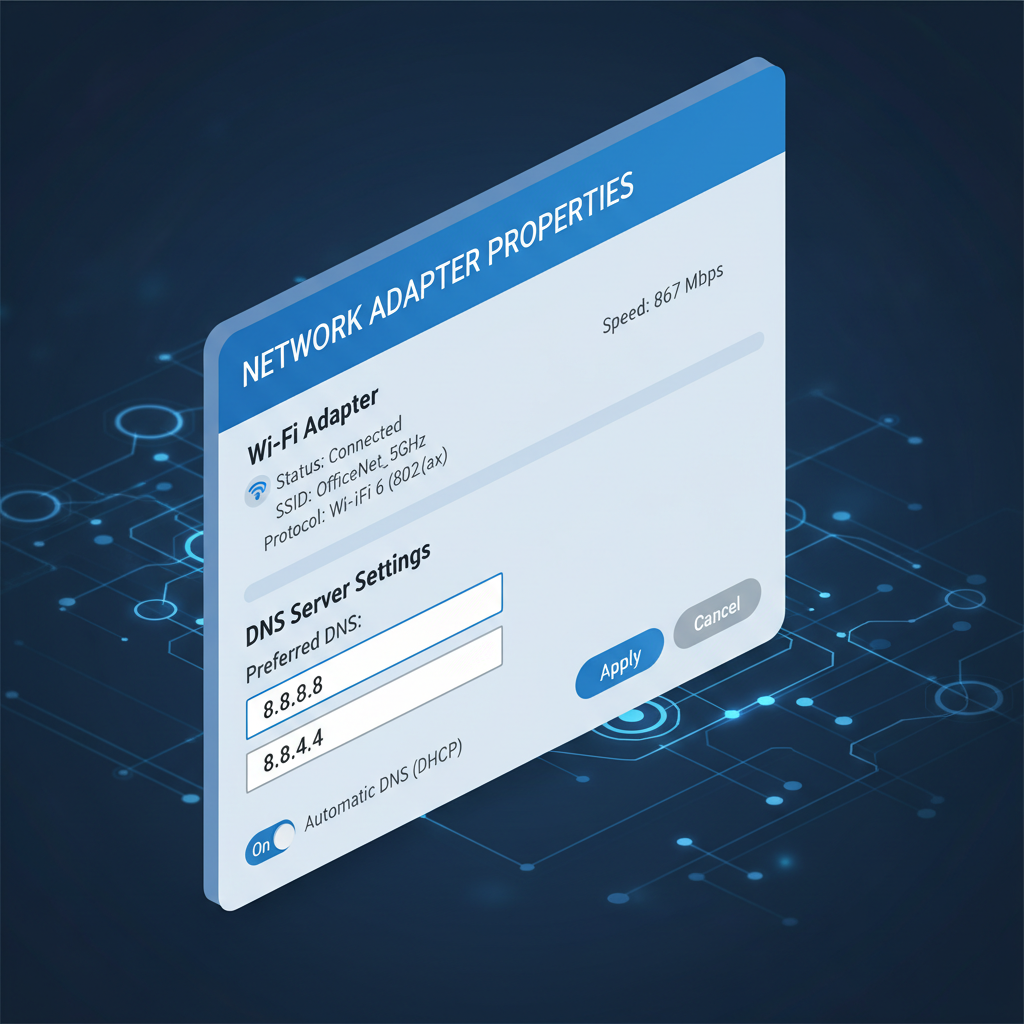
Try a known public DNS (temporary test)
Set DNS to a public resolver, then retest. If it fixes the issue, your ISP DNS may be flaky or blocked.
- Google DNS: 8.8.8.8 and 8.8.4.4
- Cloudflare DNS: 1.1.1.1 and 1.0.0.1
According to Cloudflare’s 1.1.1.1 documentation, changing DNS affects how domain names resolve and can improve reliability in some network conditions.
Make sure you’re not stuck on a “manual” IP
- Confirm your device uses DHCP/Automatic IP unless your network intentionally uses static IPs.
- If you previously set a manual IP for a printer or NAS test, switching networks later can break connectivity.
Router-side fixes: when multiple devices are affected
If several devices fail, stop blaming the laptop. This is where you focus on the router, modem, and signal environment.
Check for outages and provisioning issues
- Look at your ISP account app or status page for outages.
- If you recently changed service, swapped hardware, or moved, your modem may need re-provisioning by the ISP.
Update router firmware and reboot on purpose
- Log into the router admin page and check firmware updates.
- After updating, reboot and retest.
Firmware updates can fix stability bugs, but if your internet is mission-critical, schedule updates when you can afford a brief interruption.
Change band or channel if you’re in a crowded area
- Test 5 GHz vs 2.4 GHz networks if your router splits them.
- If your router supports it, try a less congested channel (especially on 2.4 GHz).
This won’t solve an ISP outage, but it does help when “connected” really means “barely usable.”
Common mistakes that waste time
- Resetting everything at once: you lose the clue trail, and you might create new problems.
- Ignoring captive portals: you can be fully connected yet blocked until you sign in.
- Assuming it’s always the router: one-device failures are often drivers, VPN, or a bad network profile.
- Factory resetting the router too early: it’s valid, but only after you’ve confirmed the upstream link and saved settings.
If you’re repeatedly asking how to fix wifi no internet secured on the same device, that pattern usually means a local configuration, not random bad luck.
When to escalate: ISP support, IT, or a hardware swap
At a certain point, continuing to tweak settings becomes counterproductive. These are reasonable escalation triggers:
- Your modem shows no online signal, or the ISP app reports an outage that doesn’t clear.
- Ethernet directly from the router fails across multiple devices.
- The connection drops at the same time daily, which can hint at line noise, node congestion, or scheduled maintenance.
- You see frequent router reboots, overheating, or a power supply that feels unstable.
If you’re in an apartment building with managed internet, contacting building support may be faster than guessing. In workplaces, IT can check DHCP scope, firewall policies, and access control lists that you can’t see from a laptop.
Key takeaways (so you can fix it faster next time)
- “Secured” confirms Wi‑Fi login, not internet access, so focus on upstream and IP/DNS next.
- Start with triage: one device or all devices makes the path obvious.
- On Windows, IP/DNS resets and adapter driver checks solve a lot of repeat cases.
- If multiple devices are down, shift to modem/router/ISP checks and avoid random PC tweaks.
For most people, the quickest win is simple: power cycle modem/router in the right order, forget and rejoin Wi‑Fi, then reset IP/DNS on the affected device. If that doesn’t move the needle and other devices also fail, it’s time to treat it as an ISP or hardware issue and escalate with clear evidence.
If you want, write down what you’ve already tried and what the modem/router lights show, then contact support with that summary, the call goes noticeably smoother.