
If you’re searching how to format sd card on android, you usually want one of three things: fix a card that acts weird, clear everything fast, or change the card format so it works better with your phone.
Formatting is simple on most Android phones, but the “simple” part ends the moment you realize you might wipe family photos, or your phone offers choices like portable vs internal storage. Those options matter, and picking the wrong one can create extra work.
This guide walks you through when to format, what type to choose, step-by-step instructions (Samsung, Pixel, and “stock-ish” Android), plus what to do if Android refuses to format the card.
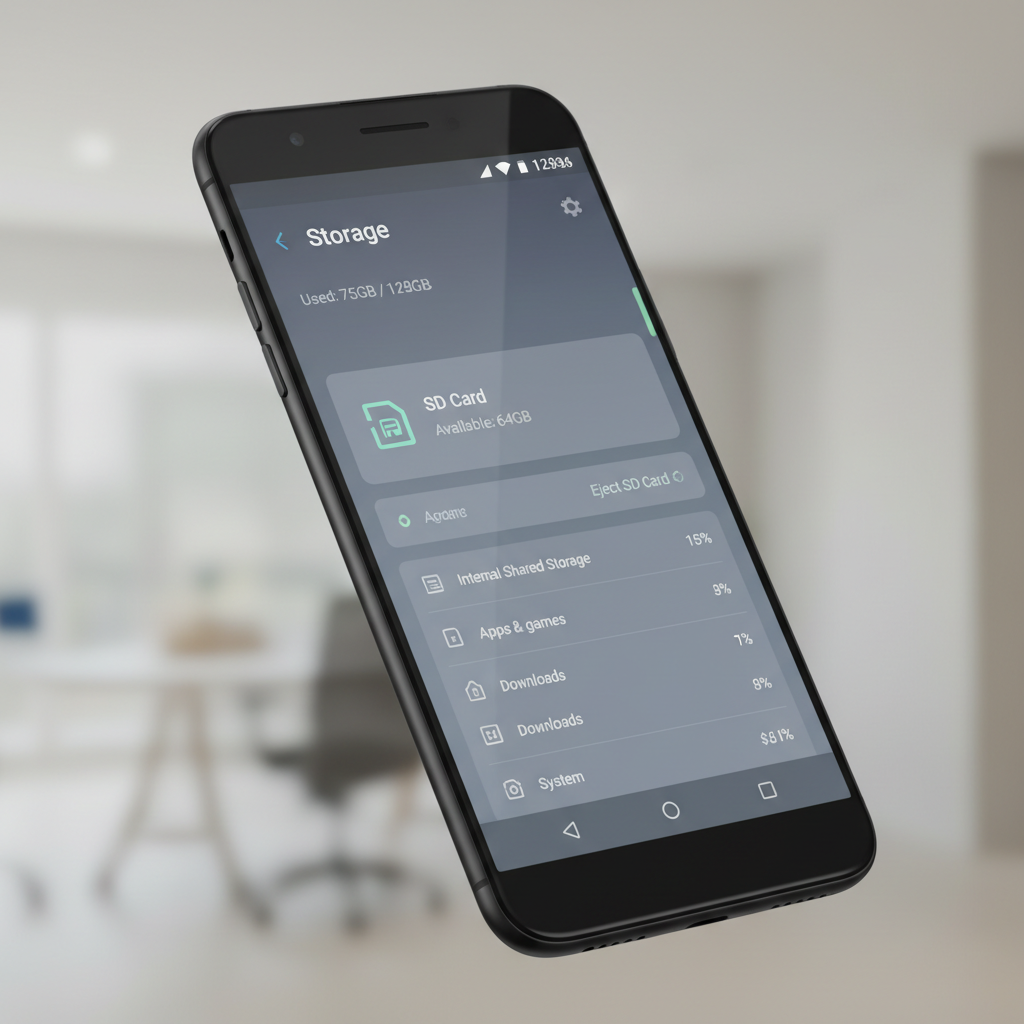
Before you format: what “formatting an SD card” really does
Formatting rebuilds the file system on the SD card. In normal use, that means Android erases the card’s contents and sets it up so the phone (and sometimes other devices) can read and write files reliably.
It often helps when you see messages like “SD card corrupted,” apps can’t save media, or the card shows the wrong free space. Still, formatting isn’t a magic repair for physical damage. If the card is failing, it may work for a short time and then break again.
According to SD Association, using their official formatting approach can help ensure SD cards are prepared with compatible settings. On Android, you’re using the phone’s built-in formatter, but the same idea applies: format with the device you plan to use.
- Format = erase (assume all data will be removed)
- Format ≠ guaranteed fix for a worn-out or counterfeit card
- Best practice is to back up first, even if the card looks empty
Quick decision table: choose the right formatting option
On many Android phones, you’ll see either one “Format” button or a choice between portable and internal. Here’s the practical difference.
| Option | Best for | Pros | Trade-offs |
|---|---|---|---|
| Portable storage | Photos, videos, music, moving files between devices | Works with PCs/card readers, easier to swap | Apps usually can’t fully install/move here (varies by phone) |
| Internal storage (Adoptable) | Expanding phone storage for apps and app data | More space for apps, feels like built-in storage | Card becomes encrypted and tied to that phone, harder to move to other devices |
| Format for troubleshooting | Fixing file system errors | Often clears “corrupted” warnings | If errors return quickly, card may be failing |
If you mainly want media storage and flexibility, portable is usually the safer pick. If you’re short on space and don’t plan to move the card between devices, internal can be useful, but it’s more “locked-in.”
Self-check: do you actually need to format?
Formatting is common advice, but it’s not always the right first move. A quick checklist helps you avoid wiping data unnecessarily.
- You see “SD card corrupted” or “Unsupported SD card” after a restart.
- Files show up on the card, but apps can’t open them or saving fails.
- Storage numbers look wrong, for example 0 bytes free after deleting files.
- You switched devices (camera → phone, old phone → new phone) and compatibility issues started.
- You plan to sell, give away, or repurpose the card and want a clean start.
Try these before formatting, because they’re low-risk: unmount/reinsert the card, reboot the phone, and test the card in another device (or a computer) to see if the problem follows the card.

How to back up an SD card on Android (don’t skip this)
Before you follow any tutorial on how to format sd card on android, back up what matters. Even if the card looks empty, apps like cameras, messengers, or file managers may store folders you still want.
Option A: Back up to Google Photos / Google Drive
- Open Google Photos and confirm backup is on for your camera folder.
- Use Files by Google to copy important folders from SD card to internal storage, then upload to Drive if needed.
Option B: Back up to a computer (often fastest)
- Power off the phone, remove the SD card, insert it into a card reader.
- Copy the entire card contents to a folder on your PC/Mac.
- If the copy throws lots of errors, that’s a sign the card might be failing.
According to Google, Android storage behaviors can vary by device and version, so if your phone hides certain folders, a computer backup can be more complete.
How to format an SD card on Android (step-by-step)
The exact labels change by brand, but the path is usually inside Storage settings. If your menu looks different, search Settings for “SD” or “Storage.”
For Google Pixel and many stock Android phones
- Open Settings → Storage.
- Select SD card (or the card name).
- Tap Format (sometimes under a 3-dot menu).
- Confirm the warning that data will be erased.
For Samsung Galaxy phones (One UI)
- Open Settings → Battery and device care → Storage.
- Tap Advanced (if shown) → select SD card.
- Tap Format → confirm.
If you see “Format as internal” vs “Format as portable”
- Choose portable if you want the card to stay easy to move between devices.
- Choose internal only if you’re okay with the card being tied to this phone and you want more app space.
After formatting, give the phone a minute to rebuild storage indexes. If you immediately start moving thousands of files back, you may notice the phone lag for a bit, that’s normal in many cases.
After formatting: recommended setup so it stays stable
Most “SD card problems” happen after the format, not during it, usually because the card gets removed at the wrong time or fills up to the edge.
- Safely eject when possible: Settings → Storage → SD card → Eject/Unmount, then remove.
- Keep some free space. Many cards behave worse when they’re almost full.
- For cameras and messaging apps, set a clear default save location and stick with it.
- If you formatted as internal, avoid pulling the card out “just to check files.” That often causes app issues.
If you’re using the card for media, create a simple folder structure (DCIM, Videos, Music). It sounds basic, but it reduces app confusion later.
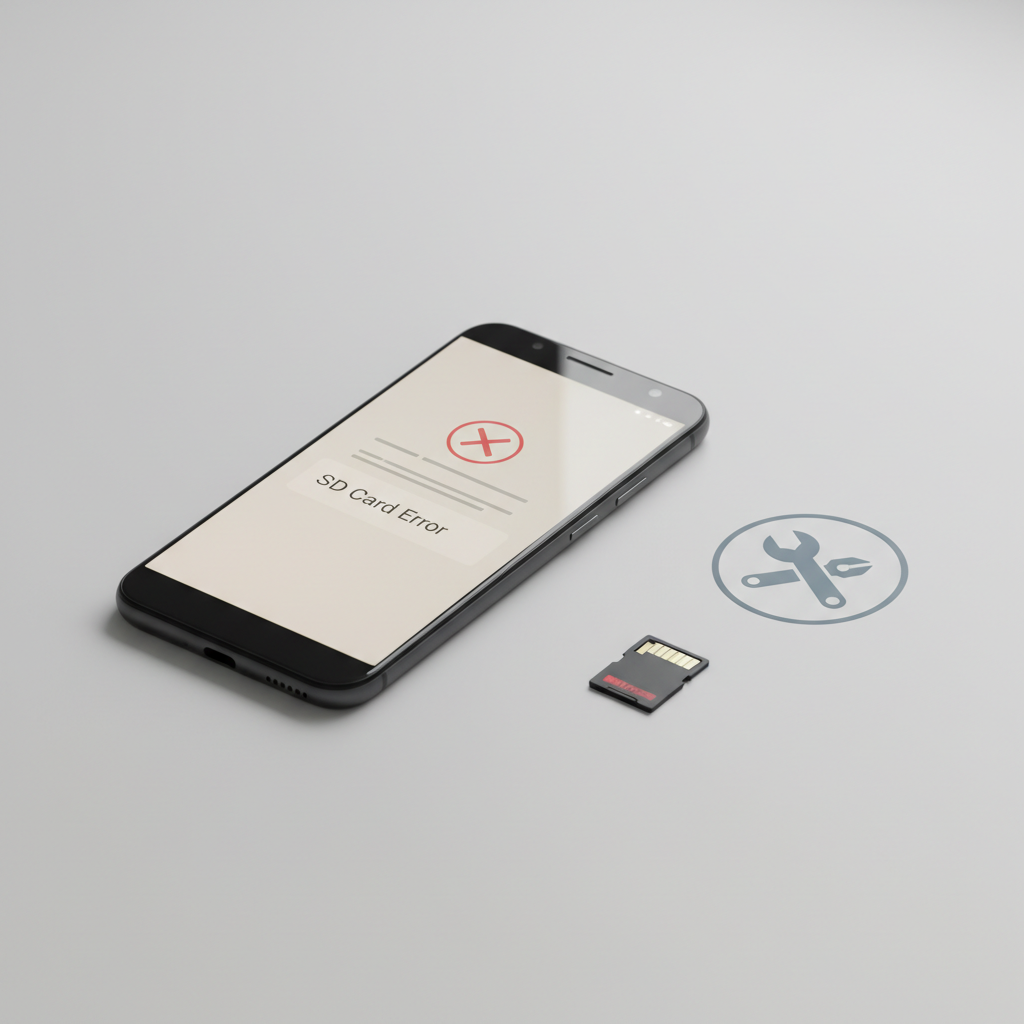
Troubleshooting: when Android won’t format the SD card
When people search how to format sd card on android, they often already tried the format button and it failed. The goal here is to separate a fixable file-system issue from a card that’s simply worn out.
1) Try a different path to format
- Use Settings (not a file manager app) for formatting.
- Unmount/Eject the card, reboot, then try again.
2) Check the physical basics
- Remove the card, inspect for dirt, reseat it firmly.
- If you use a microSD-to-SD adapter, try another adapter.
3) Format using a computer (useful for stubborn cards)
- On Windows: open Disk Management, confirm you selected the SD card, then format.
- On macOS: use Disk Utility.
- If the computer also fails to format, the card is more likely defective.
According to Microsoft, Disk Management can help reinitialize or format removable drives when the standard flow fails, but you must be careful to select the correct drive to avoid wiping the wrong disk.
4) Watch for “fake capacity” or failing memory signs
- Formatting succeeds, but errors return within days.
- Files copy over, then vanish or become unreadable.
- The phone randomly switches between “prepared” and “corrupted.”
In those cases, replacing the card is often more time-efficient than repeated repairs.
Common mistakes that make SD card issues worse
- Formatting without a backup, then trying recovery as a last resort. Recovery sometimes works, sometimes doesn’t.
- Choosing internal storage to “make the card faster.” It doesn’t upgrade card speed, it just changes how Android uses it.
- Removing the card while writing (recording video, moving files, installing apps). This is a classic corruption trigger.
- Buying unknown-brand cards. Many issues trace back to low-quality or counterfeit storage.
If you want fewer surprises, use a reputable card and match it to your workload. High-resolution video recording is rough on cheap cards.
When it’s worth getting extra help (or replacing the card)
If the SD card stores business files, legal documents, or irreplaceable media, it may be smarter to pause and consult a professional data recovery service, especially if the card makes clicking noises in a reader, runs extremely hot, or repeatedly disconnects.
Also consider the phone side: if multiple SD cards fail in the same device, the tray or reader could be damaged. A repair shop can usually confirm that quickly.
Key takeaways and next steps
Formatting is a clean reset, not a guaranteed repair, and the real “win” comes from picking the right mode and backing up first. If your goal is compatibility and easy file transfer, format as portable. If you want more app space and accept the lock-in, internal storage can work well.
Action you can take now: back up the SD card, then format through Settings, and if formatting fails twice, test the card on a computer to see whether the problem is the card or the phone.
FAQ
Will formatting an SD card on Android delete everything?
Yes, in most cases formatting removes all files and resets the file system. If there’s anything you might want later, copy it off first.
What’s the difference between portable and internal (adoptable) storage?
Portable keeps the card removable and easy to use on other devices. Internal encrypts and integrates the card into the phone storage, which is convenient for apps but reduces portability.
Why does my phone say “SD card corrupted” even after formatting?
That usually points to either a failing card, a poor connection in the tray, or removing the card during write operations. If the warning returns quickly, testing the card in a computer helps confirm if it’s defective.
How often should I format my SD card?
There’s no universal schedule. Many people only format when switching devices, repurposing the card, or troubleshooting persistent errors.
Can I format an SD card without removing it from the phone?
Usually yes, Settings can format it in place. If Android can’t complete the format, using a computer with a card reader is the next practical step.
Which file system does Android use for SD cards?
It varies by device and card size. Many modern devices use exFAT for larger cards, while some use FAT32 on smaller ones. You typically don’t need to choose manually on Android.
My SD card won’t mount. Should I format it right away?
Not always. Try reinserting the card, rebooting, and checking it on a computer first. If the data matters, consider professional recovery before formatting.
If you’re trying to format an SD card because storage errors keep coming back, or you’re unsure whether to pick portable vs internal storage, it can help to describe your phone model, Android version, and what you store on the card, then follow a more tailored checklist instead of guessing.