
How to Fix Apps Crashing on Android Phones Instantly
How to fix apps crashing on android phones usually comes down to three things: a buggy app build, a phone issue like low storage or corrupted cache, or a conflict after an update. The good news is most crash loops are fixable in minutes without losing your data.
App crashes feel random, but they often follow patterns: it happens right after you tap a certain button, right after an Android update, or only on Wi‑Fi or Bluetooth. If you spot the pattern, you can avoid wasting time on “try everything” advice.
Below is a practical path: quick checks first, then deeper fixes if the problem sticks, plus a short decision table so you can pick the right move without guessing.

Fast triage: figure out what kind of crash you have
Before changing settings, take 30 seconds to identify the crash type. It sounds small, but it changes the fix.
- One app crashes, everything else is fine: usually an app bug, bad cache, or corrupted local data.
- Many apps crash (or the phone feels unstable): often low storage, WebView issues, OS bugs, or system-level conflicts.
- Crashes started right after an update (Android update or app update): rollback isn’t always possible, but you can stabilize with cache/data steps and system updates.
- Crashes only on one network/device (Wi‑Fi, Bluetooth, car, earbuds): frequently a permissions or connectivity edge case.
Key point: If the crash happens only in one app, start with app-level fixes. If it’s happening across apps, go to system-level checks sooner.
Quick fixes that often work in under 5 minutes
These steps are safe, reversible, and fix a surprisingly large share of Android crash reports.
1) Force stop the app and reopen
- Go to Settings > Apps > (app name) > Force stop
- Reopen the app, then try the action that triggers the crash
2) Restart your phone (yes, really)
A reboot clears stuck processes and frees memory. If you haven’t restarted in days, do it before deeper steps.
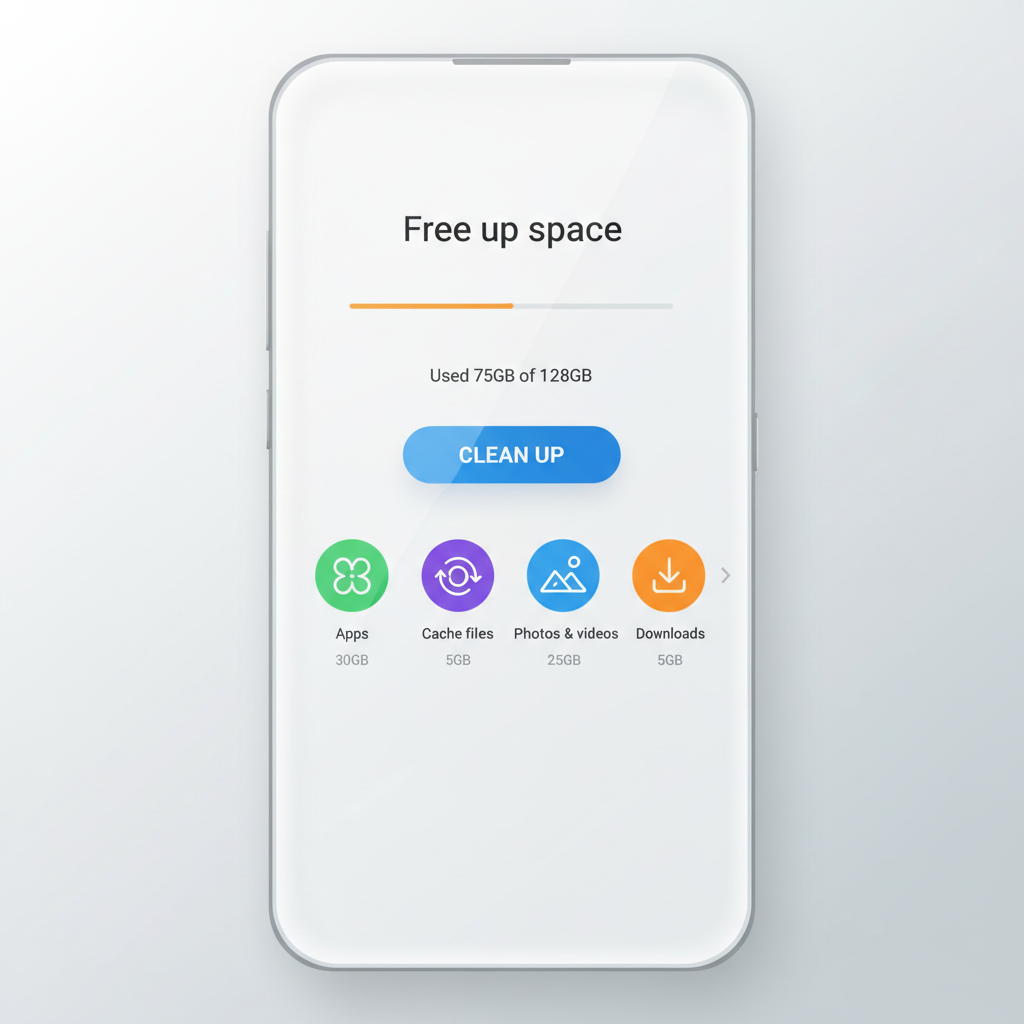
3) Check storage and free space
Low storage can cause apps to crash during downloads, camera uploads, or database writes. A practical rule: try to keep at least 2–5 GB free if your device is older or close to full.
- Settings > Storage
- Delete large videos, clear downloads, uninstall apps you don’t use
Fix the app itself: cache, updates, reinstall (in the right order)
If you’re searching how to fix apps crashing on android phones because one specific app keeps failing, this is the section that usually ends it.
Clear the app cache (low risk)
Cache is temporary files. It can get corrupted and trigger instant closes.
- Settings > Apps > (app) > Storage & cache
- Tap Clear cache
Update the app (or uninstall updates for some system apps)
- Open Google Play Store > profile icon > Manage apps & device > Updates
- Update the crashing app, plus anything it depends on (Google Play services, Android System WebView)
On some devices, certain preinstalled apps allow “Uninstall updates.” That can help if the newest build is broken, but it’s not available everywhere.
Clear app data (higher impact)
This resets the app like a fresh install. It may sign you out and remove local settings.
- Settings > Apps > (app) > Storage & cache
- Tap Clear storage or Clear data
Reinstall the app
If clearing cache/data doesn’t stick, reinstall can replace corrupted app files.
- Uninstall the app
- Restart the phone
- Install again from Google Play
System-level fixes when multiple apps crash
When several apps crash, it’s rarely “just one app being buggy.” It’s more often a system component, storage pressure, or a broken update path.
Update Android and Google components
- Settings > System > System update
- In Play Store, update Google Play services (if prompted), plus Android System WebView and Google Chrome
According to Google Play support guidance, keeping apps and Google Play services updated helps maintain stability and compatibility across Android versions.
Reset app preferences (doesn’t delete your data)
This can fix crashes caused by disabled system apps, broken defaults, or restricted background behavior.
- Settings > Apps > (three-dot menu) > Reset app preferences
- Re-test the app that crashes
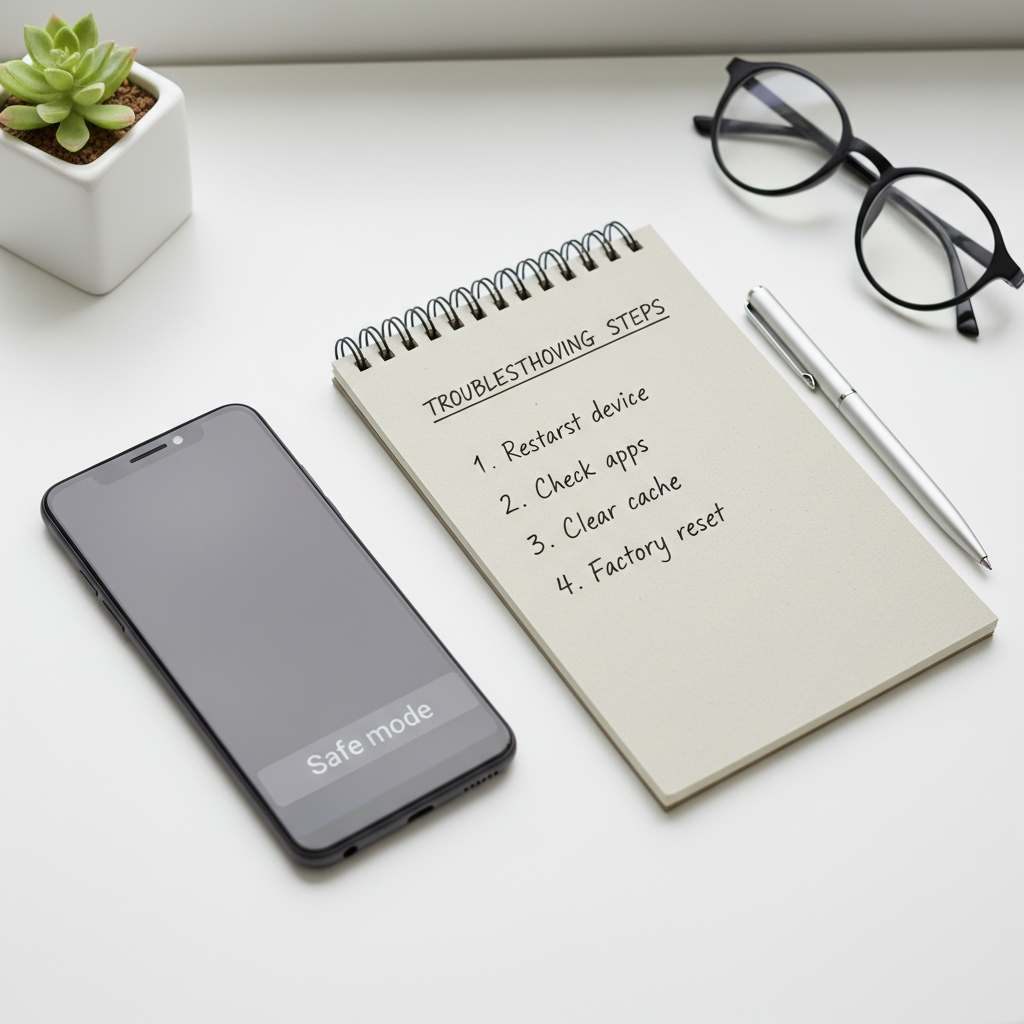
Boot into Safe Mode to check for conflicts
Safe Mode temporarily disables third-party apps. If crashes stop there, a recently installed app, launcher, VPN, cleaner, or accessibility tool may be interfering.
- Press and hold the power button
- Long-press Power off (on many devices) > choose Safe mode
- Test the problem app, then restart to exit Safe Mode
Use this decision table to choose the right fix
If you want a quick “do this next” map, this table is the easiest way to stop bouncing between settings screens.
| What you see | Most likely cause | What to do first |
|---|---|---|
| Only one app crashes on open | Corrupt cache/data, bad app update | Clear cache, update app, then clear data |
| Crashes started after Android update | Compatibility bug, WebView/Chrome mismatch | Update WebView/Chrome, update the app, reboot |
| Multiple apps crash or phone feels laggy | Low storage, system instability | Free storage, restart, install system updates |
| Crashes only on Wi‑Fi/Bluetooth or certain actions | Permission, network stack, device conflict | Check permissions, reset network settings, Safe Mode test |
| Crash loop but works in Safe Mode | Third-party conflict (VPN, launcher, “cleaner”) | Remove recent apps, disable overlays, reboot normally |
Practical fixes for common real-world triggers
Permissions that quietly break after an update
Camera, storage, location, notifications, and “Nearby devices” can cause failures if an app expects access and the permission got reset.
- Settings > Apps > (app) > Permissions
- Grant only what makes sense, then re-test the exact feature that crashes
Network and DNS issues that look like “app crashes”
Some apps “crash” when they fail to load content and the app handles the error badly. If crashes happen only on one Wi‑Fi network, try:
- Toggle Airplane mode on/off
- Forget and rejoin Wi‑Fi
- Disable VPN/ad blocker temporarily
Overheating and memory pressure
Games, camera apps, video calls, and navigation can quit when the phone is hot or RAM is tight. Let the phone cool down, close heavy background apps, and avoid charging while gaming if it triggers repeats.
Common mistakes that waste time (or make it worse)
- Installing “RAM booster/cleaner” apps: many are aggressive and can actually increase instability by killing background services.
- Clearing data too early: try cache and updates first, because clearing data can remove offline downloads and settings.
- Ignoring storage: people focus on the crashing app, but a nearly full phone can break many apps at once.
- Skipping WebView/Chrome updates: for some app types, outdated WebView components can trigger frequent crashes.
When it’s time to get extra help (or consider a reset)
If you’ve worked through the steps and the problem keeps returning, it may be time to stop experimenting and switch to a more controlled approach.
- Contact the app developer if only one app crashes and you can reproduce it consistently (include device model, Android version, steps to reproduce).
- Use built-in diagnostics if your phone brand provides them (Samsung Members, Pixel diagnostics, carrier tools), since they can flag hardware/storage problems.
- Factory reset is the last resort: it can help if the OS install is corrupted, but you should back up first. If you’re unsure, asking a repair shop or your carrier for guidance is reasonable, especially if the phone also reboots or overheats.
According to Android Help resources, staying current on system and app updates and using official troubleshooting steps is generally the safest way to address stability issues.
Conclusion: a simple plan that works for most crashes
If you want the shortest path, do this: restart the phone, confirm you have free storage, clear the crashing app’s cache, update the app and key Google components, then test in Safe Mode if crashes continue. That sequence covers the most common reasons people search how to fix apps crashing on android phones without jumping straight to drastic resets.
Action tip: If the crash is tied to one exact feature (upload, login, camera), test that same feature after each change so you know what actually fixed it.
FAQ
Why do my Android apps keep crashing all of a sudden?
Often it’s an app update bug, a system update compatibility issue, or storage/memory pressure. If it started the same day as an update, focus on updates (app + WebView/Chrome) and cache cleanup before deeper resets.
Does clearing cache delete my photos or messages inside the app?
Clearing cache usually removes temporary files only. Clearing storage/data is the step that can remove local downloads and sign you out, so it’s smarter to try cache first.
What if the app crashes only on Wi‑Fi but works on mobile data?
That points to a network-specific issue: VPN, DNS filtering, router settings, or captive portal behavior. Forget/rejoin Wi‑Fi and disable VPN/ad blockers briefly to confirm.
How do I fix apps crashing on Android phones after an Android update?
Update the affected app, update Android System WebView and Chrome, reboot, then clear the app cache. If multiple apps crash, check storage and install any pending system patches.
Can low storage really make apps crash?
Yes, especially apps that write files or maintain local databases. When storage is tight, operations can fail and some apps respond by closing unexpectedly.
Is Safe Mode safe, and what does it tell me?
Safe Mode is a built-in troubleshooting mode and is generally safe to use. If the crashing stops in Safe Mode, a third-party app or overlay is likely causing conflicts.
When should I factory reset my Android phone for crashing apps?
If many apps crash, you’ve tried updates, cache/data steps, Safe Mode checks, and the phone still behaves unpredictably, a reset may help. Back up first, and consider professional help if you suspect hardware issues.
If you’re trying to stabilize a phone quickly because you need it for work, travel, or school, it can help to write down what changed right before the crashes, then follow the decision table instead of random fixes, you’ll usually get to a clean answer faster.