
Top free photo organizers for windows pc usually solve one very specific headache: you have years of pictures scattered across Downloads, phone backups, and random folders, and Windows Search never finds the “right” one when you need it.
The tricky part is that “free” can mean very different things, some apps are truly local and offline, others are free because they nudge you toward paid cloud storage, and a few are discontinued but still popular. This guide stays practical: what each tool is good at, what it’s not, and how to pick one without spending your weekend re-organizing twice.
Also, photo organizing in 2026 often overlaps with privacy and AI features, face grouping, duplicate detection, and auto-tagging can be useful, but you’ll want to know where your library lives and what gets uploaded.
What to look for in a free photo organizer (so you don’t regret the import)
Before you download five apps and import 80,000 photos, set a few “must-haves.” Migrating libraries can take hours, and some tools create sidecar files or new folder structures that are annoying to unwind.
- Local-first library support: Can it manage folders on your PC without forcing a cloud account?
- Speed with large collections: 10,000 photos is easy, 200,000 is where weak organizers fall apart.
- Metadata tools: Rating, keywords, captions, and whether edits write to XMP sidecars or embed into files.
- Duplicates + near-duplicates: Bursts, resized copies, and “IMG_1234 (1).jpg” cleanups.
- Search that works: Filters by date, camera, lens, location, rating, and keywords.
- Export control: Can you move out later without losing tags and albums?
According to Microsoft, OneDrive Photos and Windows Photos integrate tightly with Windows for syncing and viewing, which is convenient, but it also means your “organizer” may be tied to an account and online features depending on how you set it up.
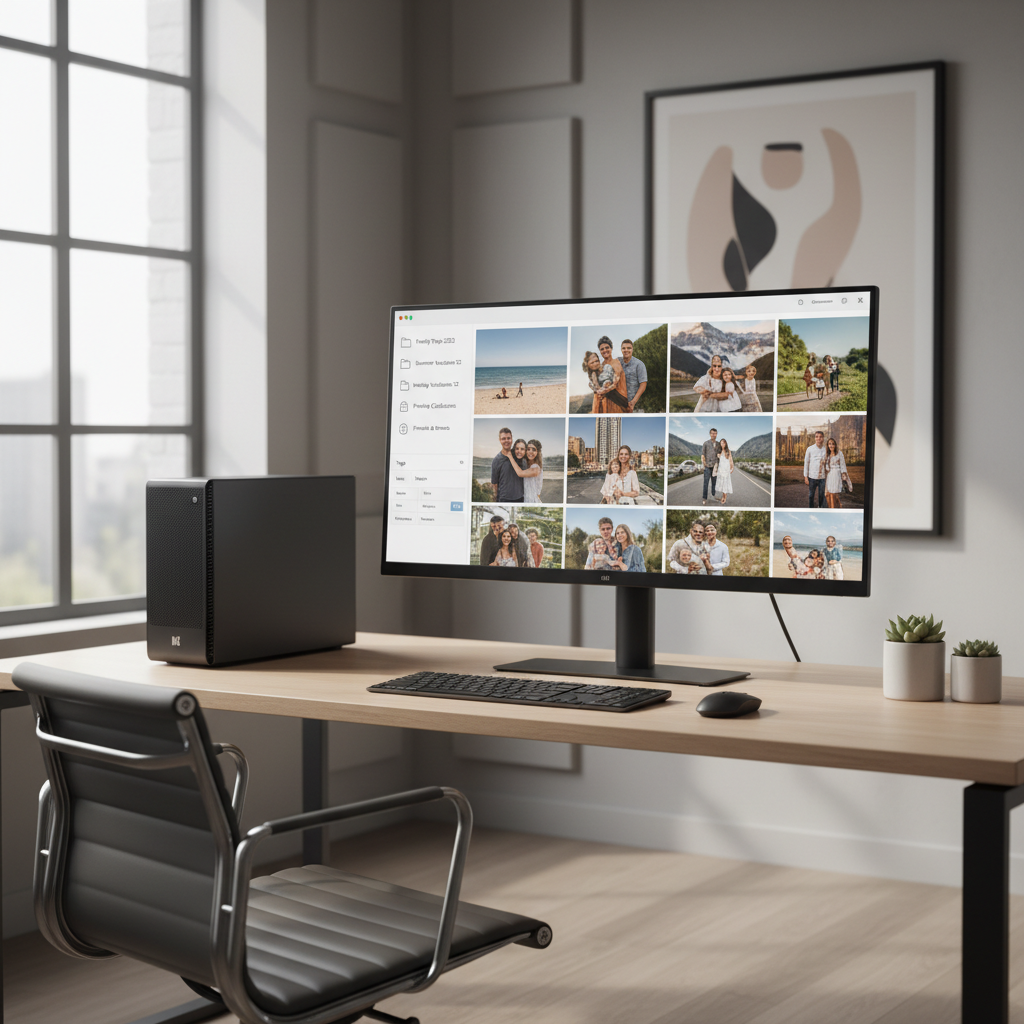
Quick comparison table: free options worth trying in 2026
This table is a shortcut, not a verdict. Your “best” choice depends on whether you want cloud sync, local control, or serious metadata work.
| Tool | Best for | Runs locally? | Standout feature | Main trade-off |
|---|---|---|---|---|
| Microsoft Photos | Simple viewing + basic sorting | Yes | Built-in Windows integration | Limited pro metadata workflows |
| Google Photos (web/PWA) | Search and face grouping | No (cloud-first) | Strong AI search | Storage limits, upload required |
| digiKam | Power users, metadata, large libraries | Yes | Tags/ratings + database-driven catalog | Learning curve |
| XnView MP | Fast browsing and batch tasks | Yes | Batch rename/convert, quick filters | Library features less “album-like” |
| Darktable | RAW photographers who also need organization | Yes | Non-destructive editing + collections | Overkill for casual users |
Top picks explained: which free organizer fits your situation
Microsoft Photos (Windows built-in)
If you want “good enough” without configuring databases, Microsoft Photos is the easiest starting point. It handles timeline browsing, basic albums, and it plays nicely with Windows indexing.
- Use it when: your photos already live in known folders, and you mostly need browsing and quick cleanup.
- Skip it when: you care about deep keywording, advanced duplicate logic, or consistent workflows across devices.
For many households, this is the lowest-friction choice among top free photo organizers for windows pc, especially if your goal is simply “stop losing pictures” rather than building a catalog system.
Google Photos (browser or PWA on Windows)
Google Photos is still the king of “type what you remember and it shows up.” That said, it’s not a local organizer, your best features arrive after upload, and storage policies can change, so treat it like a cloud library, not just an app.
- Use it when: search matters more than folder structure, and you’re okay with a cloud-first approach.
- Watch for: upload time, storage limits, and whether face grouping is available in your account/region settings.

digiKam (free, open-source)
digiKam is the “serious organizer” in this list. It builds a catalog using a database, supports tags, ratings, geolocation, face management options, and it can scale to large libraries if your drive and CPU can keep up.
- Use it when: you want a long-term library with real metadata discipline.
- Plan for: initial indexing time, and deciding whether you store metadata in files (XMP) or only in the database.
According to the Library of Congress, embedded metadata is a key part of long-term digital preservation practices, which is one reason many photographers prefer tools that can write standard metadata instead of hiding everything in a single proprietary library file.
XnView MP (free for personal use)
XnView MP feels like a turbocharged file browser for images. It’s great when you want to move fast: cull, rename, convert, and apply quick ratings without committing to a heavy catalog workflow.
- Use it when: your library is folder-based and you want speed plus batch tools.
- Not ideal when: you expect “smart albums” and deep library management like a DAM.
Darktable (free, open-source)
Darktable is mainly a RAW editor, but its collections, ratings, color labels, and filtering can double as an organizer for photographers. If you already shoot RAW, it may replace both an editor and a basic catalog tool.
- Use it when: editing and organizing belong in one workflow.
- Skip it when: you only need to sort phone photos and screenshots.
Self-check: which type of photo mess do you actually have?
Most people don’t have “one” problem, they have a combination. Pick the closest match, then choose tools and steps that fit.
- Folder chaos: photos spread across many drives and random subfolders, naming is inconsistent.
- Duplicate overload: lots of copies from texting, exporting, social downloads, and phone backups.
- Can’t find anything: you remember the event but not the date or folder name.
- Mixed sources: iPhone + Android + DSLR + screenshots all together.
- Privacy concerns: you want local organization without uploading family photos.
If privacy is your top constraint, focus your shortlist on local-first options. If search is your bottleneck, cloud or AI-centric tools tend to feel “magical,” but you pay with upload time and account dependence.
A practical setup plan (works with most organizers)
The fastest path is usually: stabilize folders, then add tags/ratings, then tackle duplicates. If you do it in the opposite order, you’ll delete things you later realize were the “only copy.”
1) Create a stable library folder structure
- Pick one root folder, for example: Pictures\Photo Library.
- Sort by year, then event buckets you recognize: 2024\2024-07 Road Trip.
- Keep “inbox” folders: To Sort and Screenshots.
2) Import in smaller batches
- Start with one year or one device backup, confirm the tool reads dates correctly.
- Decide how metadata is stored: database-only vs writing to files/sidecars.
3) Add just enough metadata to make search work
- Use ratings (1–5) for quality, and tags for people/places.
- Don’t over-tag early, 10 useful tags beat 200 half-used tags.
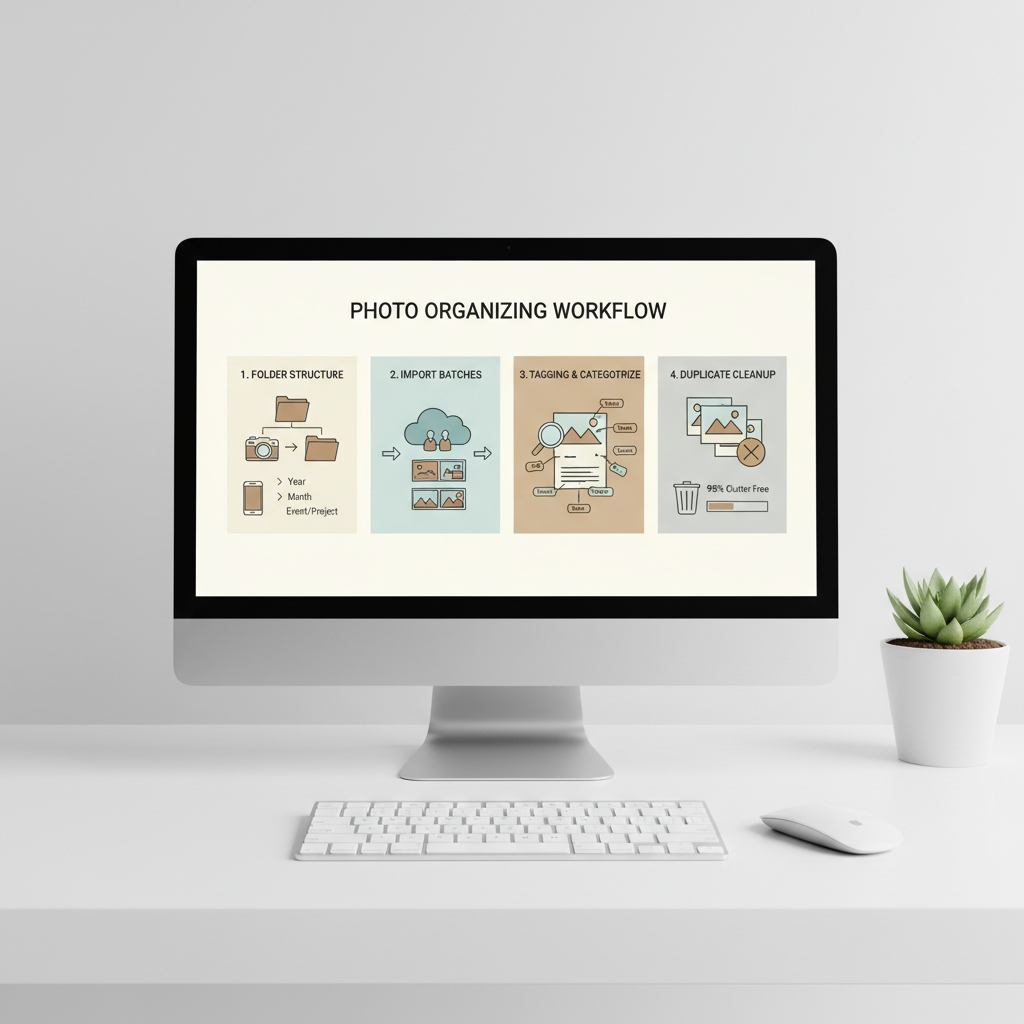
4) Do duplicates as a separate pass
- Handle exact duplicates first, then near-duplicates (burst shots, edits, resized exports).
- When in doubt, move to a Review folder instead of deleting permanently.
Common mistakes (and how to avoid them)
- Importing everything twice: happens when you point an organizer at both your phone backup and your “sorted” folders. Use one source at a time.
- Letting an app rearrange your folders without noticing: some tools offer “managed libraries.” If you prefer folders you can understand in File Explorer, avoid that mode.
- Relying on one copy: organization is not backup. Use Windows Backup, File History, or another backup plan that suits your risk tolerance.
- Assuming faces and location always work: detection quality varies, and sometimes needs extra permissions or cloud processing.
- Over-optimizing early: people burn out trying to perfect every album. Get to “findable” first.
According to NIST, good security and data hygiene practices often start with knowing where your data lives and maintaining backups, which matters here because photo libraries are both sentimental and hard to recreate.
When it’s worth getting extra help (or paying for software)
If you’re managing a business archive, client work, or a multi-terabyte family collection on a NAS, free tools may still work, but you might want help planning a workflow. The pain points are usually performance tuning, metadata standards, and safe migration.
- Consider a pro consultation if you need a repeatable workflow for a team, or you’re migrating from an old catalog with keywords you can’t lose.
- Consider paid software if you need advanced deduping, automated backup/sync, or vendor support for mission-critical use.
Conclusion: a smart “first pick” for most people
If you want the simplest start, try Microsoft Photos and tighten your folder structure, you can get organized quickly without learning a new system. If you care most about long-term cataloging, digiKam is often the strongest local option among top free photo organizers for windows pc, but it rewards patience. If your brain works in search queries instead of folders, Google Photos can feel effortless, as long as you’re comfortable with cloud storage.
Action plan: pick one tool today, import one small batch, and decide how you’ll store metadata before you scale up. That one decision prevents a lot of future redo.
Key takeaways
- Local-first vs cloud-first is the real fork in the road, decide that early.
- Don’t start with duplicates, start with stable folders and a clean “inbox.”
- Metadata portability matters if you ever switch apps.
- Backups are separate from organizing, treat them as non-negotiable.
FAQ
What are the top free photo organizers for windows pc if I don’t want cloud sync?
In many cases, digiKam, XnView MP, Darktable, and Microsoft Photos can work without cloud upload. The main thing to check is whether the tool asks you to sign in to enable core features.
Will a free photo organizer delete my photos if I uninstall it?
Most local organizers leave your original files where they are, but some “managed library” modes can move files into app-controlled folders. Before importing, look for settings related to managed storage, library location, and whether the app copies or references files.
How do I organize 100,000+ photos without crashing my PC?
Import in batches and keep the library on a fast SSD if possible. Catalog tools like digiKam also benefit from letting indexing finish overnight, and from keeping your database on a fast drive.
Is Windows Photos good enough as an organizer in 2026?
For basic browsing, dates, and albums, it’s often enough. If you need heavy tagging, controlled vocabularies, or pro-style culling, you’ll likely feel its limits.
Which free tool is best for duplicates on Windows?
Many organizers offer some duplicate detection, but the quality varies. A practical approach is to use your organizer for sorting and ratings, then use a dedicated duplicate-finder when you’re ready, especially for near-duplicates.
Do these organizers keep my tags if I switch apps later?
Only sometimes. Look for tools that write keywords/ratings into standard metadata fields or XMP sidecars. If tags live only inside an internal database, moving can be harder.
Can I organize iPhone photos on a Windows PC for free?
Yes, usually by importing from iCloud for Windows, Apple Devices app, or direct file transfer, then managing the resulting folders locally. The smoother your import, the less duplicate cleanup you’ll do later.
If you’re trying to clean up a messy camera roll plus years of PC folders and you want a more “set it up once” workflow, it can help to choose one organizer, define a simple folder standard, and stick with it for a month before you add extra tools.