
how to reduce ping in online pc games usually comes down to three levers you can actually control: your connection path (Wi‑Fi vs Ethernet), your network congestion (inside your home), and the route to the game server (region, ISP routing, server load). If your shots feel late, movement “rubber-bands,” or voice chat stutters, you’re dealing with latency, not raw download speed.
This matters because ping problems waste time in the worst way: you tweak graphics, buy a faster GPU, and nothing changes. Ping is a network timing problem, so the fixes look different from typical “PC optimization” advice.

What this guide does is help you diagnose what kind of latency you have, then apply fixes in the right order. Some steps are quick wins, others depend on your home layout, ISP, or how that particular game handles servers and matchmaking.
What “Ping” Really Means (and Why It Spikes)
Ping is the round-trip time for a small packet to go from your PC to a destination and back, measured in milliseconds. Lower is better, but stable is often just as important.
Two hidden culprits people mix up with ping are jitter and packet loss. Jitter means ping varies wildly, packet loss means some data never arrives, both can feel worse than a slightly higher but steady ping.
- Good for many shooters: ~20–50 ms (varies by game and server)
- Playable but noticeable: ~60–100 ms
- Frustrating: 100+ ms, especially with jitter or loss
According to the FCC (Federal Communications Commission), latency is a key part of broadband performance and affects real-time applications like gaming and video calls, which lines up with what gamers feel every night.
Quick Self-Check: Identify Your Ping Problem in 10 Minutes
Before changing settings, figure out whether the issue is your PC, your home network, or the server route. This keeps you from “fixing” the wrong thing.
Step-by-step checks
- Check in-game network stats (ping, packet loss, server region). If the game shows packet loss, don’t ignore it.
- Run a wired vs Wi‑Fi comparison: same match, same server region, test on Ethernet if possible.
- Ping your router from Windows (Command Prompt): ping 192.168.1.1 -n 50 (your gateway may differ). If this spikes, it’s inside your home.
- Ping a stable public endpoint (not the game): ping 1.1.1.1 -n 50. If router ping is stable but this isn’t, look at ISP or modem/router.
- Look for background traffic: cloud sync, game updates, streaming, other devices.
Fast Wins That Help Most Players (Start Here)
If you’re searching how to reduce ping in online pc games, these are the changes that tend to produce the most reliable improvement without getting too technical.
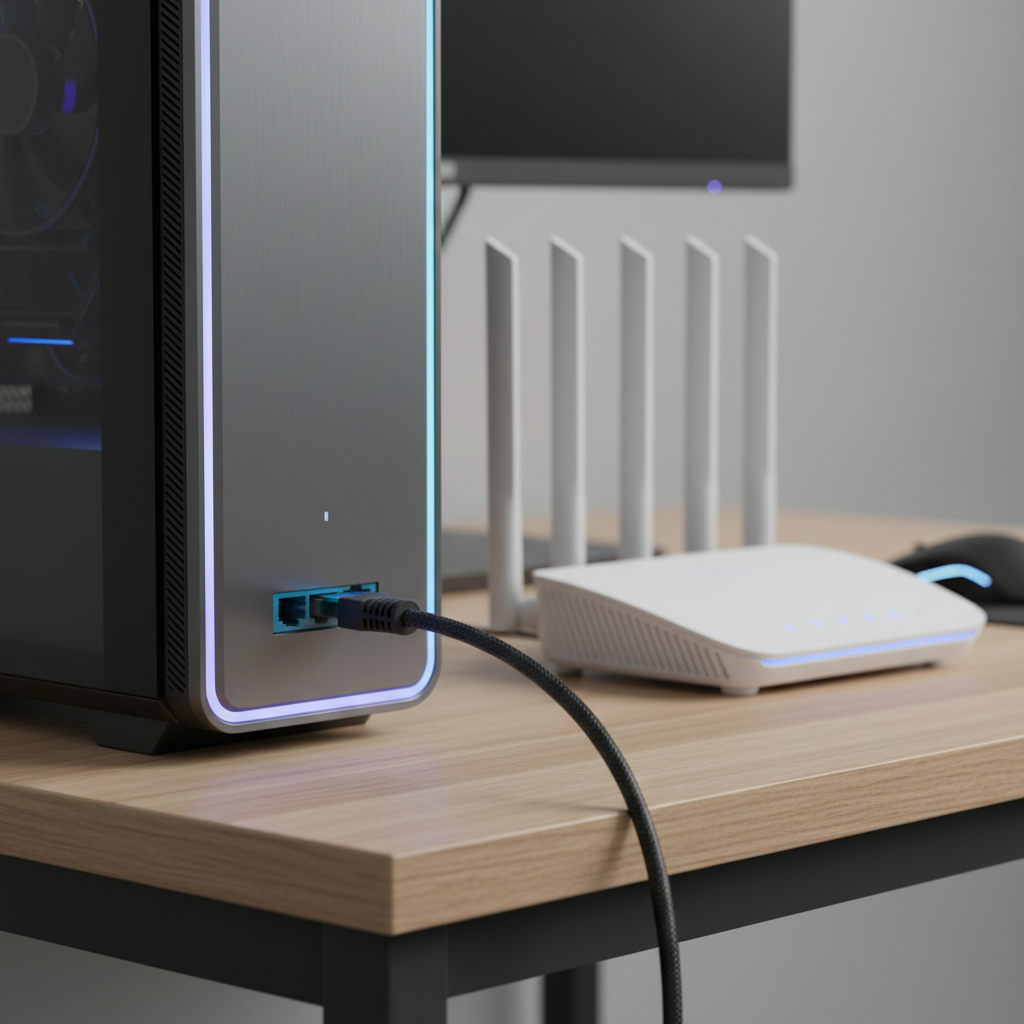
Use Ethernet (or get “close enough”)
- Best: Ethernet directly to the router.
- Good alternative: MoCA adapters (if you have coax wiring). Often steadier than Wi‑Fi in many homes.
- Hit-or-miss: Powerline adapters, performance depends heavily on your electrical wiring.
Wi‑Fi can be fine, but it’s more sensitive to interference, distance, and congestion. If wired fixes your ping spikes, you’ve basically solved the mystery.
Reboot in the right order
This sounds basic, but it clears weird modem/router states and can improve stability.
- Power off modem and router for ~30–60 seconds
- Power on modem, wait until it fully connects
- Power on router, then restart your PC
Stop “silent” background usage
- Pause cloud sync (OneDrive, Google Drive, Dropbox) during matches
- Disable Steam/Epic auto-updates while gaming
- Limit 4K streaming on the same network during competitive play
Router and Wi‑Fi Tweaks That Actually Matter
Router settings can help, but only a few are worth your attention. Most people get better results from reducing congestion than from chasing exotic “gaming” toggles.
Pick the right Wi‑Fi band and channel
- Use 5 GHz when you’re close to the router (usually less interference, more speed).
- Use 2.4 GHz if you’re far away or going through walls (often longer range, but more crowded).
- Try different channels if your area is congested. Many routers can auto-select, but “auto” isn’t always smart in busy apartments.
According to IEEE (the organization behind Wi‑Fi standards like 802.11), interference and contention on shared wireless spectrum affect performance, which is why a “fast” Wi‑Fi link can still feel unstable.
Turn on QoS (Quality of Service) carefully
QoS prioritizes gaming traffic, but implementation varies by router. In many cases, it helps when your home network gets busy, but it can also misclassify traffic or cap throughput.
- If your router offers “Adaptive QoS” or “Smart Queue,” start there.
- Prioritize your PC or console, not every device.
- If enabling QoS makes things worse, revert and focus on reducing competing traffic instead.
Watch for bufferbloat
Bufferbloat is when your network adds delay under load, usually during uploads. The classic sign: ping looks fine until someone uploads files or you start streaming, then latency jumps.
- Limit upstream usage during gaming (video calls, backups, phone photo uploads).
- Some routers include SQM (Smart Queue Management) options that reduce bufferbloat.
Game and Server Choices: Lower Ping Without Touching Hardware
Sometimes the “fix” is picking a server region that matches your physical location and avoiding overloaded matchmaking pools. It’s not glamorous, but it works.
Choose the closest region you can tolerate
- Set server region manually if the game allows.
- If you queue with friends far away, your match may land on a region that hurts everyone a bit.
Play at off-peak times when possible
Server load and ISP congestion can be time-based. If ping climbs every night around the same window, that’s often congestion somewhere between you and the data center, not your PC.
Don’t confuse FPS drops with ping
Low FPS feels like input lag, but it’s not the same as network delay. If your ping is stable and low but the game still feels “late,” check frame times, CPU usage, and GPU drivers.
PC-Side Settings: What Helps, What’s Mostly Noise
PC tweaks won’t fix a bad route to the server, but they can remove self-inflicted problems and reduce variability.
Update NIC and chipset drivers (but don’t overdo “optimizers”)
- Update your motherboard chipset and network adapter drivers from the manufacturer.
- Avoid sketchy “ping booster” apps that promise miracles, many just change DNS or install filters.
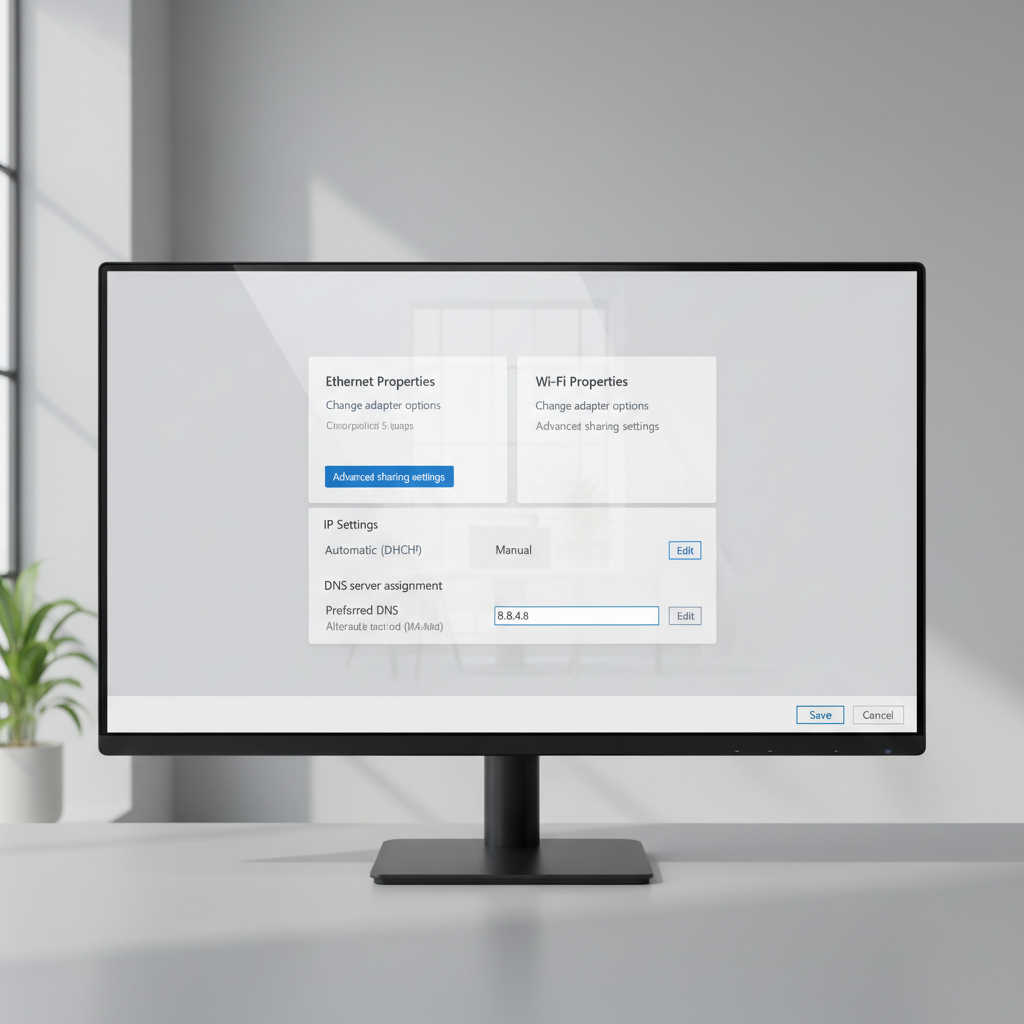
Use a reliable DNS, but keep expectations realistic
DNS affects how fast names resolve, not the ongoing game traffic path. Still, a flaky DNS can cause slow logins or matchmaking hiccups.
- Common choices: Cloudflare (1.1.1.1), Google (8.8.8.8).
- If your ISP DNS is stable, switching may not change gameplay ping much.
Check for upload-heavy apps and overlays
- Disable unnecessary overlays (some are fine, too many can add instability).
- Look for upload spikes: webcam software, cloud backup, Discord streaming, Windows Delivery Optimization.
Troubleshooting Table: Symptom → Likely Cause → Fix
If you want a faster path to how to reduce ping in online pc games, match what you feel in-game to the most likely layer causing it.
| What you notice | Likely cause | Try this first |
|---|---|---|
| Ping is fine, then jumps when someone streams | Bufferbloat / upstream saturation | Enable QoS/SQM, limit uploads, pause backups |
| Random spikes on Wi‑Fi, wired feels stable | Wi‑Fi interference or weak signal | Switch to 5 GHz, change channel, move router, use Ethernet/MoCA |
| High ping only in one game | Server region, matchmaking, or that game’s routing | Lock region, test another server, avoid cross-region parties |
| High ping to everything, even public endpoints | ISP issue or modem line quality | Reboot modem, check cables, contact ISP with timestamps |
| Rubber-banding with normal ping shown | Packet loss | Try wired, replace old Ethernet cable, check router logs |
Key Takeaways and a Practical Action Plan
Here’s the clean order that tends to work in real homes, without getting stuck in endless tweaking.
- Confirm the problem: check ping, jitter, and packet loss in-game, then test router ping.
- Stabilize the link: go wired if you can, or improve Wi‑Fi band/channel and placement.
- Reduce competition: pause uploads, updates, and high-bitrate streaming during matches.
- Fix routing choices: select the closest server region, avoid cross-region parties for ranked.
- Only then mess with advanced router features like QoS/SQM.
If you do those in order, you’ll usually see whether the bottleneck is in your room, your house, or outside your control.
When to Involve Your ISP (or Upgrade Hardware)
If your testing shows stable ping to your router but unstable results to public endpoints, or you see frequent disconnects, it may be time to escalate.
- Contact your ISP with specific times, what endpoints you tested, and whether the issue is worse during peak hours.
- Ask about modem signal levels, line noise, or area congestion. The support agent may run remote diagnostics.
- If your router is old or underpowered, a modern router can help with congestion handling, but it won’t magically beat a bad ISP route.
For apartment buildings and dense neighborhoods, Wi‑Fi environment can be rough. In those cases, spending on a better access point or using Ethernet/MoCA often provides more consistent gains than upgrading internet speed tiers.
Conclusion: Make Ping Boring Again
how to reduce ping in online pc games is mostly about making your connection predictable, not chasing a single magic setting. Start by proving where the spikes come from, then make one change at a time so you can tell what actually helped.
If you want one action to take today, run a wired test match and pause anything that uploads in the background, that combination reveals a lot fast.
FAQ
Why is my download speed high but my ping still bad in games?
Speed and latency measure different things. You can download fast and still have long or unstable routing to a game server, plus Wi‑Fi interference and bufferbloat can add delay even on “fast” internet.
Does a gaming VPN reduce ping?
Sometimes, but it’s situational. A VPN can improve routing if your ISP takes a messy path to a specific data center, but it can also add overhead and worsen latency. If you try one, test the same server region before and after.
Is Wi‑Fi 6 or Wi‑Fi 7 worth it for lower ping?
It can help with efficiency and congestion handling, especially with many devices, but signal quality and interference still matter. If you’re far from the router, better standards won’t fully fix weak coverage.
What’s the simplest way to check packet loss?
Many games show packet loss in a network stats overlay. You can also use Windows tools like ping for a basic view, but in-game stats are often more relevant because they reflect the actual server connection.
Should I enable QoS on my router for gaming?
If your home network gets busy during play, QoS can help prioritize your game traffic. If you’re the only heavy user, or your router’s QoS is poorly implemented, you might see no change or even slightly worse performance.
Why is my ping worse at night?
Peak-hour congestion is common, either on your local network (more people at home) or at the ISP level. If it happens on multiple devices and multiple games at the same time window, it’s less likely to be a PC-only issue.
Can changing DNS reduce in-game ping?
DNS changes typically won’t reduce steady-state game latency, because DNS mostly affects how servers are found, not the ongoing packet route. It can still help if your current DNS is unreliable or slow during logins and matchmaking.
If You Want a More Hands-Off Fix
If you’re already tired of trial-and-error, a more practical route is to document your wired vs Wi‑Fi results and your router/public ping tests, then use that to decide whether you need better in-home networking gear or an ISP support ticket, it’s not flashy, but it saves hours.