
how to fix wifi connected but no internet usually comes down to one of three things: your ISP is down, your router is stuck, or your device has a bad network configuration.
It feels extra frustrating because the Wi‑Fi icon looks “fine,” apps may even say you’re connected, and yet nothing loads. In 2026, with mesh systems, auto-switching between bands, and privacy features like Private Wi‑Fi Address, the “connected” status can be misleading.
This guide focuses on fast diagnosis first, then targeted fixes. You’ll know when to reboot, when to touch DNS, when to reset network settings, and when it’s probably an ISP outage.
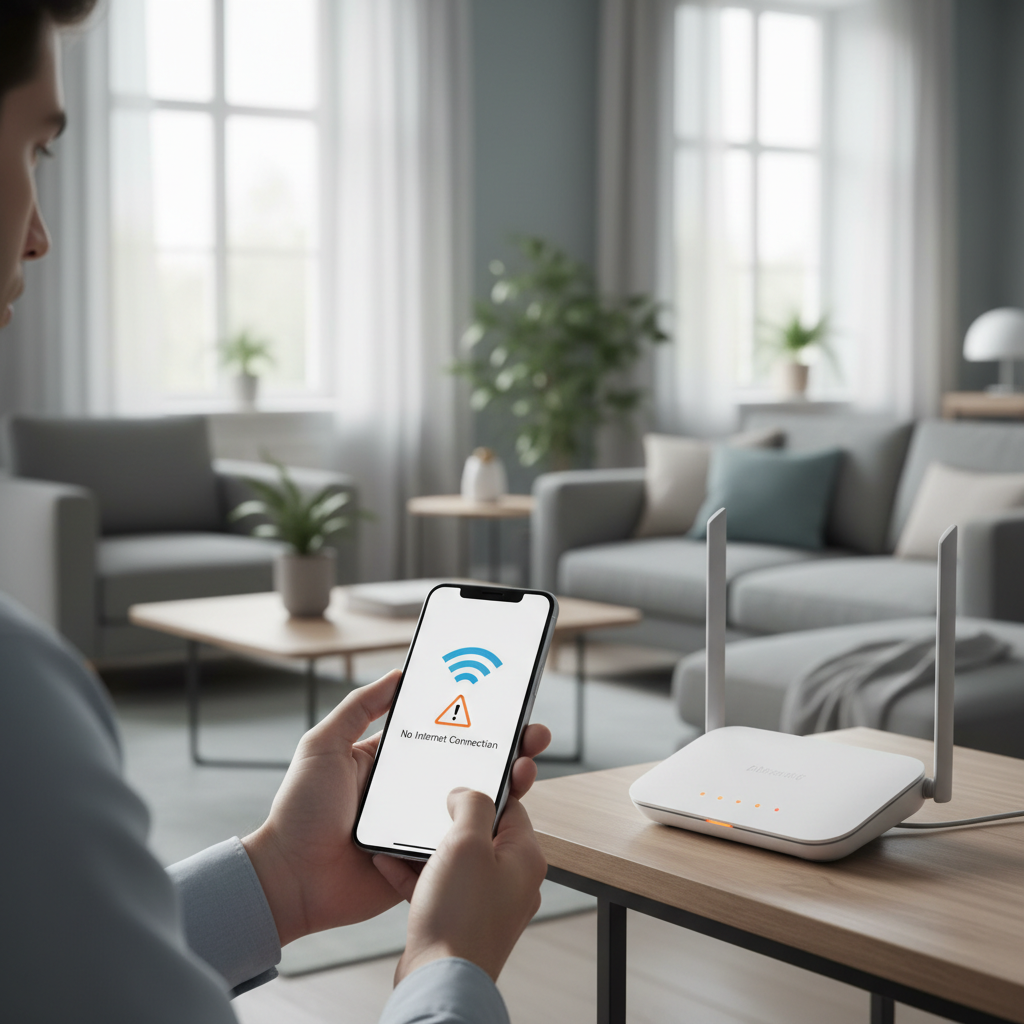
Quick diagnosis: is it your device, router, or ISP?
If you’re trying to fix “WiFi connected but no internet,” the fastest win is figuring out where the break actually is. Don’t guess, test one thing at a time.
- Test another device on the same Wi‑Fi: if nothing works, it’s likely router/modem/ISP.
- Test cellular data on your phone: if cellular works, the websites aren’t “down,” your home network is.
- Try one website and one app: if only certain sites fail, it can be DNS, VPN, or content filtering.
- Check the router/modem lights: “Internet/WAN” red or blinking often points upstream.
According to the Federal Communications Commission (FCC), checking whether your outage is localized or provider-related is a practical first step before deep device troubleshooting.
The 5-minute fix that solves most cases
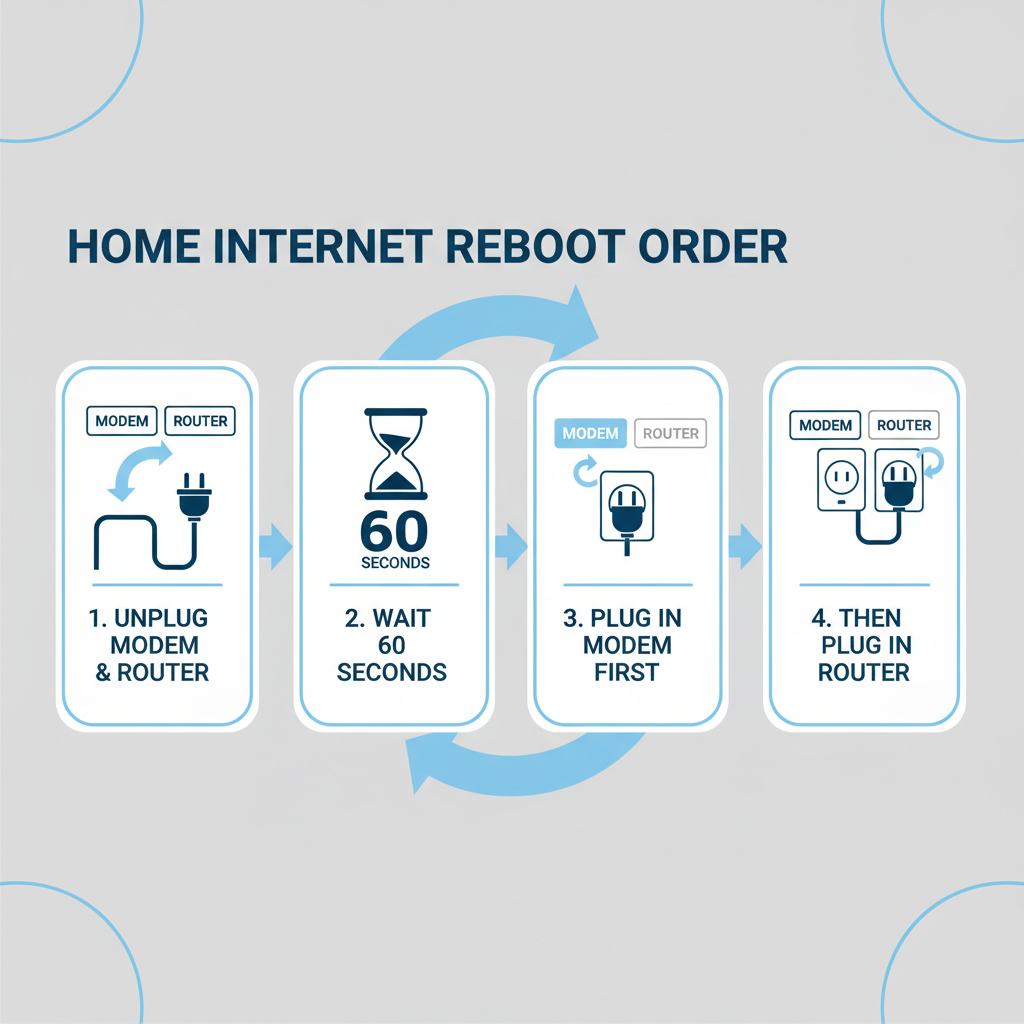
Most home networks recover with a clean restart sequence. The order matters because your modem often needs to re-establish a session with your ISP.
Do a proper power cycle (modem + router)
- Unplug modem and router (or gateway unit).
- Wait 60 seconds, not 10. This gives leases and cached states time to clear.
- Plug in the modem first, wait until it shows online/ready (often 2–5 minutes).
- Plug in the router, wait another 1–2 minutes.
Then, “forget” and rejoin Wi‑Fi on the device
This helps if your phone/laptop saved a stale configuration, especially after a router firmware update or password change.
- Forget the network
- Reconnect and re-enter the password
- Try loading a couple sites
Use this checklist to pinpoint the root cause
When “connected, no internet” keeps returning, the cause is often repeatable. This quick table helps you match symptoms to the most likely fix.
| What you see | Most likely cause | What to try first |
|---|---|---|
| All devices have no internet | ISP outage or modem/WAN issue | Check ISP status, reboot modem/router |
| Only one device fails | Bad IP/DNS/VPN setting on that device | Disable VPN, renew IP, reset network settings |
| Some sites work, others don’t | DNS problems or filtering | Switch DNS, disable content filters temporarily |
| Works for minutes, then drops | Router firmware bug, overheating, interference | Update firmware, move router, change Wi‑Fi channel |
| Wi‑Fi shows “No Internet” but Ethernet works | Wireless-only misconfig or band issue | Split bands, disable “smart connect,” reboot |
Fixes on your device (Windows, Mac, iPhone, Android)
If other devices work, you don’t need to nuke your router settings. Keep it local and reversible.
1) Turn off VPN, security apps, and “Private” Wi‑Fi features (temporarily)
VPNs and some security tools can intercept DNS or route traffic through a tunnel that fails. On iPhone, “Private Wi‑Fi Address” can also confuse certain captive portals or MAC-based access rules in some setups.
- Disconnect VPN
- Pause security web filtering (if you use it)
- On iOS: try toggling Private Wi‑Fi Address off for that network, then reconnect
2) Renew your IP address (common after router changes)
- Windows: Command Prompt →
ipconfig /releasethenipconfig /renew - macOS: Network settings → Wi‑Fi → Details → TCP/IP → Renew DHCP Lease
- iPhone/Android: toggle Airplane Mode on/off, or “Forget This Network” and rejoin
3) Reset network settings (when things get weird)
This is the “last resort on-device” because it clears saved networks and sometimes VPN profiles.
- iPhone: Settings → General → Transfer or Reset → Reset → Reset Network Settings
- Android: Settings → System → Reset options → Reset Wi‑Fi, mobile & Bluetooth (wording varies)
- Windows: Settings → Network & Internet → Advanced network settings → Network reset
Fixes on the router: DNS, firmware, and Wi‑Fi settings that matter
If every device shows the same “WiFi connected but no internet” pattern, focus on WAN, DNS, and firmware stability.
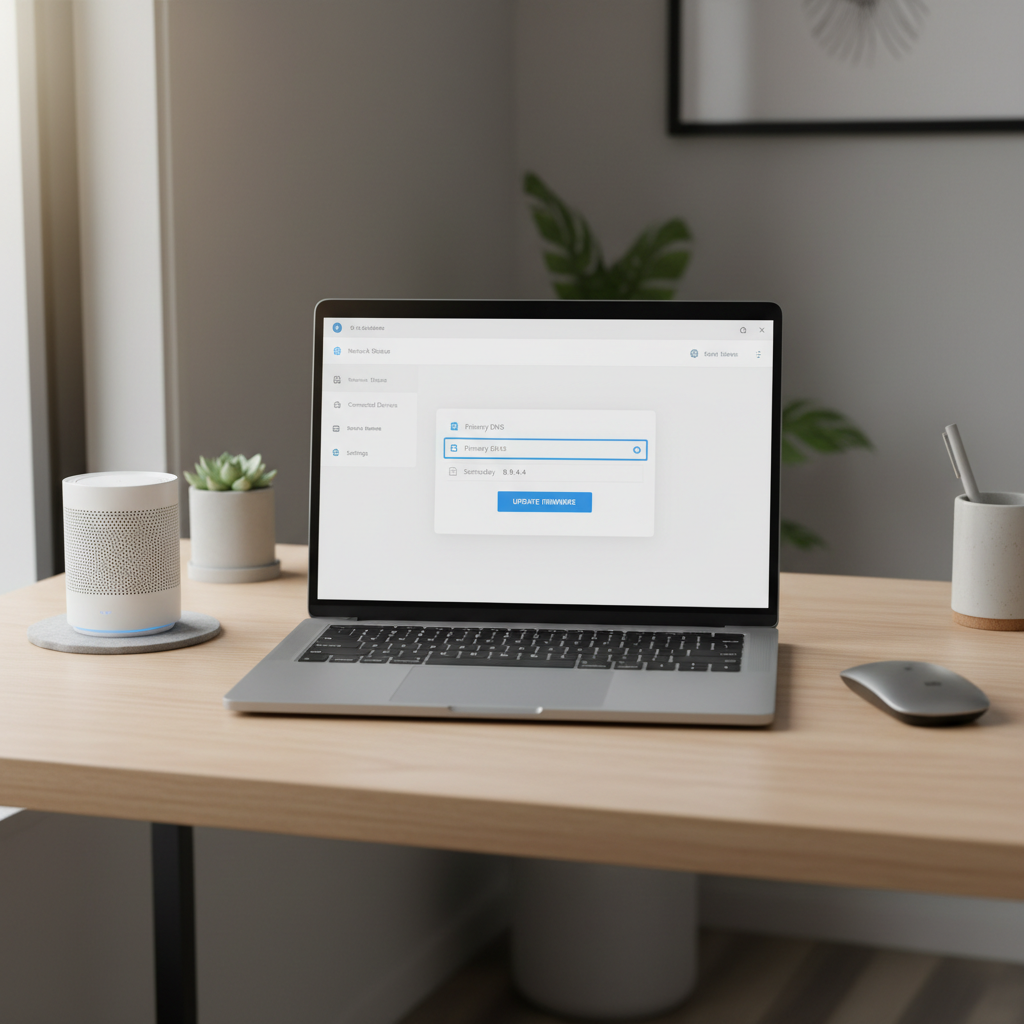
Switch DNS to a reliable provider
DNS is the “phonebook” for the internet. When DNS breaks, it can look like the internet is down even when the connection is technically up.
- Try Cloudflare: 1.1.1.1 and 1.0.0.1
- Or Google: 8.8.8.8 and 8.8.4.4
According to Cloudflare, public resolvers like 1.1.1.1 are designed for reliability and performance, which can help when ISP DNS has issues.
Update router firmware (and don’t ignore the release notes)
Firmware updates often fix stability bugs, WAN drops, and mesh backhaul problems. If your model offers auto-updates, it’s still worth checking whether the last update failed.
- Log into the router admin page/app
- Check firmware version and update
- Reboot after update completes
Mesh or “Smart Connect” tweaks (when devices bounce between bands)
Band steering can be great until it isn’t. If drops happen when you move around the house, test a simpler setup.
- Temporarily split 2.4 GHz and 5 GHz SSIDs
- Disable “Smart Connect” or “Auto band” for testing
- Move a mesh node closer to the main router to improve backhaul quality
Captive portals and public Wi‑Fi: when “connected” is not really connected
Hotels, airports, apartments, and even some fiber providers use captive portals, meaning you must open a browser and accept terms or sign in. Your device can show Wi‑Fi connected while blocking internet until that step happens.
- Open a browser and visit http://neverssl.com (plain HTTP often triggers the login page)
- Disable “Auto-Join Hotspot” conflicts (iPhone can hop to a different network)
- Forget similarly named networks to avoid connecting to the wrong access point
According to Apple Support, captive networks can require additional sign-in steps even when Wi‑Fi appears connected, so explicitly opening a browser remains a practical test.
When it’s the ISP or modem: what to check before calling support
If you’ve done the reboot sequence and every device fails, it’s reasonable to suspect the upstream connection. You don’t need to be a network engineer to gather useful info.
What you can check in 3 minutes
- ISP status page/app and neighborhood outage notifications
- Coax/fiber connections: snug, no obvious damage, no loose splitter if you can avoid it
- Modem event log (if accessible): repeated disconnects can signal line issues
- Try Ethernet from a laptop to the router, and if possible to the modem (only if you know how to restore settings after)
Key details to tell support (it speeds things up)
- Whether all devices lose internet
- Exact router/modem model
- What the modem lights show during failure
- When it started and whether it’s intermittent
If you rent your modem/router from your provider, swapping the unit is sometimes faster than deep troubleshooting, but it depends on the provider and the symptoms.
Key takeaways and a simple action plan
To fix “WiFi connected but no internet,” start by proving whether it’s a single-device issue or a whole-network issue, then use the least-destructive fix that fits.
- If all devices fail, do the proper modem-router power cycle, then check ISP status and modem lights.
- If one device fails, disable VPN/filtering, renew IP, and reset network settings if needed.
- If some sites fail, change DNS and watch for captive portal behavior.
If you want one next step that’s almost always worth doing, update router firmware and set DNS to a known reliable resolver, then monitor for 24–48 hours to see if the issue returns.
FAQ
Why does my phone say Wi‑Fi connected but apps have no internet?
Many apps rely on DNS and secure connections, so a DNS failure, VPN tunnel issue, or captive portal can block real traffic even when Wi‑Fi association looks normal. Testing in a browser and switching DNS usually clarifies the cause.
How do I know if my ISP is down or it’s my router?
If every device on your Wi‑Fi has no internet and your modem shows a warning light, it often points to ISP or line issues. If one device works and another fails, it’s more likely device configuration or a Wi‑Fi band/roaming quirk.
Will changing DNS really help with “connected no internet”?
In a lot of households, yes, especially when the ISP DNS has an outage or latency problem. It won’t fix a dead WAN link, but it can fix the “nothing resolves” feeling when the connection itself is up.
Should I reset my router to factory settings?
Factory reset can help if your configuration is corrupted, but it’s disruptive and easy to regret if you don’t have your ISP login details, mesh pairing steps, or custom settings. Try firmware update, DNS change, and a clean reboot sequence before that.
Why does the internet work on Ethernet but not on Wi‑Fi?
That usually suggests the WAN link is okay and the issue lives in the wireless layer: interference, band steering, a buggy wireless driver, or a misconfigured SSID. Splitting 2.4/5 GHz and updating router firmware is a solid test.
What does “self-assigned IP” or 169.254.x.x mean on my computer?
It typically means your device didn’t get an IP address from DHCP, so it made one up to stay “connected.” Renewing the DHCP lease, rebooting the router, or checking DHCP settings on the router often resolves it.
Is it safe to share my router logs with support?
Usually it’s fine, but logs can include device names, MAC addresses, and connection history. If you’re uncomfortable, ask what they need and consider redacting sensitive details, or consult a qualified technician.
If you’re dealing with repeat “WiFi connected but no internet” episodes and you’d rather not keep guessing, it can be worth using an ISP-friendly checklist, capturing modem light status and timestamps, then deciding whether a router upgrade, mesh repositioning, or a support ticket makes the most sense.