
Best budget home office tech gadgets are the small upgrades that fix the daily annoyances: muffled calls, shaky Wi‑Fi, messy cables, eye strain, and that laptop posture you keep ignoring. The good news is you usually don’t need a $1,000 setup to feel a real difference.
What matters is buying the right “problem solvers” in the right order, because a $30 item that removes friction every hour beats a $200 gadget you barely touch. Below is a practical, U.S.-focused shortlist with what to prioritize, what to skip, and how to shop without getting trapped by specs.
One note before we start: prices change constantly. I’ll use typical budget ranges, then call out what to look for, so you can still pick well even if a “deal” disappears tomorrow.
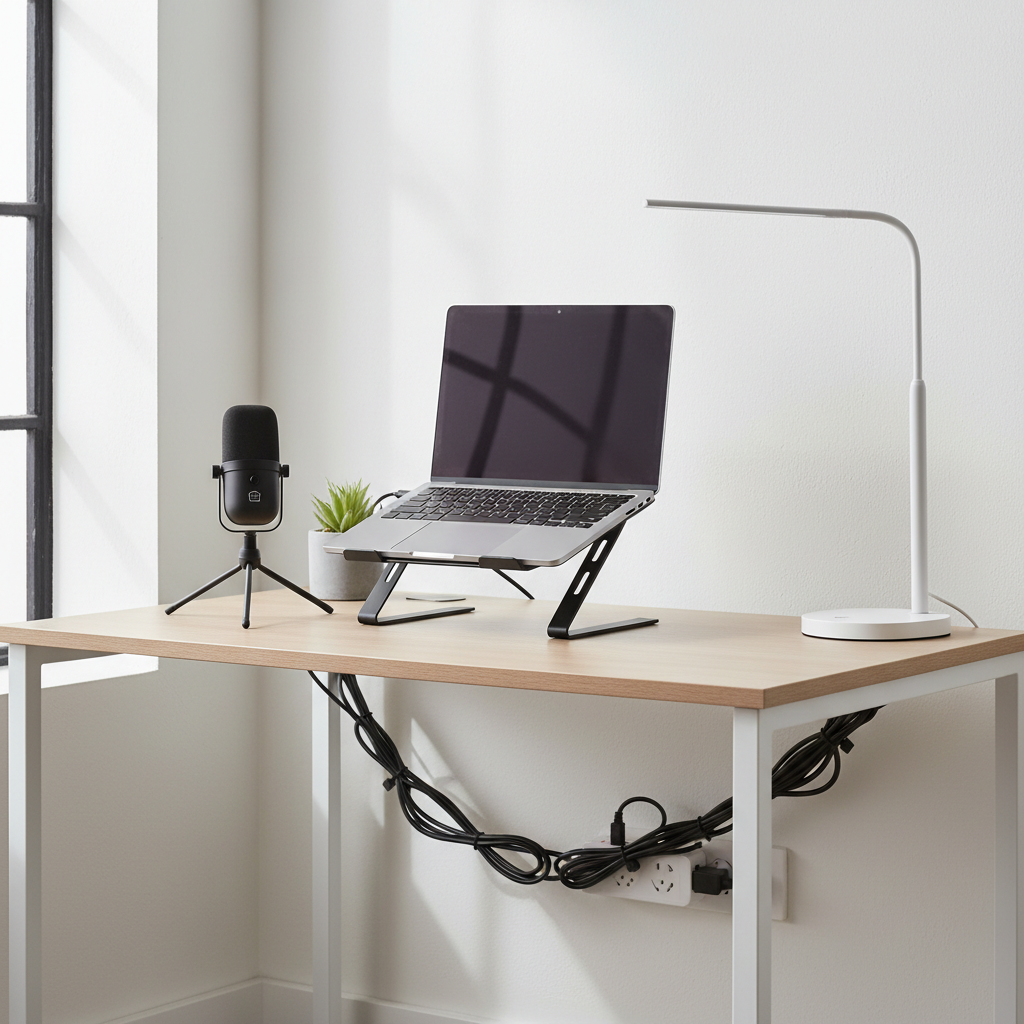
What “budget” should mean for home office tech
Budget doesn’t mean “cheapest,” it means best value at a low total cost. In home office gear, value usually comes from reliability, comfort, and less time troubleshooting.
- Stick to friction points: audio quality, network stability, power/cables, lighting, ergonomics.
- Avoid novelty spend: RGB everything, “AI” features you won’t configure, oversized docks you don’t need.
- Prefer standards: USB-C Power Delivery, Wi‑Fi 6, Bluetooth multipoint, VESA mounts, surge protection ratings.
According to FTC consumer guidance on online shopping, checking seller reputation and return policies is a practical way to reduce risk when buying electronics online. For budget gear, returns matter because quality can vary even within the same category.
Quick comparison table: top budget upgrades and what they fix
If you’re deciding where to spend first, this table helps you map gadget to pain point. Think of it as a “triage list” for your desk.
| Gadget category | Typical budget range (USD) | Fixes | What to look for |
|---|---|---|---|
| USB microphone | $25–$70 | Clear calls, fewer repeats | Cardioid mode, headphone monitoring, mute button |
| Webcam (or phone as webcam) | $0–$80 | Better video meetings | 1080p, decent low-light, privacy shutter |
| Desk/task light | $20–$60 | Eye comfort, less glare | Adjustable color temp, flicker-free claims, wide coverage |
| Wi‑Fi upgrade | $40–$150 | Drops, lag, slow uploads | Wi‑Fi 6 router/mesh node, good placement options |
| Surge protector | $15–$40 | Power safety, cleaner setup | UL listing, sufficient outlets, spaced plugs |
| Laptop stand + keyboard/mouse | $35–$120 | Neck/shoulder strain | Stable stand, comfortable keys, reliable wireless |
| USB-C hub | $20–$60 | Port shortage, SD/HDMI needs | Power pass-through, heat management, HDMI stability |
Top categories of best budget home office tech gadgets (and how to pick)
Below are the categories that tend to produce noticeable improvements fast. The “best” choice depends on your work style, but the buying rules stay pretty consistent.
Audio that doesn’t embarrass you on calls
If teammates keep saying “you cut out” or “say that again,” start here. A budget USB mic often beats a laptop mic by a mile, even before you touch settings.
- USB microphone: Look for a physical mute button and cardioid pickup, so it focuses on your voice.
- Wired earbuds with inline mic: Not glamorous, but stable and often clearer than cheap wireless.
- Headset for noisy homes: If you take calls in a shared space, a boom mic headset can help.
According to OSHA, excessive workplace noise can be a health concern. You don’t need to panic, but if your home office gets loud, a headset that isolates noise can reduce stress and help you avoid cranking volume all day.

Lighting that makes your screen and face look better
Most “bad webcam quality” is actually bad light. A simple desk lamp with adjustable color temperature can reduce harsh shadows and eye fatigue.
- Adjustable color temperature: Helpful when you work day to night.
- Wide, diffused light: Reduces glare hotspots on glossy monitors.
- Placement tip: Put the light slightly off to the side of your screen, not behind you.
Network stability (the upgrade people delay too long)
Budget upgrades here are less sexy, more life-changing. If your video freezes or uploads crawl, you’ll feel it every day.
- Ethernet when possible: A long cable plus a small adapter can beat any router upgrade in many homes.
- Wi‑Fi 6 router: Often a good value if your current router is old or overloaded.
- Single mesh node: Useful when your workspace sits far from the router and you can’t run cable.
Power, charging, and cables (quietly underrated)
When outlets are scarce, people daisy-chain questionable power strips. Don’t do that. A solid surge protector and a few intentional cables can make your desk safer and calmer.
- Surge protector with UL listing: This is one of those “boring” buys that can pay off.
- USB-C PD charger: One compact charger can replace multiple bricks if your devices support it.
- Cable ties or sleeves: Cheap, fast, and they reduce accidental unplugging.
According to NFPA safety guidance, electrical safety at home includes avoiding overloaded outlets and using properly rated equipment. If you’re unsure about your setup, it may be worth asking a qualified electrician, especially in older homes.
A fast self-check: what should you buy first?
This is the part most “best budget home office tech gadgets” lists skip. Your priority depends on what breaks your flow, not what’s trending.
- You sound bad on calls: Get a USB mic or a headset before anything else.
- You look washed out or shadowy: Fix lighting, then revisit webcam.
- Meetings drop or lag: Try Ethernet, then router/mesh if needed.
- You run out of ports daily: Add a USB-C hub, but check what your laptop supports.
- Your neck hurts by lunch: Laptop stand + external keyboard/mouse usually beats any “posture app.”
If you’re checking multiple boxes, don’t panic. A lot of people build a home office in layers, and that’s normal.
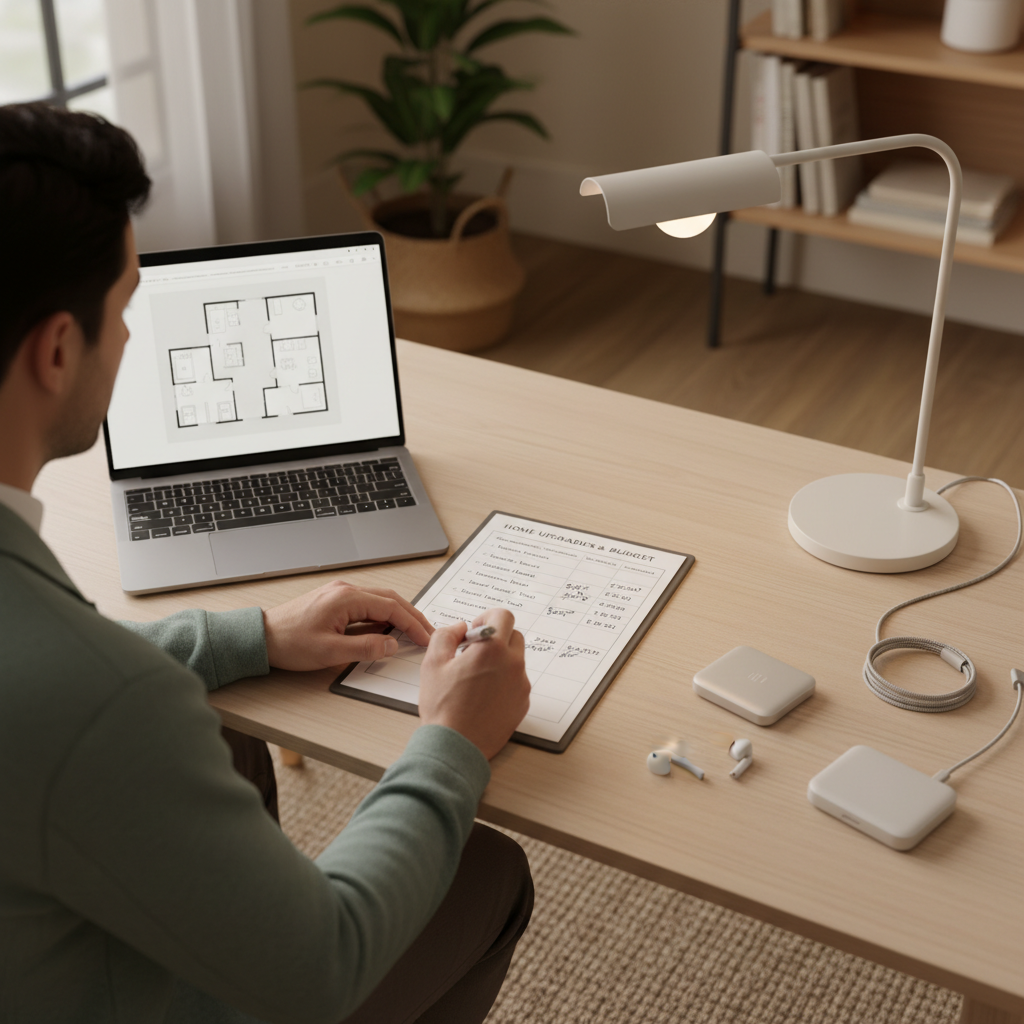
Real-world buying tips to avoid wasting money
Budget tech becomes “expensive” when it fails, arrives incompatible, or quietly annoys you. A few checks reduce that risk.
Compatibility checks that save returns
- USB-C hubs: Some laptops support charging but not video-out on certain ports, check your model docs.
- Webcams and mics: Confirm macOS/Windows support and whether drivers are required.
- Wi‑Fi: A Wi‑Fi 6 router helps most when your devices also support Wi‑Fi 6, but coverage still depends on walls and placement.
Small signals of quality
- Clear warranty/returns: Especially important for off-brand electronics.
- Physical controls: Mute buttons, volume knobs, and switches matter in meetings.
- Heat management: Hubs and chargers that run extremely hot can be a red flag.
Step-by-step: build a solid setup under a tight budget
If you want a simple plan, this order tends to work well in many homes. Adjust based on your pain points.
Phase 1: Make calls and focus easier ($40–$120 typical)
- Pick one: USB mic or a wired headset that’s comfortable for 2+ hours.
- Add a desk light with adjustable brightness if your room lighting is uneven.
Phase 2: Fix ergonomics without buying a new chair ($35–$150 typical)
- Raise the laptop screen with a stable stand or stack, then use an external keyboard and mouse.
- If wrist comfort is an issue, a simple mousepad with support can help, but don’t force it if it feels awkward.
Phase 3: Reduce clutter and random disconnects ($30–$120 typical)
- Add a surge protector, then route cables so you’re not tugging ports.
- If ports are tight, choose a USB-C hub that matches your actual needs, HDMI and USB-A are common.
When you follow a phased approach, you still end up with best budget home office tech gadgets that feel “premium” in daily use, because each item removes a repeat annoyance.
Common mistakes (and what to do instead)
- Buying a cheap ring light and calling it done: Try softer, wider lighting from the side, it often looks more natural.
- Overpaying for a huge docking station: If you only need HDMI and two USB ports, a compact hub is usually enough.
- Chasing 4K webcam specs: For most meetings, lighting and framing beat resolution.
- Ignoring cable length and placement: A great router in the wrong spot still underperforms.
When it’s worth getting professional help
Most home office issues are DIY-friendly, but a few situations justify outside help.
- Electrical concerns: Warm outlets, tripped breakers, or old wiring, talk to a qualified electrician.
- Persistent pain: If wrist, neck, or back pain continues, consider consulting a healthcare professional or ergonomics specialist.
- Complex network problems: If you manage multiple work devices, VPNs, or frequent drops despite good gear, an IT pro can diagnose faster than trial-and-error shopping.
Key takeaways
- Start with the biggest daily friction: audio, lighting, network, then ports and cable cleanup.
- Specs matter less than fit: comfort, placement, and compatibility decide whether a gadget feels “worth it.”
- Budget wins come in layers: a few $20–$60 upgrades often beat one flashy purchase.
- Safety is part of value: prioritize reputable surge protection and sane power management.
When you shop this way, best budget home office tech gadgets stop being a list and turn into a setup that quietly supports your work, without draining your wallet. Pick one problem to solve this week, buy with a good return policy, and only then move to the next upgrade.
FAQ
- What are the best budget home office tech gadgets for Zoom and Teams calls?
Usually a USB microphone or a comfortable headset comes first, then a simple desk light. Clear audio tends to matter more than camera sharpness. - Is a USB mic better than an expensive webcam?
For meetings, many people notice audio upgrades more. A webcam still helps, but poor lighting can make even a pricey camera look average. - How can I improve Wi‑Fi without buying a new router?
Try moving the router higher and more central, reducing interference, or using Ethernet where possible. If distance is the main problem, a mesh node may help. - Do I need a docking station for a laptop setup?
Not always. If you only plug in one monitor and a couple USB devices, a compact USB-C hub often covers it at a lower cost. - What’s a smart budget upgrade for posture?
A stable laptop stand plus an external keyboard and mouse is a common “big impact, low cost” combo, because it lets you raise the screen without hunching. - Are cheap surge protectors okay?
Price isn’t the only factor, but look for clear safety markings like UL listing and avoid questionable no-name products with weak documentation. - How do I avoid buying gadgets that won’t work with my laptop?
Check your laptop’s port capabilities and OS version, then confirm the accessory supports them. For hubs, verify video-out support and power pass-through needs.
If you’re trying to upgrade your workspace fast and keep spending under control, make a short list of the two issues that annoy you most, then build around those, that approach usually leads to best budget home office tech gadgets you actually use every day.