
Top free online calendar tools for planning can either make 2026 feel calm and organized, or turn into yet another place where reminders pile up and nothing actually changes.
Most people do not need “more features”, they need a calendar that fits how they work: quick capture on the phone, clean week view on desktop, easy sharing with family or a team, and reminders that do not get ignored. The tricky part is that “free” means different things depending on the tool, sometimes you pay with limits, sometimes you pay with complexity.
This guide compares popular options in plain terms, then helps you match a calendar to your real-life workflow. You will also get a quick setup checklist, common mistakes to avoid, and a simple way to test whether your new calendar is actually helping.
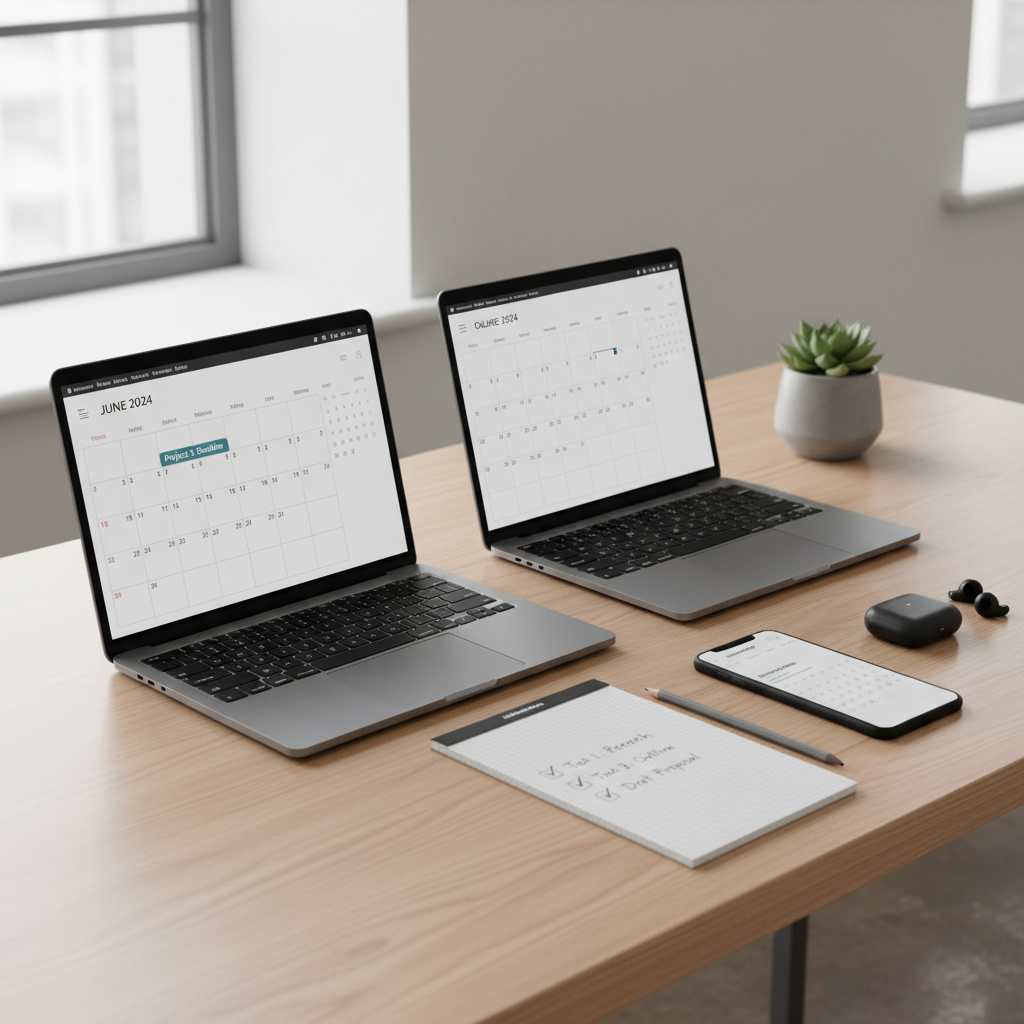
What “free” really means for calendar apps
Before you compare any top free online calendar tools for planning, it helps to define what you refuse to compromise on. In practice, free tiers usually trade off in one of these ways.
- Account ecosystem lock-in, works best if you already live in Google, Microsoft, or Apple.
- Advanced features gated, scheduling links, team availability, analytics, or automation sit behind a paid plan.
- Sharing limits, you can share calendars, but permissions, group management, or cross-org sharing gets awkward.
- Privacy and data tradeoffs, especially with smaller tools funded by upsells or partnerships.
According to NIST (National Institute of Standards and Technology), good security hygiene includes using strong authentication and managing access permissions. For calendars, that translates to enabling multi-factor authentication, reviewing sharing settings, and not leaving old integrations connected “forever”.
Quick comparison table (2026 planning needs)
If you want one fast view, this table highlights what tends to matter most for day-to-day planning: cross-device use, sharing, scheduling, and how painful setup feels.
| Tool | Best for | Strengths (free) | Watch-outs |
|---|---|---|---|
| Google Calendar | Personal + small teams | Fast, reliable, great search, many integrations | Can get noisy if you subscribe to many calendars |
| Microsoft Outlook Calendar | Work schedules, Microsoft 365 users | Strong enterprise sharing, email + calendar together | Heavier interface for simple personal planning |
| Apple Calendar (iCloud) | Apple-first households | Clean UX, easy family sharing, device sync | Cross-platform experience varies, especially on Windows |
| Calendly (free tier) | Booking meetings | Scheduling links, basic availability rules | Free plan limits event types and customization |
| Notion Calendar | Notion users who time-block | Connects calendar view with work context | Best value if you already manage work in Notion |
| Zoho Calendar | Budget-friendly business stacks | Team-oriented features in Zoho ecosystem | Integrations outside Zoho can be less smooth |
The top free online calendar tools for planning (and who they fit)
Here is the more realistic take: the “best” calendar is usually the one you will open every day without thinking, and the one your people can actually share with you without friction.
Google Calendar
Google Calendar stays on most shortlists because it is fast, stable, and plays nicely with everything from Zoom to project tools. If you plan across personal + work + side projects, it handles multiple calendars well.
- Great for: Gmail users, Android-heavy households, anyone who relies on search.
- Planning tip: use separate calendars for “deep work”, “meetings”, and “personal”, then color-code.
Microsoft Outlook Calendar
If your company runs on Microsoft 365, Outlook Calendar is often the least resistance path. Shared calendars, meeting rooms, and corporate policies typically work better here than in consumer-first tools.
- Great for: corporate environments, teams that live in Outlook email.
- Planning tip: keep a personal calendar separate, then overlay views to avoid oversharing.
Apple Calendar (iCloud)
Apple Calendar feels “quiet” in a good way, especially if you use Siri, Apple Watch reminders, and family sharing. For many people, that simplicity is the feature.
- Great for: iPhone + Mac users, families coordinating kids schedules.
- Planning tip: create a shared “Family” calendar and agree on naming conventions for events.

Calendly (free tier)
Calendly is not a full calendar replacement, it is a scheduling layer. If you keep emailing “what time works?”, this is the simplest fix, even on the free plan.
- Great for: interviews, client calls, office hours, recurring meeting blocks.
- Planning tip: protect focus time by marking it busy on your main calendar, then limit Calendly availability windows.
Notion Calendar
Notion Calendar can work well when your tasks and docs already live in Notion, because you are not context-switching as much. If you do not use Notion, the appeal drops fast.
- Great for: time-blockers, project planners, students balancing classes and assignments.
- Planning tip: block “work sessions” tied to a page or project, not just generic calendar entries.
Zoho Calendar
Zoho Calendar tends to make sense if you already use Zoho Mail, CRM, or Zoho Workplace. On its own, it is fine, but the real value is in the bundle.
- Great for: small businesses trying to keep tools consolidated.
- Planning tip: define shared calendars by function, like “Sales Calls” or “Support Coverage”.
Self-check: which calendar style matches your 2026 planning?
People get stuck because they choose a tool based on features, not on friction. Use this quick checklist, if you answer “yes” to a set, that tool style usually fits better.
- I need a calendar that just works everywhere: Google Calendar or Outlook Calendar.
- I share schedules with family more than coworkers: Apple Calendar or Google Calendar shared calendars.
- My pain point is booking meetings, not tracking tasks: keep your main calendar, add Calendly.
- I time-block and want work context near my schedule: Notion Calendar.
- I am consolidating business tools on a budget: Zoho Calendar inside Zoho Workplace.
One more gut check, if you cannot imagine opening the app on your phone with one hand while walking to a meeting, it may be “powerful” but not practical.
Practical setup steps (so the calendar actually changes your week)
Even the top free online calendar tools for planning fail when setup is messy. Keep it boring and repeatable, you can always refine later.
Step 1: Start with 3 calendars, not 12
- Core: real commitments, appointments, meetings.
- Focus blocks: work sessions, study blocks, exercise windows.
- Personal: family events, travel, life admin.
Step 2: Standardize naming so scanning is effortless
- Use verbs: “Review Q1 budget”, “Draft proposal”, “Grocery run”.
- Add location only when it matters, otherwise keep titles short.
- For recurring items, keep the same title every time to build recognition.
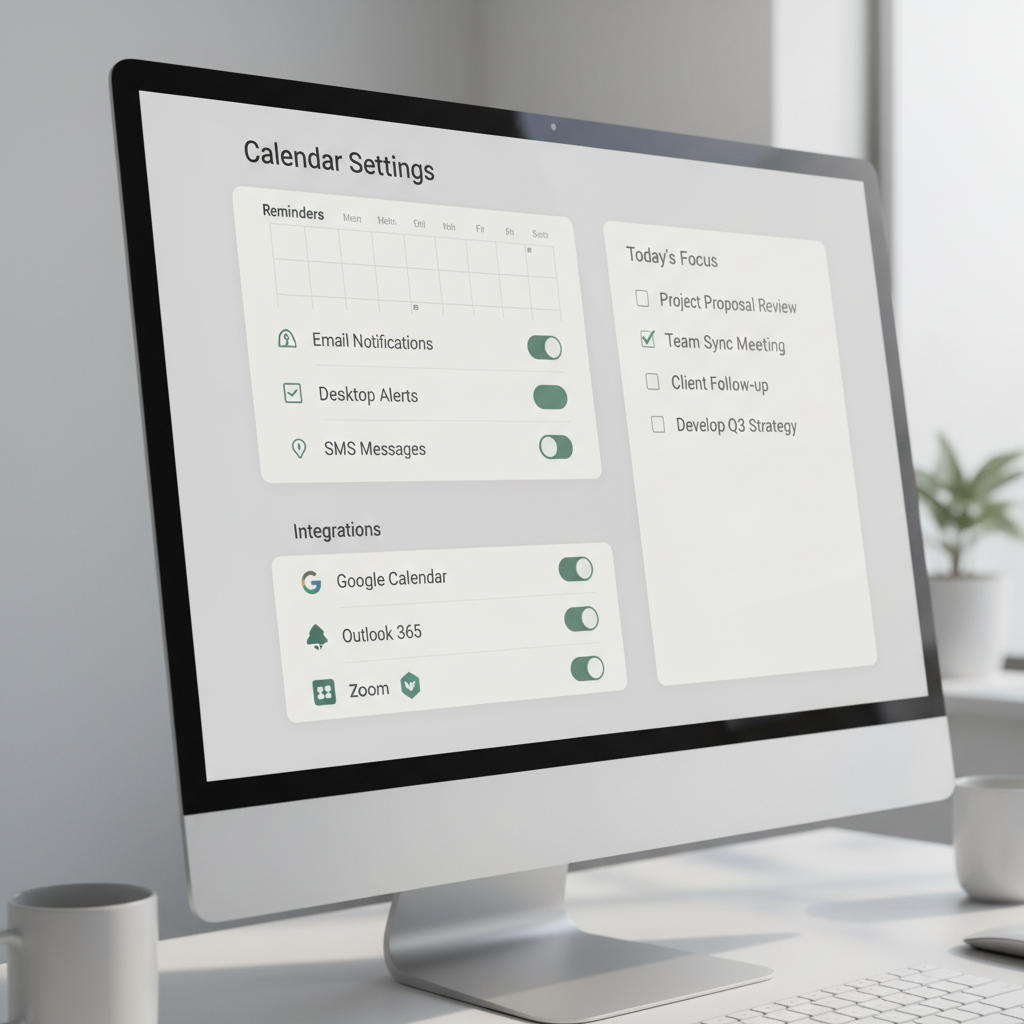
Step 3: Fix reminders (most people set them wrong)
Set reminders based on what you actually need: travel time, prep time, or “get your brain in the right mode” time. Many people set a 10-minute reminder for everything, then ignore all reminders equally.
- Meetings: 15–30 minutes, plus travel buffer if needed.
- Deep work: 5 minutes, just enough to transition.
- Life admin: 1 day before, so you can react.
Step 4: Add one automation, then stop
Integrations help, but too many create duplicates and confusion. Try a single high-impact connection, like video meeting links or task tool sync, then evaluate after two weeks.
According to Google (Workspace Admin and Security guidance), admins and users should regularly review connected apps and third-party access. Even for personal accounts, it is a smart habit.
Common mistakes to avoid (they quietly ruin planning)
Most calendar frustration comes from a few predictable habits, not from picking the “wrong” tool.
- Mixing tasks and appointments without rules: tasks multiply, appointments do not, so your calendar becomes a guilt list.
- Subscribing to too many shared calendars: visibility feels helpful, until your week view turns into confetti.
- Not protecting focus time: if everything is “available”, meetings expand to fill the week.
- Using one calendar for multiple roles: parent, manager, student, caregiver, all in one stream can get overwhelming.
- Never reviewing: no weekly reset means small problems compound fast.
When to consider paid upgrades or professional help
Free tools cover a lot, but there are moments when paying is reasonable, and sometimes you need an IT or operations person involved.
- You need advanced scheduling rules (multiple event types, routing forms, team assignments): paid scheduling tiers may save time.
- You manage sensitive data (clients, patients, legal matters): talk with your IT/security lead about policies, retention, and access controls.
- Your org needs governance: shared mailbox calendars, room resources, and compliance features often require admin setup.
If your calendar contains regulated or confidential information, it is worth consulting a qualified IT/security professional to confirm the right settings for your situation.
Conclusion: pick the tool you will keep using in February
Choosing among the top free online calendar tools for planning is less about “which app wins” and more about friction: who you share with, what devices you use, and whether scheduling is a core pain point. If you are already in Google or Microsoft, staying in that ecosystem is usually the smoothest path, then add a scheduling layer only if you truly need it.
Action steps: pick one primary calendar, set up the three-calendar structure, then do a 15-minute weekly review for the next three weeks, you will know quickly whether it fits your life.
Key takeaways
- Default to your ecosystem: Google, Microsoft, or Apple, fewer sync issues.
- Use a scheduler only when booking is the problem: Calendly complements, it does not replace.
- Simple structure beats fancy features: three calendars, clear names, smarter reminders.
FAQ
What are the best free online calendar tools for planning 2026 if I use both iPhone and Windows?
Google Calendar is often the least painful across iPhone and Windows because the web and mobile apps feel consistent. Outlook can work too, especially if your work account drives your day, but the personal experience may feel heavier.
Is Google Calendar still a good choice for serious 2026 planning?
Usually yes, especially if you rely on search, recurring events, and integrations. The bigger risk is not capability, it is clutter, so keep separate calendars and limit subscriptions.
Do I need Notion Calendar if I already have Google Calendar?
Not necessarily. Notion Calendar tends to shine when your tasks, docs, and projects already live in Notion and you want time blocks tied to that context. If you just want reliable scheduling, Google Calendar alone is often enough.
Which free tool is best for sharing a family calendar?
Apple Calendar is convenient for Apple households, Google Calendar is strong for mixed-device families. The deciding factor is usually how many people will actually edit events versus just view them.
Can I use Calendly without switching my main calendar?
Yes, that is the common setup. Calendly reads availability from your connected calendar and writes bookings back, so your main calendar remains your source of truth.
How do I stop double bookings across multiple calendars?
Make one calendar the “availability authority” for bookings, then ensure other calendars either block time correctly or are set to “free” where appropriate. Also check integrations, duplicates often come from multiple tools creating the same event.
What is a simple weekly review routine for calendar planning?
Scan the next 7–10 days, confirm logistics for fixed appointments, add prep blocks for anything high-stakes, then schedule two or three focus blocks for your most important work. If that takes more than 15 minutes, your setup may be too complex.
If you are trying to get 2026 under control and want a more streamlined approach, start by picking one primary calendar and building a small set of repeatable rules around it, you can always layer on scheduling links or deeper workflows once the basics feel stable.