
how to remove bloatware from new windows laptop is usually less about “deleting everything” and more about making a few smart cuts so Windows stays stable, updates keep working, and your laptop feels like it should have on day one.
If your new PC feels oddly slow, throws pop-ups, or has three different “helpful” utilities fighting for attention, you’re not imagining it. Manufacturers and retailers often preload trialware, partner apps, duplicate utilities, and background services that quietly eat RAM, disk, and battery.
This guide walks you through safe, realistic steps: what to remove, what to keep, how to check what’s actually running, and when a full reset makes more sense. You’ll also get a quick decision table, a checklist, and a few “don’t do this” notes that save people a lot of regret.
What counts as bloatware (and what doesn’t)
“Bloatware” gets used as a catch-all term, but in practice there are a few buckets. Some are harmless, some are annoying, and a small number can be risky to remove if you rely on the feature.
- Trialware and promos: antivirus trials, VPN trials, games, shopping links, “PC optimizer” trials.
- Duplicate utilities: multiple update checkers, multiple audio managers, multiple cloud sync tools.
- OEM control apps: keyboard backlight control, fan profiles, battery health limits, display color profiles.
- Windows built-ins: Mail, Photos, Phone Link, Xbox components, OneDrive. These aren’t OEM bloatware, but some people still prefer to remove or disable.
What usually isn’t bloatware: drivers and hardware services that power Wi‑Fi, touchpad gestures, fingerprint readers, Dolby audio enhancements, or function keys. You can trim a lot without breaking those, but you need to recognize what you’re looking at.
Before you uninstall anything: 10-minute safety prep
This part feels boring until you remove the wrong thing and can’t remember what it was. Do these quick steps and you’ll have an easy way back.
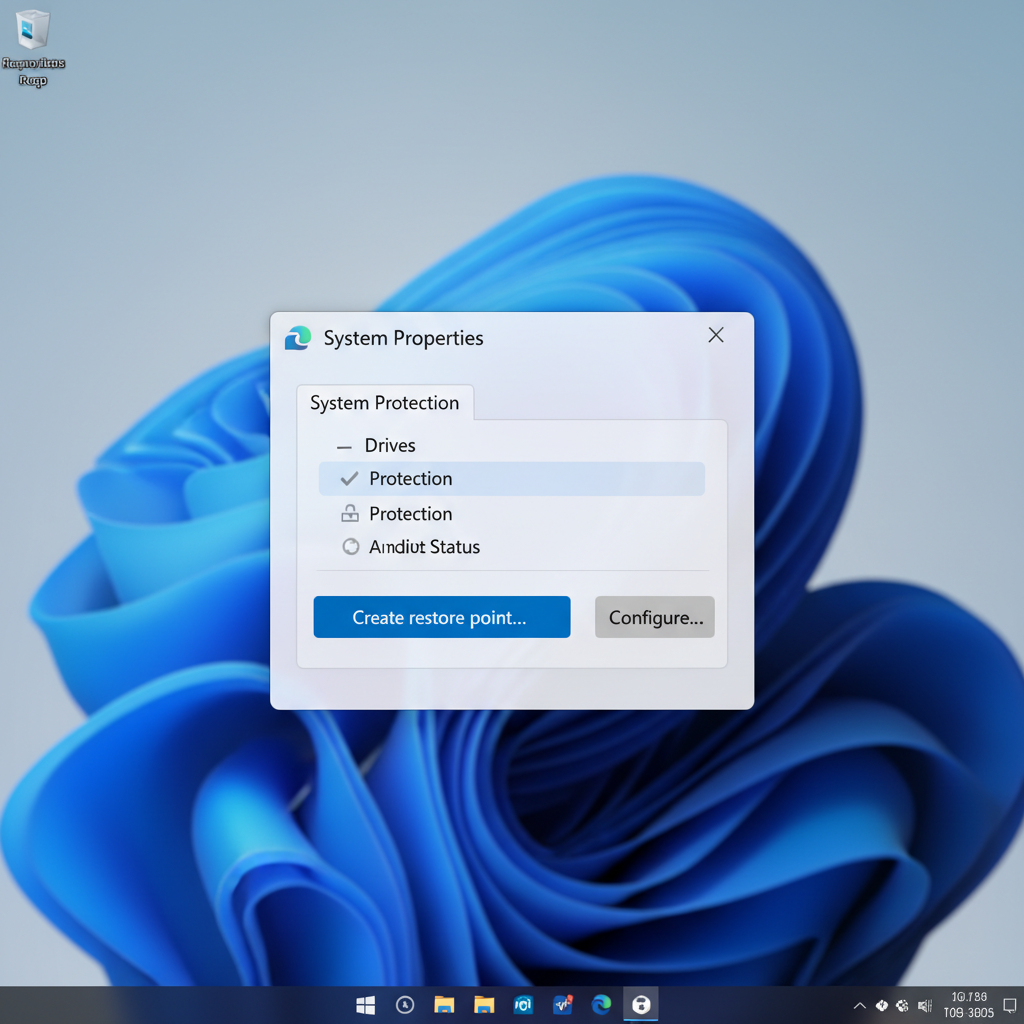
- Create a restore point: search “Create a restore point” in Windows, then create one before major changes.
- Run Windows Update: let Windows finish initial updates so you’re not troubleshooting outdated components later.
- Confirm your Microsoft account login: so licenses and settings sync back if you reset later.
- Check BitLocker/device encryption: save your recovery key to your Microsoft account or a safe place if it’s enabled.
According to Microsoft Support, using a restore point can help you roll back system changes if an app or driver causes issues. That’s the simple insurance policy most people skip.
Quick decision table: what you can usually remove vs. keep
Different brands ship different bundles, so you won’t see the exact same names. Use this table as a practical “likely safe” filter, then confirm with the checklist in the next section.
| Type of app | Usually safe to remove? | Why it matters |
|---|---|---|
| Antivirus trial (extra, not Windows Security) | Often yes | Can add pop-ups and background scans; Windows Security may be enough for many users. |
| “PC Cleaner/Optimizer/Booster” | Often yes | Many are redundant; some create more problems than they solve. |
| Retailer apps (store membership, offers) | Yes | Rarely needed after setup. |
| OEM update utility | It depends | Can help with BIOS/firmware and driver updates; sometimes worth keeping. |
| Audio/video enhancements (Dolby, DTS, color profiles) | It depends | May control hardware features; removing can reduce functionality. |
| Touchpad/keyboard hotkey service | Usually no | Removing can break gestures, function keys, or backlight controls. |
| Cloud storage clients (OneDrive, Dropbox trials) | Often yes | Keep only what you actively use to avoid constant syncing overhead. |
A fast self-check: are you dealing with “real” bloat or just startup clutter?
A lot of “bloatware” complaints are actually startup overload. Apps don’t need to be uninstalled to stop slowing boot time.
Use this checklist
- Boot feels slow and the fan ramps up immediately after login.
- You see multiple tray icons for updates, offers, or “helpers.”
- Task Manager > Startup shows many items marked High impact.
- Notifications push you to “activate,” “upgrade,” or “start trial.”
- Battery drains faster than expected with light browsing.
If you only check 1–2 boxes, you might get most of the benefit by disabling startup items and background permissions, not by ripping out half the system.
Step-by-step: remove bloatware using Windows tools (safe path)
This is the cleanest approach for most people. It’s reversible, it uses built-in settings, and it keeps you out of sketchy “debloater” tools that sometimes overreach.
1) Uninstall from Installed apps
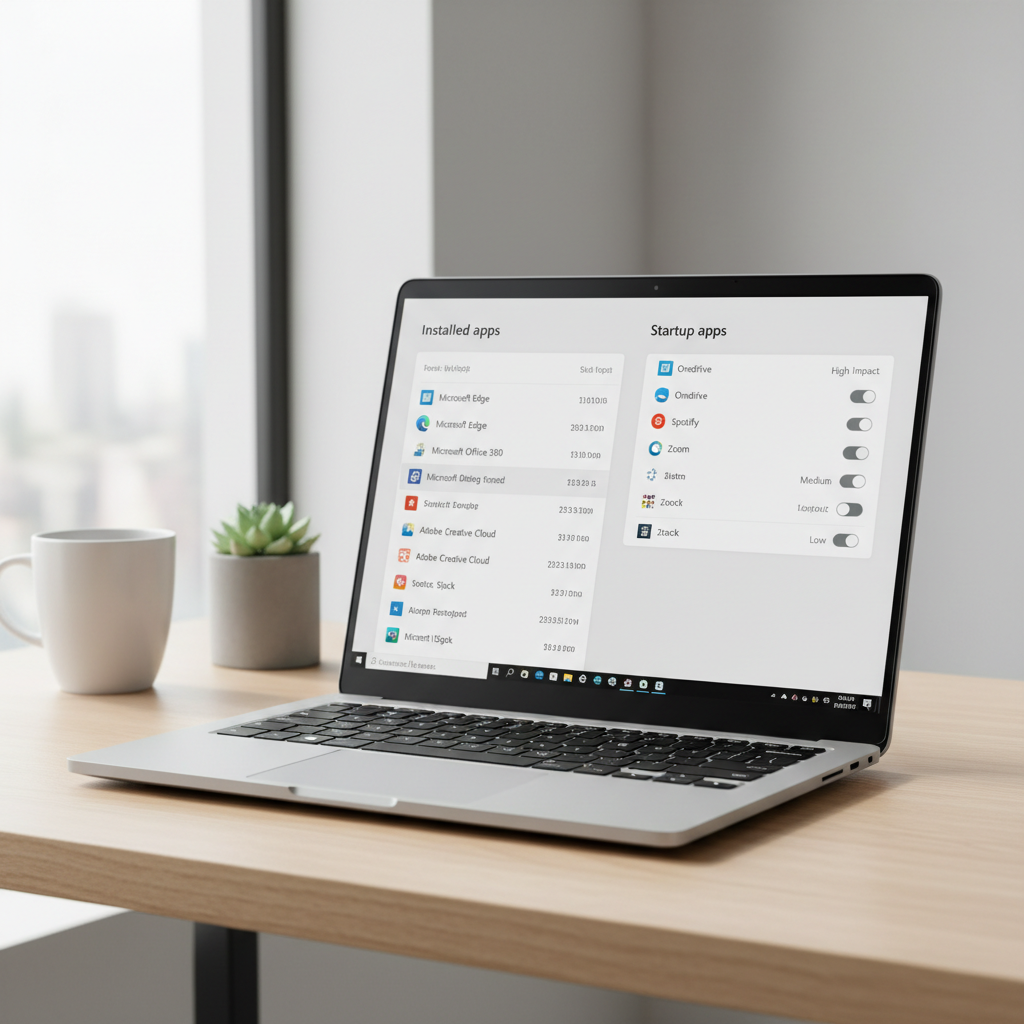
Go to Settings > Apps > Installed apps. Sort by size or install date, then remove obvious trials and promos.
- Uninstall games you didn’t choose.
- Remove duplicate PDF readers, media players, toolbars.
- Keep anything clearly tied to your laptop brand if it controls hardware behavior.
2) Disable startup apps (often the biggest win)
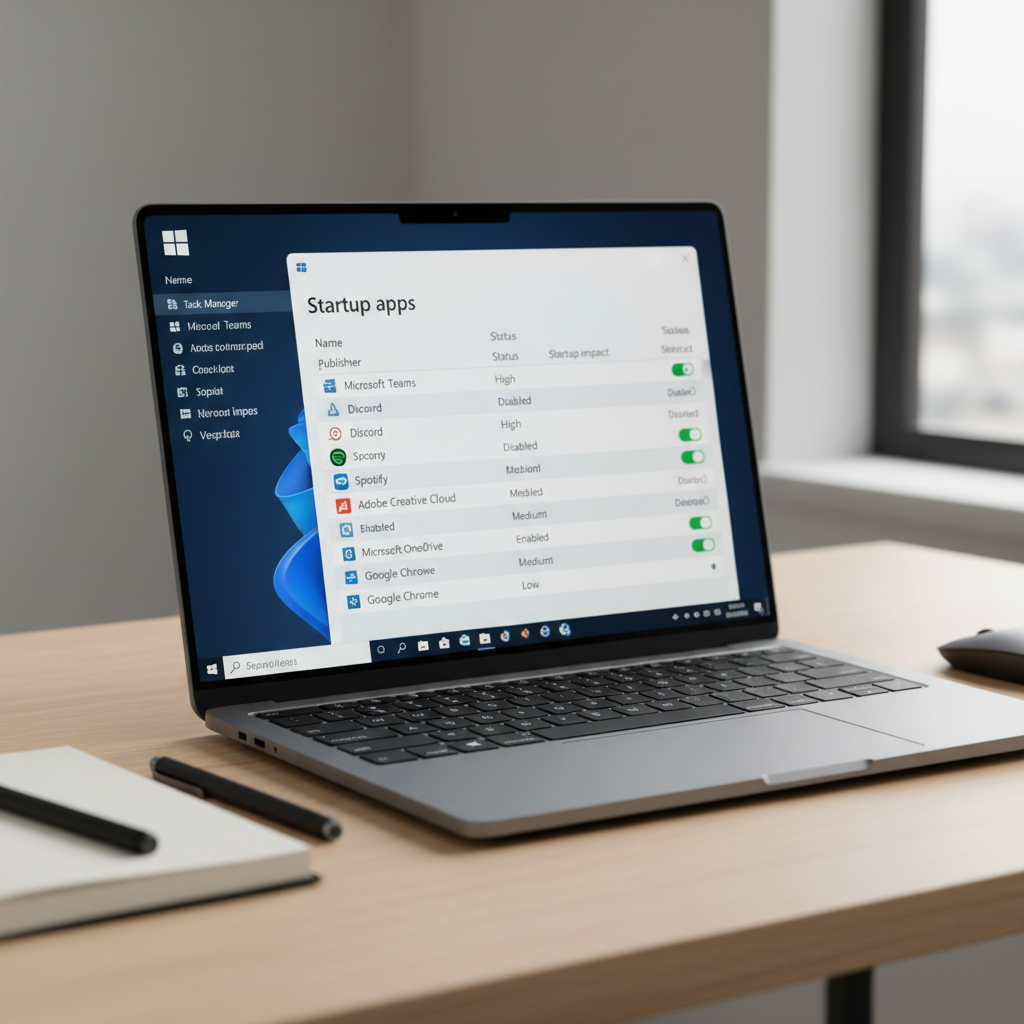
Open Task Manager > Startup apps, then disable items you don’t need at boot. This doesn’t delete the app, it just stops the “always running” behavior.
- Good candidates: chat apps, game launchers, promo notifiers, “assistant” apps.
- Be cautious: anything referencing touchpad, hotkeys, audio, chipset, or security.
3) Turn off background permissions for noisy apps
In Settings > Apps, open an app’s advanced options when available and limit background activity. On Windows 11 this varies by app type, so don’t be surprised if some apps don’t expose the same toggles.
4) Clean up notifications
Many people think they have “malware,” but it’s just aggressive notifications. Go to Settings > System > Notifications and disable senders you don’t trust or don’t care about.
At this point, how to remove bloatware from new windows laptop becomes less mysterious: uninstall what you don’t use, stop the rest from auto-starting, and quiet the spam.
More aggressive options (use only if you know what you want)
If you’re comfortable doing a bit more, you can strip extra components without going full “wipe and reinstall.” Just stay conservative: the goal is fewer background tasks, not a fragile system.
Remove optional Windows features you don’t use
Check Settings > Apps > Optional features. If you never use certain tools (for example, legacy components), you can remove them. Don’t remove anything you don’t recognize if it sounds driver-related.
Manage browser add-ons and OEM extensions
New laptops sometimes arrive with shopping add-ons or “safe browsing” toolbars. Review extensions in Chrome/Edge and remove anything you didn’t install on purpose.
Unpin and reset Start menu suggestions
This won’t reclaim much space, but it reduces clutter. Unpin sponsored tiles and turn off certain recommendations in personalization settings if you prefer a cleaner Start.
When a factory reset (or clean install) is the right move
Sometimes you can feel the system fighting you: too many OEM services, too many preloaded accounts, too many “partners.” In that case, starting fresh may be faster than hunting every leftover item.
Reset this PC (most people)
Use Settings > System > Recovery > Reset this PC. Choose options carefully. “Keep my files” can work, but it may preserve some clutter. “Remove everything” is cleaner, but back up first.
According to Microsoft Support, Reset this PC can reinstall Windows and help resolve performance issues while giving you options about personal files. That’s why it’s a reasonable middle ground.
Clean install (power users)
A true clean install via Windows installation media can remove almost all OEM additions. The tradeoff is you must reinstall drivers/utilities you actually need, and you might spend extra time on fingerprint readers, hotkeys, and specialty audio if Windows doesn’t auto-detect everything.
If your main goal is how to remove bloatware from new windows laptop with minimal drama, a reset is often enough; a clean install is more “I want total control.”
Common mistakes that waste time (or cause new problems)
- Deleting driver packages blindly: if it mentions chipset, HID, hotkeys, touchpad, audio, or firmware, pause and verify.
- Using random “debloat scripts” from the internet: they can disable updates, break Microsoft Store apps, or remove components you later need.
- Installing multiple security tools: overlaps can slow the system and create conflicts. Pick one approach.
- Confusing storage cleanup with bloat removal: deleting temporary files helps space, but doesn’t stop background CPU usage.
- Uninstalling OEM update tools without a plan: some laptops rely on them for BIOS and firmware updates. If you remove it, bookmark the vendor support page.
One more subtle point: if your laptop is in a work or school environment, certain apps may be required by IT policy. If that’s your situation, it’s smarter to check before removing security agents or management tools.
Key takeaways (so you don’t overthink it)
- Start with uninstalling obvious trials and promos, then focus on startup impact.
- Disabling startup items often improves speed more than uninstalling everything.
- Keep hardware control utilities unless you’re sure you don’t need the feature.
- Consider a reset if the laptop feels “preloaded” beyond what’s reasonable.
Conclusion: a cleaner Windows laptop in under an hour
If you take one practical approach, take this: remove the obvious junk, then reduce what runs automatically. You’ll usually feel the improvement immediately in boot time, fan noise, and day-to-day responsiveness.
Tonight’s action plan is simple, pick five apps you truly don’t want and uninstall them, then disable anything non-essential in Startup apps. If the system still feels cluttered, schedule a reset when you have time to back up and reinstall the essentials.
FAQ
- Is it safe to remove bloatware on a brand-new Windows laptop?
In many cases, yes, as long as you focus on obvious trials, promos, and duplicate apps, and you avoid removing drivers or hardware services tied to your model. - What bloatware should I not uninstall?
Be cautious with anything that controls hotkeys, touchpad gestures, audio enhancements, battery charging limits, or firmware updates. If removing it would take away a feature you use, consider disabling startup instead. - How do I know what’s slowing my laptop after setup?
Task Manager is the quickest reality check. Look at Startup impact and current CPU/RAM use. Many “slow new laptop” complaints come from apps running constantly in the background. - Does uninstalling bloatware void the warranty?
Usually it doesn’t, but warranty policies can vary by manufacturer and service plan. If you’re unsure, keep a restore point and note what you remove so you can reinstall if needed. - Should I remove the antivirus trial that came with my laptop?
Often you can, especially if you prefer Windows Security or another solution. The key is avoiding multiple real-time scanners at once, which can reduce performance. - Can I remove preinstalled apps with PowerShell?
You can, but it’s easy to remove components you later want back. If you’re not comfortable troubleshooting app dependencies, stick to Settings and Startup controls. - What if bloatware keeps coming back?
Some vendor suites re-install companion components during updates. In that case, consider keeping the core utility but turning off optional modules, or use a Windows reset/clean install if you want a more permanent baseline.
If you’re trying to clean up multiple new PCs at once, or you want a more consistent setup across family or small-business laptops, a lightweight “baseline” checklist and a repeatable removal routine can save time without going overboard.