
how to change password windows 11 is usually quick, but the “right” steps depend on whether you sign in with a Microsoft account, a local account, or a work/school profile.
If you pick the wrong method, you can end up changing a PIN when you meant to change your actual password, or you might update your Microsoft password online and wonder why nothing changes locally.

This guide walks you through each path, helps you identify what kind of account you use, and calls out the small details that often cause lockouts, especially on shared PCs or company-managed laptops.
Quick check: which sign-in type are you using?
Before you change anything, confirm what Windows 11 is actually using to authenticate you. This takes 30 seconds and prevents most mistakes.
- Microsoft account: you sign in with an email (Outlook, Hotmail, or any email) and your password syncs across devices.
- Local account: you sign in with a username (no email), and the password exists only on this PC.
- Work or school account: often Microsoft Entra ID (formerly Azure AD) or domain-managed, and IT may control password rules.
- Windows Hello: PIN, face, or fingerprint; convenient, but it’s not the same as your account password.
Go to Settings > Accounts > Your info. If you see an email address and “Microsoft account,” that’s your answer. If it shows “Local account,” you’re working locally.
Change password for a Microsoft account (most common)
If your Windows 11 sign-in uses a Microsoft account, changing the password typically happens on Microsoft’s side, then Windows prompts you to sign in again.
According to Microsoft Support, Microsoft account passwords are managed online and apply across Microsoft services and devices where that account is used.
Steps (recommended)
- Open Settings > Accounts > Sign-in options and confirm you’re using a Microsoft account (email-based sign-in).
- In a browser, go to your Microsoft account security page and choose Change password.
- Update the password, then return to your PC and sign out or restart.
- At the next sign-in, use the new password. If you usually use a PIN, select Sign-in options and choose Password to test it once.
Key point: A Windows Hello PIN can keep working even after a Microsoft password change, so it may feel like nothing changed. That’s normal.
Change password for a local account (no Microsoft email)
For a local account, Windows 11 stores the password on the device. That means how to change password windows 11 looks different here, and you should also think about recovery.
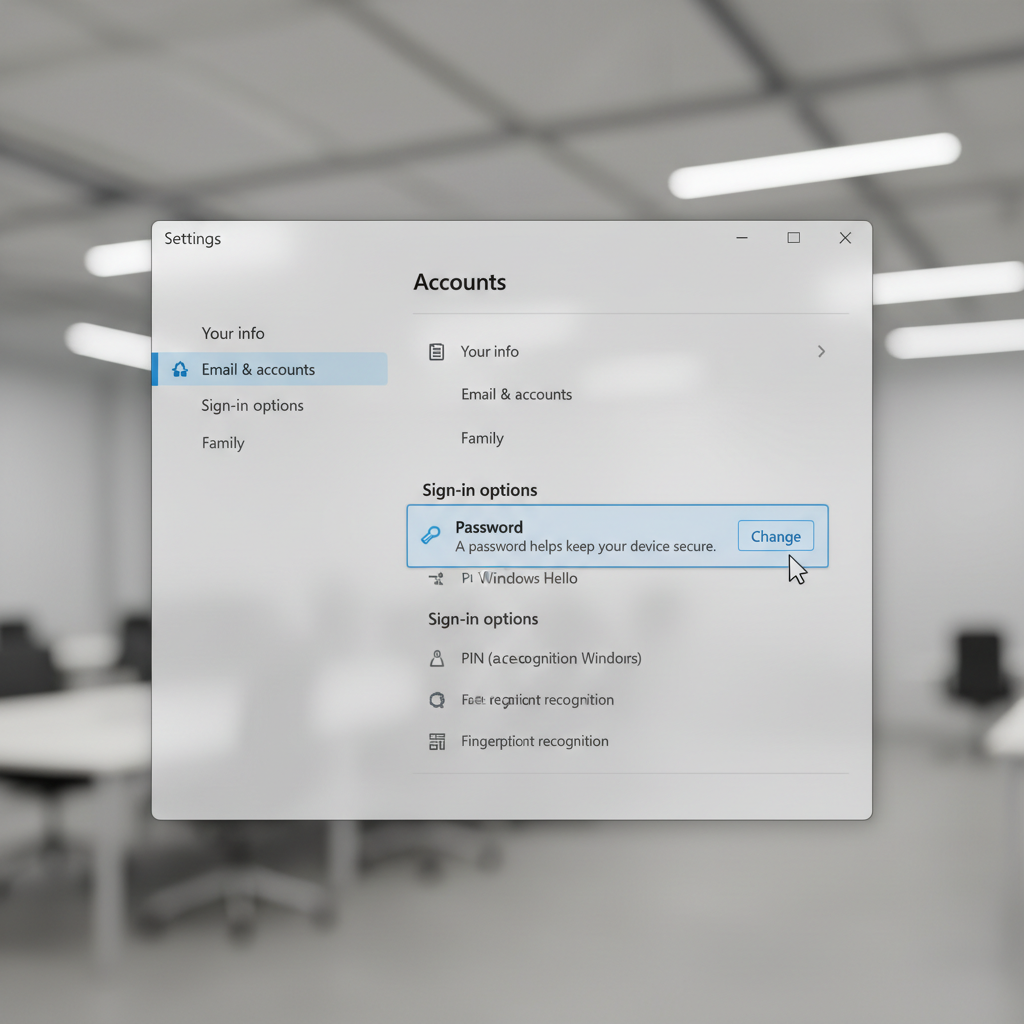
Option A: Change it from Settings (simple)
- Open Settings > Accounts > Sign-in options.
- Select Password, then choose Change.
- Enter your current password, then your new password.
- If prompted, add password hint information carefully (avoid anything too revealing).
Option B: Use Ctrl+Alt+Del (fast for many PCs)
- Press Ctrl + Alt + Delete.
- Select Change a password.
- Enter old password, then new password.
Real-world gotcha: If you forget a local password and you have no recovery options, you may need admin help or a reset approach. It’s worth setting up a secondary admin account or recovery method if this PC matters.
Changing a PIN vs changing a password (Windows Hello clarity)
A lot of confusion comes from Windows Hello. You might “change your sign-in” and end up updating a PIN, not your actual account password.
- Password: tied to Microsoft account, local account, or work account.
- PIN: tied to the device, and often protected by TPM (hardware security module).
- Face/Fingerprint: biometric methods that unlock the device using Windows Hello.
When you should change the PIN
- You suspect someone saw you type it.
- Your device is shared and you want a fresh unlock method.
- Your company policy requires periodic changes.
PIN change steps
- Go to Settings > Accounts > Sign-in options.
- Select PIN (Windows Hello) > Change PIN.
Key takeaway: Changing your PIN does not rotate your Microsoft/local password. If your goal is account security across services, change the password too.
Work or school Windows 11 devices: what’s different
If your laptop is connected to a work or school system, password rules can be enforced by IT, and the “correct” change method might be a company portal.
According to Microsoft Support, organization-managed devices may enforce sign-in policies and credential requirements via administrative controls.
- If you sign in with work email, your password might be managed through your organization (SSPR, VPN, or internal portal).
- If you’re on a domain, the Ctrl+Alt+Del method is common, but policies vary.
- If you can’t find change options, your device may restrict it, and that’s not a Windows bug.
Practical advice: check Settings > Accounts > Access work or school. If you see a connected organization, expect policy limits, and consider asking your help desk for the official procedure to avoid account lockout.
What to do if you forgot your password (without making it worse)
If you’re already locked out, slow down a bit. Repeated wrong attempts can trigger temporary locks, especially for Microsoft or work accounts.
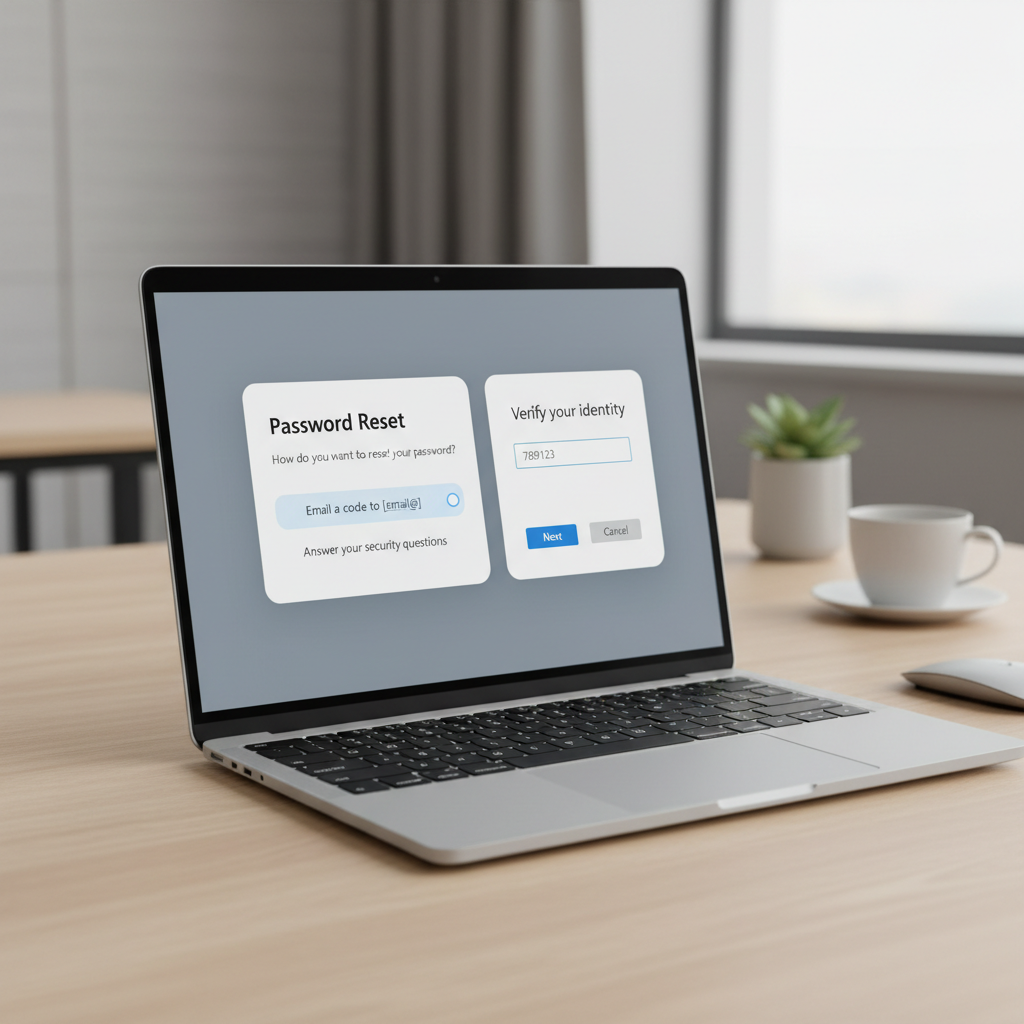
If it’s a Microsoft account
- Use Microsoft’s account recovery and reset process, then sign in again on the PC.
- If you see “You need to verify your identity,” follow the verification steps; timing and access to recovery email/phone matters.
If it’s a local account
- If you previously set security questions, Windows may offer a reset link on the sign-in screen.
- If another admin account exists on the PC, that admin can often reset your local password.
- If neither exists, recovery may require advanced steps; in many cases you’ll want professional help to avoid data loss.
If it’s a work account
- Use your organization’s password reset portal, or contact IT, because lockout policies vary.
Practical security tips before and after you change it
Changing credentials is good, but the small follow-up steps matter just as much, especially if you suspect your account was exposed.
- Update saved passwords in browsers and password managers, otherwise you’ll keep seeing failed sign-ins.
- Sign out of old sessions where possible, especially for a Microsoft account used across services.
- Turn on multi-factor authentication if available; it’s often the difference between “annoying” and “disaster.”
- Use a passphrase (a few random words) instead of a short complex string you’ll forget.
At-a-glance: which method should you use?
When you’re in a hurry, use this table to choose the correct path for how to change password windows 11 without guessing.
| What you use to sign in | Where to change it | What changes | Common pitfall |
|---|---|---|---|
| Microsoft account (email) | Microsoft account security page | Password across devices/services | Only changing PIN, not password |
| Local account (no email) | Settings or Ctrl+Alt+Del | Password on this PC | No recovery set up |
| Work/school account | Org portal / Ctrl+Alt+Del / IT policy | Org credentials | Lockout from repeated attempts |
| Windows Hello PIN | Settings > Sign-in options | Device unlock method | Assuming it updates account password |
Conclusion: a safe way to change your Windows 11 password
Most people can change credentials in minutes once they identify whether they’re using a Microsoft account, a local account, or a managed work profile. If you want fewer surprises, change the password through the correct “source of truth,” then restart and test sign-in with Password at least once even if you normally use a PIN.
If you’re unsure which account type you have, start in Settings > Accounts > Your info, then follow the matching steps above and avoid random resets that can create bigger problems.
Key takeaways (save this)
- Microsoft account password usually changes online, then syncs back to Windows.
- Local account password changes on the PC, and recovery options matter.
- PIN changes help device security but don’t replace a password change.
- Work devices may require IT-approved steps to avoid lockouts.
FAQ
Why did my Windows 11 password not change after I updated my PIN?
Because a PIN is a Windows Hello credential tied to that device, not your account password. If you need your Microsoft or local password updated, change the password directly in the account’s password section.
Can I change my Windows 11 password without knowing the current password?
Sometimes. Microsoft accounts usually allow a reset through account recovery if you can verify identity, and local accounts may allow resets via security questions or an admin account. If you don’t have recovery options, you may need professional help to avoid losing access to files.
How often should I change my password on Windows 11?
It depends on your risk level and whether an organization enforces rotation. Many people focus less on frequent changes and more on strong unique passwords plus multi-factor authentication, which is often more practical.
Does changing my Microsoft account password sign me out everywhere?
Not always immediately. Some sessions persist until they re-authenticate. For higher security, review your account security settings and sign-in activity and consider signing out of other sessions where the service allows it.
What if my Windows 11 laptop is managed by my employer?
Use your company’s official reset method or contact IT. Managed devices can enforce rules that block local changes, and too many attempts can trigger lockouts.
Where do I find “Change a password” on Windows 11?
On many systems it appears under Ctrl + Alt + Delete. If you don’t see it, your account type or policy may not support that route, so use Settings or your account portal instead.
Is it safe to use a PIN instead of a password?
In many cases, yes, because the PIN is device-bound and can be backed by hardware protections, but it doesn’t replace good account security. If your concern is account takeover, changing the account password and enabling MFA usually helps more.
Want the “least hassle” setup after you change it?
If you’re trying to reduce future lockouts, consider pairing a strong password with a password manager and multi-factor authentication, then keep Windows Hello enabled for daily convenience. If your situation involves a work device or shared family PC, getting the account type and recovery options right upfront saves time later.